Combat Booster
Small tweaks that make combat easier to follow and faster to run: animated turn markers on the tokens, a row of recently used actions on the token HUD, and options that do the routine work for you, like selecting the active token or marking dead monsters as defeated.
The turn markers and the automations work in every game system. The Recent Actions row is for D&D 5e only.
Getting Started
Enable the module and start a combat: the active combatant gets a spinning marker under its token, with no setup
needed. Everything else is turned on or off in Game Settings -> Configure Settings -> Combat Booster: Turn Marker, Recent Actions and more.
Foundry has its own turn marker. When Combat Booster's Enable Turn Marker is on, the module turns off Foundry's
marker so the two don't overlap, and tells you so with a notification.
Turn Markers
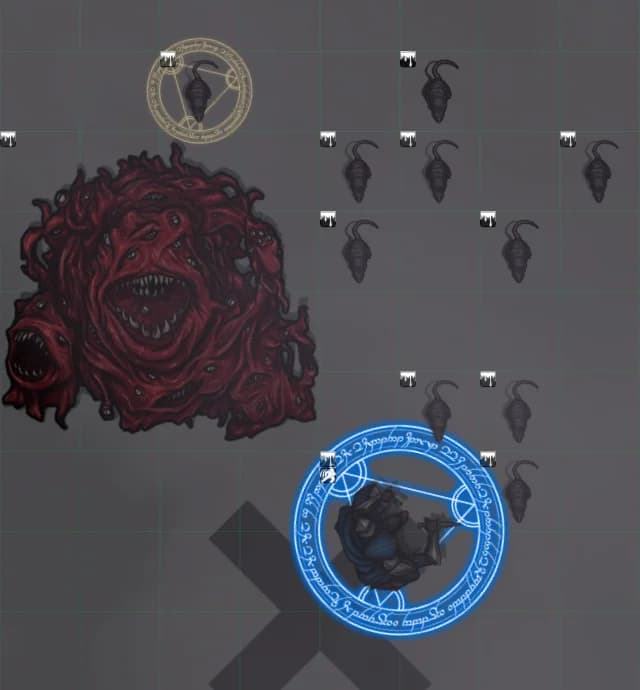
During a combat, up to three markers are shown on the scene:
- Turn Marker (the blue circle): under the token whose turn it is.
- Next Turn Marker (the faded circle, top): a faded copy of the turn marker on the token that acts next, so its player can get ready.
- Start Turn Marker (the X): where the active token started its turn, so you can see how far it moved.
Each one can be turned on or off with Enable Turn Marker, Enable Next Turn Marker and Enable Start Turn Marker.
Changing the Look
- Turn Marker Image and Start Turn Marker Image: pick any image or video (animated
.webmfiles work). The module comes with several inmodules/combatbooster/markers/. - Turn Marker Rotation Speed: how fast the marker spins,
0to stop it. - Turn Marker Scale: make the marker larger or smaller than the token.
- Turn Marker Transparency: lower values make the marker more see-through.
- Turn Marker Above: draw the marker over the token instead of under it.
- Turn Marker: Ignore Token Scale: size the marker on the token's width and height only, ignoring a scaled-up or scaled-down token image.
Recent Actions (D&D 5e)
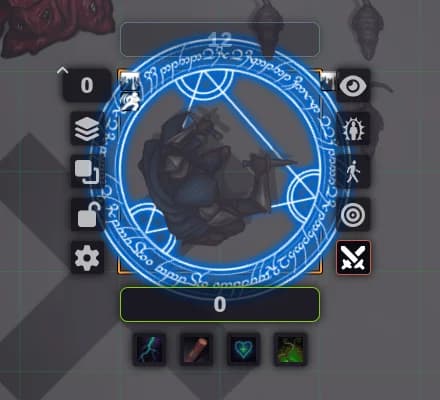
Right-click a token to open its HUD: under the token, a row of icons shows the items, spells and features the actor used most recently, newest first. Click an icon to use it again.
- Enable Combat HUD (dnd5e only): show or hide the row.
- Recent Items: how many recent actions to show.
- Combat HUD Columns: how many icons per row before wrapping to a new line.
0fits the row to the token's width.
The list fills up as the actor uses items; until then, nothing is shown.
Automations
All of these are off by default.
- Mark Defeated: when an NPC drops to 0 hit points it is marked defeated in the combat tracker. If it is healed, the mark is removed.
- Body Pile: when an NPC drops to 0 hit points its token is moved off to the top-left corner of the scene. To
choose a different spot, place a token named
pilethere. - Pan Camera: at the start of each turn, the camera moves to the active token. Players only follow tokens they can see.
- Auto-Select Token On Turn Start: the GM automatically selects the active token, ready to move or attack.
- Ignore Player Tokens: don't select the tokens owned by players, only the GM's.
- Auto Enable HUD: open the token HUD of the active token at the start of its turn (GM only). Together with Recent Actions, the GM's monsters are ready to act with one click.
- Your Turn Notification: show players an
It's Your Turn!notification when one of their tokens starts its turn.
Mark Defeated and Body Pile only apply to NPCs (actors no player owns), during a combat that has started.
Combat Sounds
The module adds a Combat Booster set of sounds for the start of combat, "you are next" and "your turn". Each user can
choose it in Configure Settings -> Core -> Combat Tracker -> Combat Theme.
Advanced
Hit Points in Other Systems
Mark Defeated and Body Pile read the actor's hit points from the Current HP setting, a data path inside the
actor's system data. The default attributes.hp.value works for D&D 5e and many other systems. For a different
system, find where it stores current hit points (for example by typing _token.actor.system in the browser console
with a token selected) and enter that path. Max HP is the matching path for maximum hit points.
Credits
- BlueRunes, tolkienmarker and italianpride images by Simone.
- Rune style images by Rin.
- DoubleSquare, Darkest and darksign images by Wassily (JB2A (opens in a new tab)).
- BlueCircle image by Jinker (opens in a new tab).
- Red, Yellow and Green circle images by Brimcon.
- DoubleSquareMuted and PointedCircleMuted by hobolyra.
- Cycle, oldwest, puzzle, rqhdg-6ypzz and runes
.webmfiles by cefasheli.