Camp
View and manage your party downtime, rest and roleplay scenes in a 3D camp environment.
Getting Started
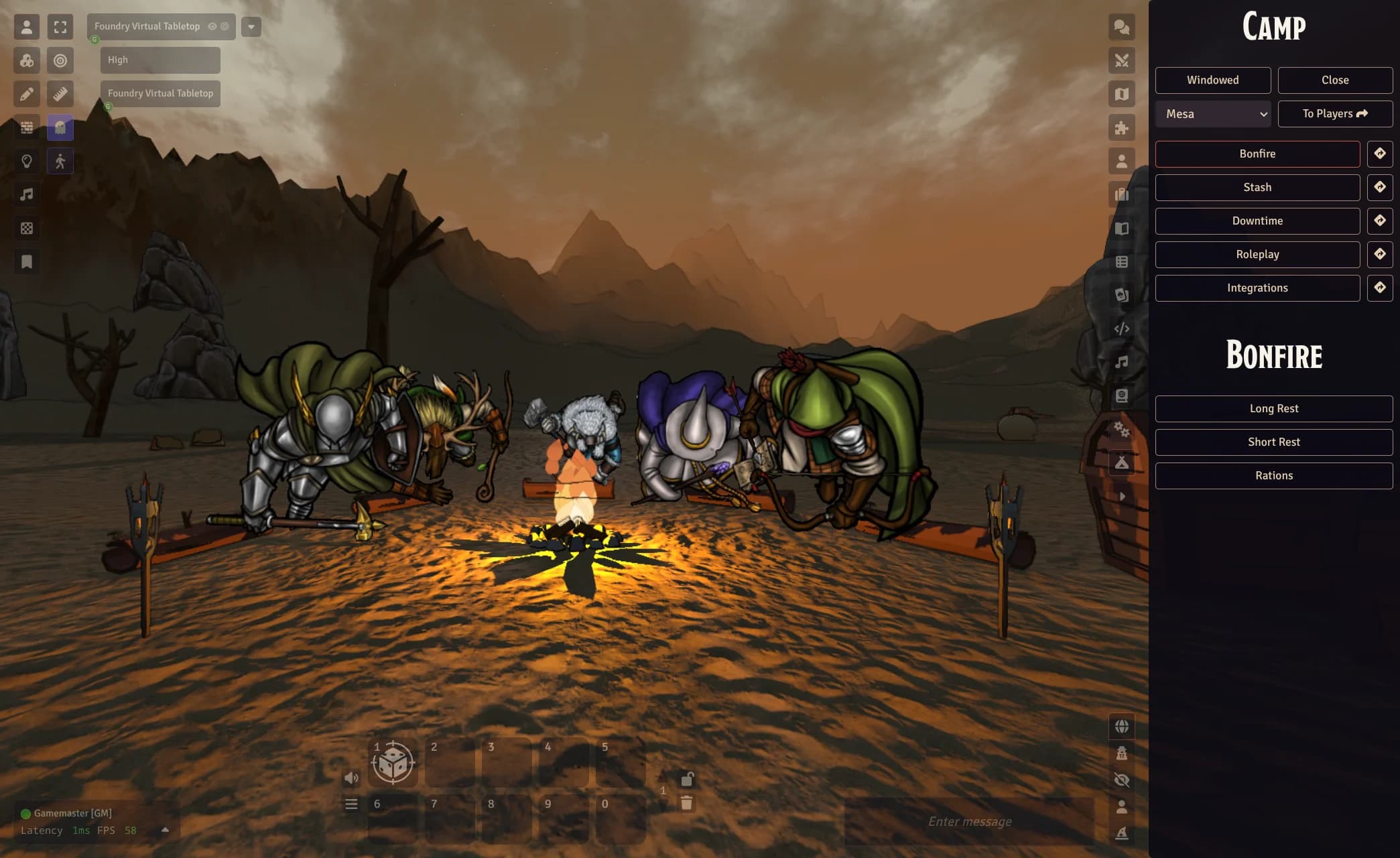
Camp adds a new Camp tab (campground icon) to the sidebar. From there you can:
Open/Closethe camp, and switch betweenFullscreenandWindowed- Pick the camp scene: Mountains, Desert, Mesa, Cave, Village or Dungeon (GM only)
- Click
To Playersto open the camp for all players (GM only)
The party is made of every user with an assigned character.
Before you start, set the Stash Actor and Ration Stash Actor in the module settings. Players need ownership of these actors to move items in and out of them.
Stations
The camp is split into five stations. Move between them with the sidebar buttons or the arrows on the sides of the camp. As the GM, click the arrow button next to a station to send every player with an open camp to that station.
Bonfire
Rest with your party. The bonfire shows a button for each rest type of your system (for example Long Rest and Short Rest in dnd5e).
When someone clicks a rest button, a rest window opens for the whole party:
- Each player picks rations from their own inventory, the Ration Stash or the Stash until the party requirement is met
- Each player clicks
Ready - When everyone is ready, the rations are consumed and the rest is performed
The GM can force the rest with Start Rest without waiting for everyone.
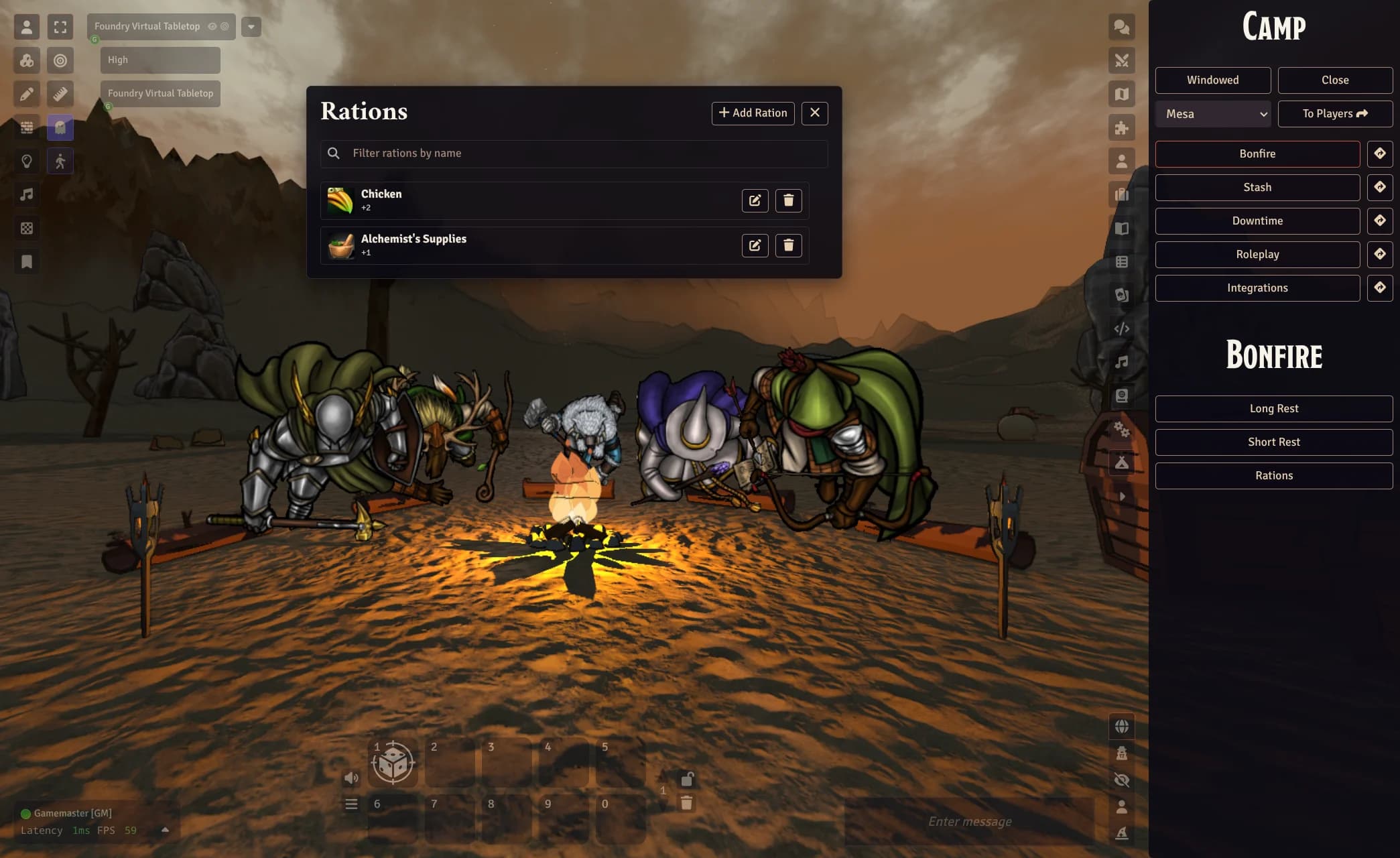
The GM decides which items count as rations with the Rations button. See Rations and Rest Requirements.
Stash
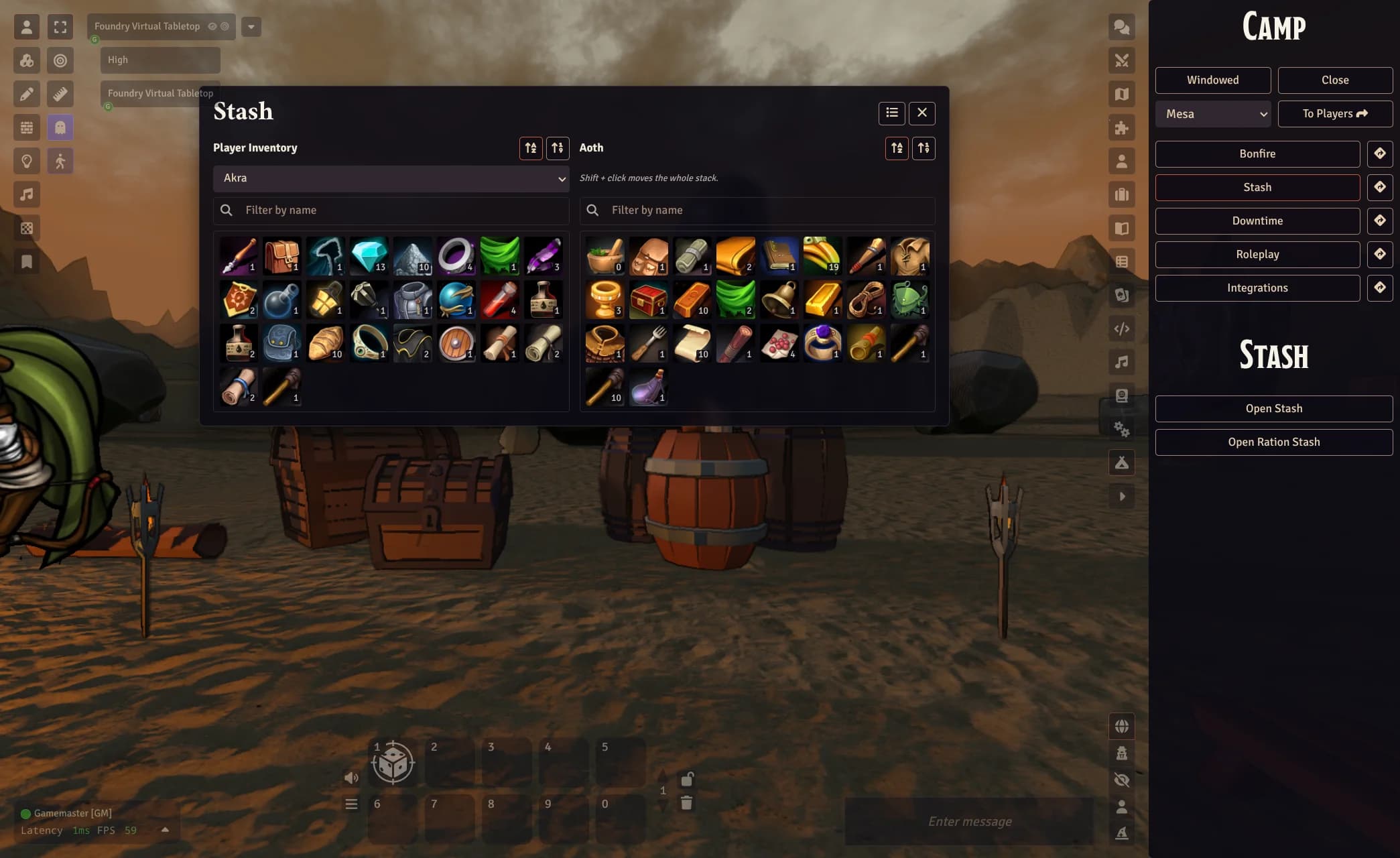
Open the Stash or the Ration Stash to move items between your inventory and the shared party inventory.
- Drag an item to the other column to move it; you will be asked how many to move
Shift + Clickmoves the whole stackRight Clickfor more options: Edit, Move Whole Stack, Move..., Delete- Filter by name, sort by name or quantity, and switch between grid and list view
If you own more than one character, pick which inventory to use from the dropdown.
Downtime
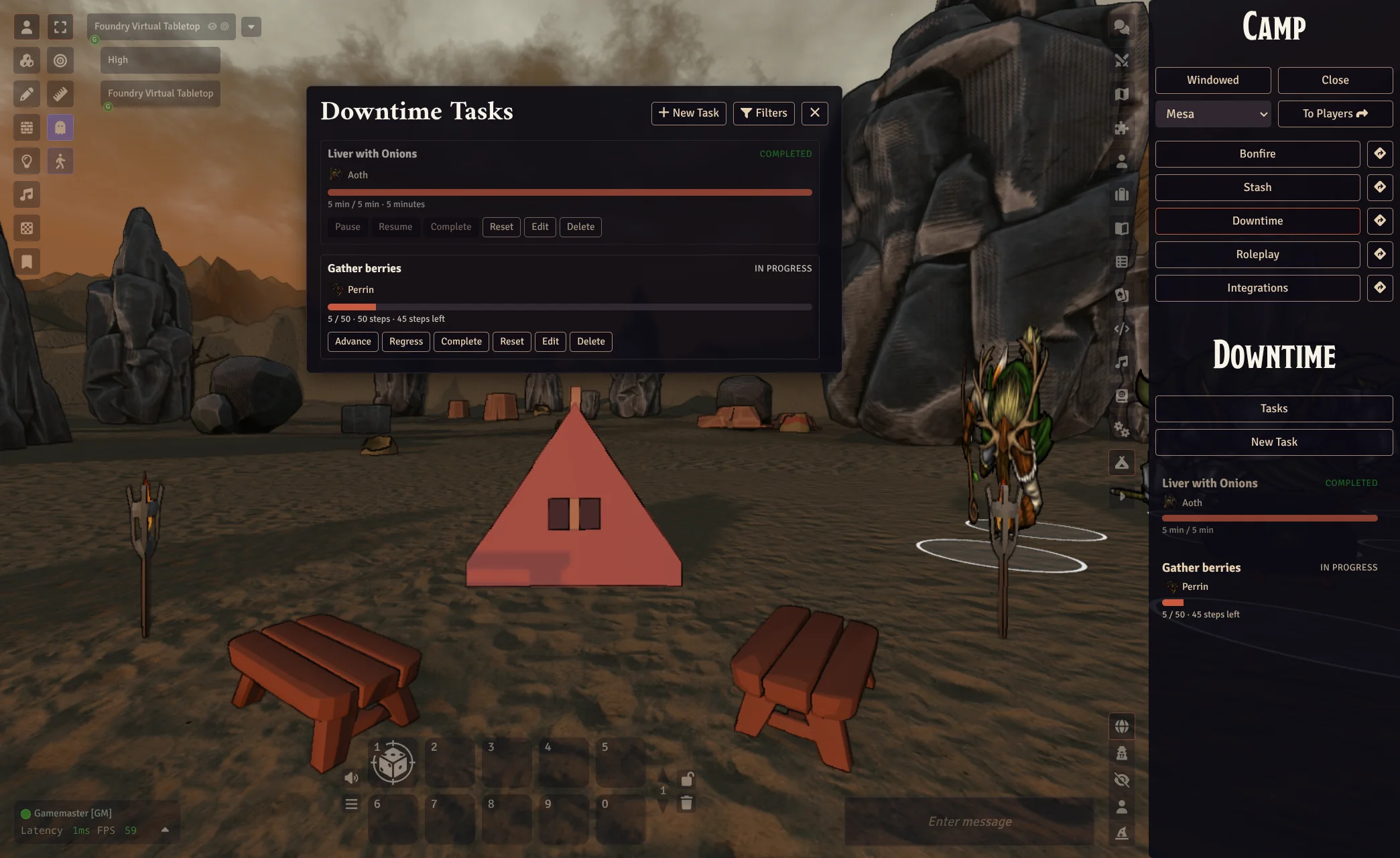
Track the party's downtime activities. The GM creates tasks with New Task, setting a name, a description, an optional actor and a duration:
- Steps: advanced manually by the GM
- Real Time: uses the real clock
- Game Time: uses the world time
See Downtime Tasks for details on each field.
The GM can Advance/Regress, Pause/Resume, Complete, Reset, Edit or Delete each task, from the Tasks window or by right clicking a task in the sidebar. Players can follow the progress of every task.
Roleplay
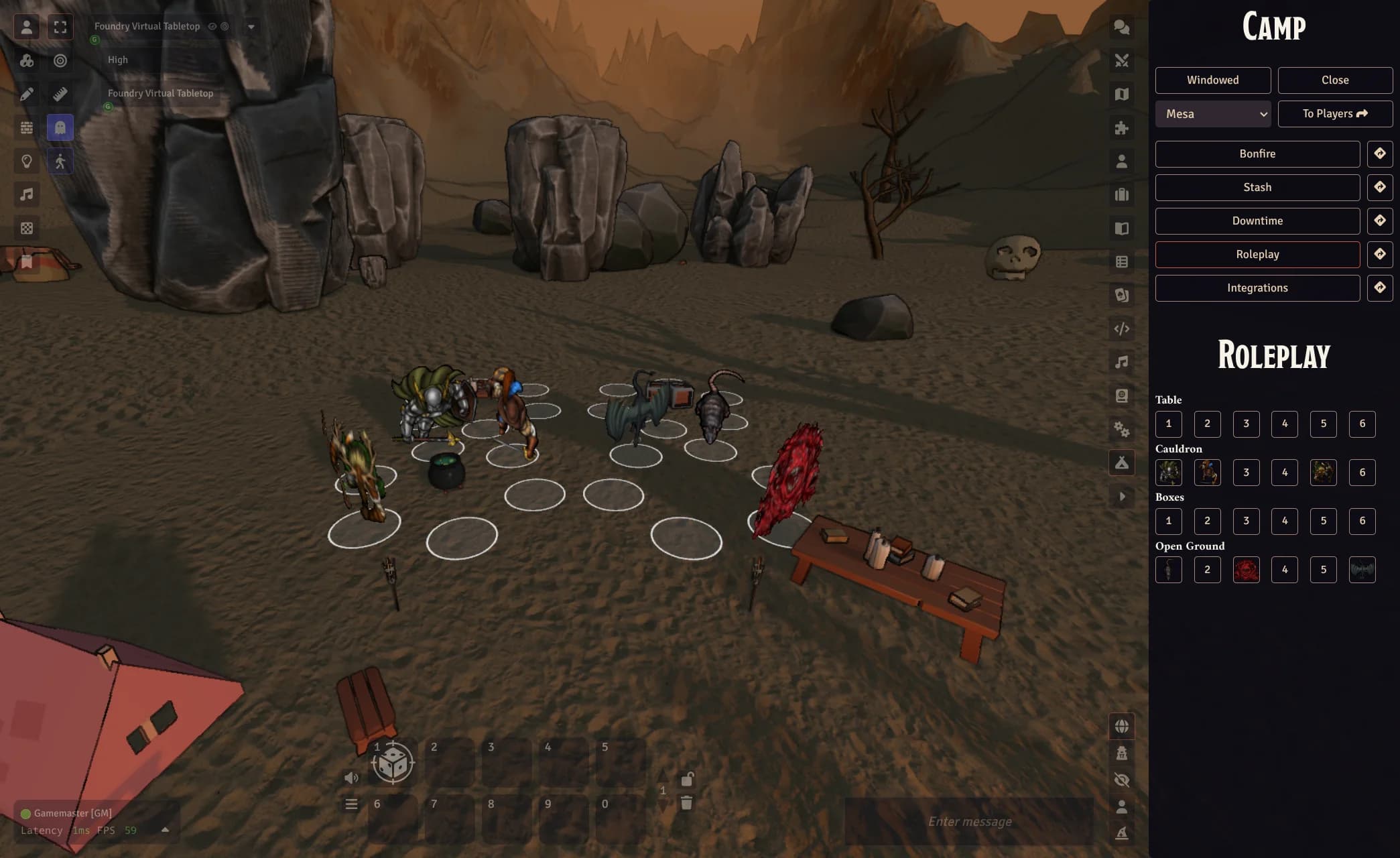
Set up a roleplay scene. The GM places actors around the Table, the Cauldron, the Boxes or the Open Ground (6 spots each) by clicking a spot in the camp or the numbered buttons in the sidebar. Click an actor in the camp to open its sheet, right click it to change or remove it.
Integrations
Quick access to Mastercrafted (opens in a new tab), Paper Doll (opens in a new tab) and Simple Quest (opens in a new tab), if active.
Camp Image
By default the camp uses the token image of each actor. To use a different image, open the Prototype Token configuration, go to the Appearance tab and set the image in the Camp section.
Settings
- Quantity Path: where the item quantity is stored in the item data (for example
quantityorquantity.value). Set automatically for supported systems - Stash Actor: the actor used as the party stash
- Ration Stash Actor: the actor used as the party ration stash
- Scene: the environment of the 3D camp
- Rest Requirements: rations required per party member and hours of game time advanced for each rest type
Advanced
Rations
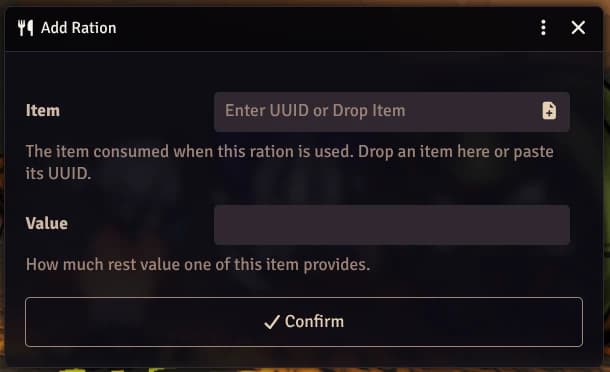
Open from Bonfire → Rations → Add Ration (GM only).
- Item: drop an item or paste its UUID. Items are matched by name, so any item with the same name in an inventory counts as this ration
- Value: how much rest value one unit provides
Rest Requirements
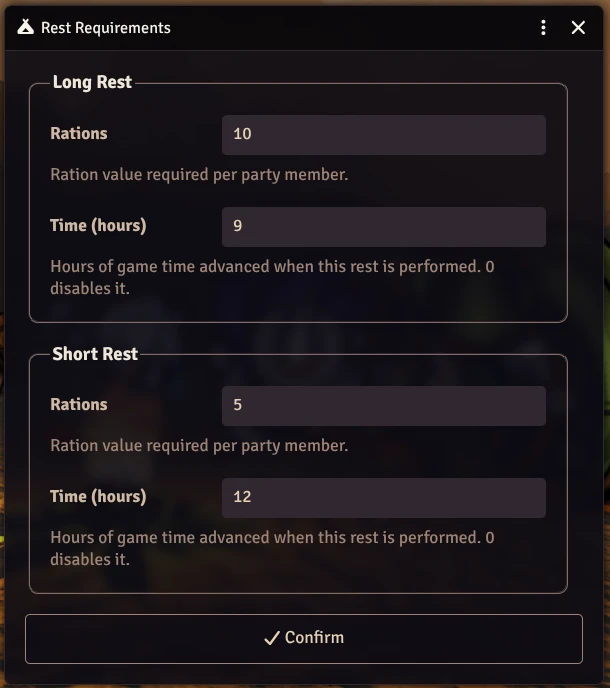
Open from Module Settings → Rest Requirements → Configure. One section per rest type of your system.
- Rations: ration value required per party member. The total is multiplied by the number of users with an assigned character. For example, 2 per member with 4 members means 8 points: 4 Chicken (+2) or 8 Alchemist's Supplies (+1)
- Time (hours): game time advanced when the rest starts.
0disables it
Downtime Tasks
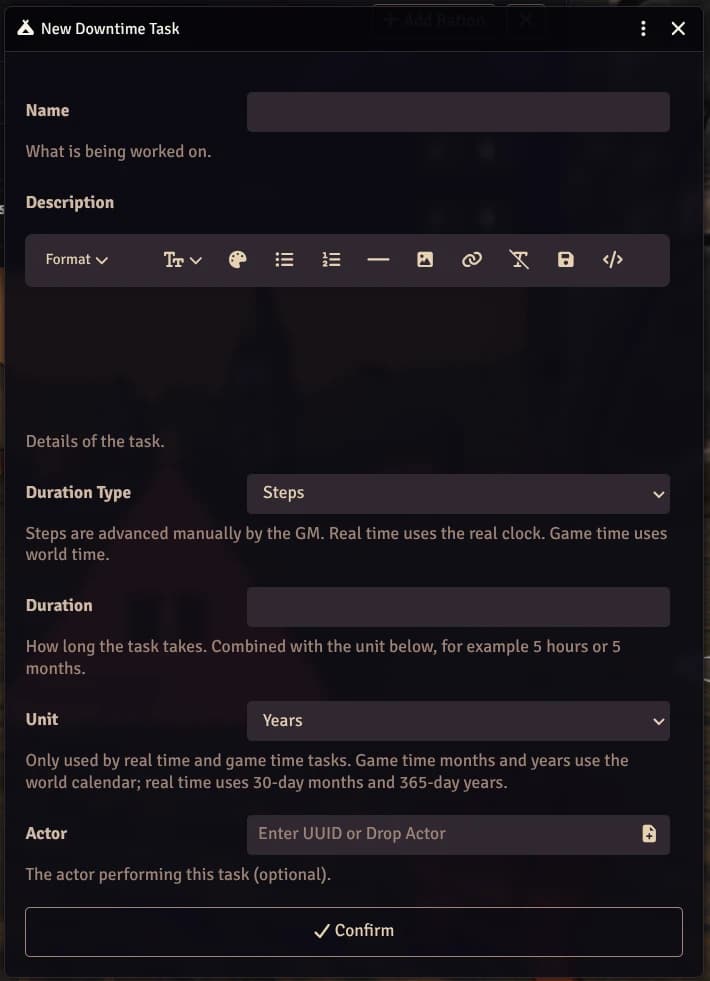
Open from Downtime → New Task, or Edit on an existing task (GM only).
- Name and Description: what is being worked on
- Duration Type:
- Steps: advanced manually by the GM
- Real Time: uses the real clock, keeps counting while Foundry is closed
- Game Time: progresses only when the world time advances
- Duration and Unit: for example 5 hours. Game time months and years use the world calendar; real time uses 30-day months and 365-day years
- Actor: the actor performing the task (optional)