Stage Master
Stage Master is designed both for classic in-person play, using a spectator second screen controlled by the GM at the table, and for regular remote sessions.
Getting Started
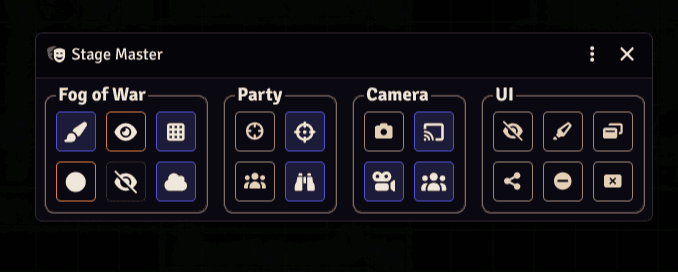
The main window is divided into four sections, each with its own set of tools that you can use to control the scene.
- Fog of War: manually edit the fog of war with a variety of brushes to keep full control of scene visibility
- Party: pack/unpack tokens, mirror GM selected tokens to players and share vision between all the tokens in the party
- Camera: clone the GM camera's position, manually control the camera or automatically follow the action on the screen
- UI: hide or highlight elements on player's screens, share media and manage player windows
Fog of War
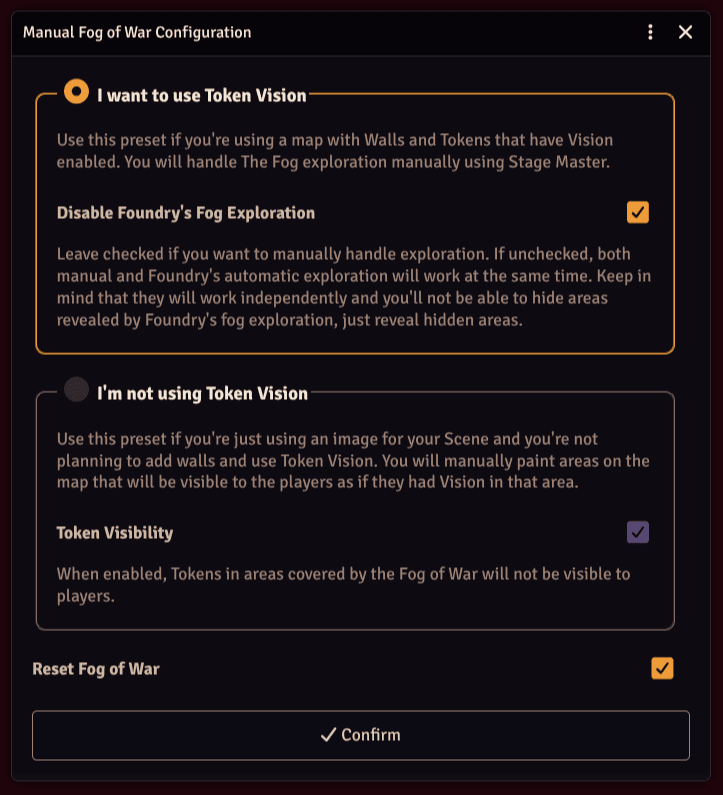
The first time you click on the paint button you will be presented with some choices.
- Select the first one if you want to paint the fog and have your tokens see in their normal vision range.
- Select the second one if you want to paint the shared vision. In this case, revealed areas will be visible regardless of the token's actual vision range.
Clicking
Confirmwill activate the Manual Fog of War for the current scene. You can deactivate it inScene Config->Visibilitytab ->Stage Mastersection.
Tools
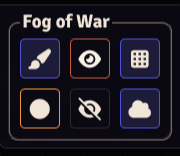
- Paint (top-left): toggle to paint on the screen
- Brush (bottom-left): on click, opens a menu with different brushes
- Reveal (top-center): if selected, painting will reveal the area
- Hide (bottom-center): if selected, painting will hide the area
- Grid (top-right): toggle to paint following grid lines
- Show (bottom-right): toggle to show the fog of war on the GM screen
Party
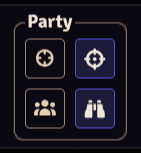
- Clone Targets Manual (top-left): clone the GM selected tokens to the players
- Clone Targets Continuous (top-right): toggle to clone the GM selected tokens to the players continuously
- Pack/Unpack (bottom-left): pack selected tokens into a single Party Token or unpack a Party Token into its original tokens
- Shared Vision (bottom-right): toggle the shared vision between all the tokens in the party
Camera
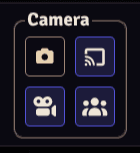
- Current Viewport (top-left): clone the GM camera's position
- Continuous Viewport (top-right): toggle to clone the GM camera's position continuously
- Toggle Director (bottom-left): toggle to open the camera director, a movable and resizable window that allows the GM to control players' cameras precisely
- Follow Action (bottom-right): toggle to automatically follow the action on the screen. The
Follow Action ModeSetting determines if the camera will only follow selected/targeted tokens or all visible ones.
UI
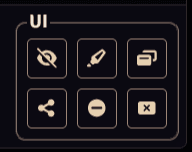
- Hidden Elements Config (top-left): open the hidden elements configuration window, lets the GM hide elements on the players' screens
- Share Media (bottom-left): share a single fullscreen image or video to all players
- Highlight Element (top-center): highlight an element on the players' screens
- Quick Curtain (bottom-center): rapidly opens an unclosable fullscreen image on players' screens to prevent spoilers
- Player Window Manager (top-right): open a window that allows the GM to close or minimize windows on players' screens
- Close All Applications (bottom-right): close all windows on players' screens
Advanced
Fog of War Initialization
The checkbox Disable Foundry's Fog Exploration controls wether the fog is explored only manually (checked) or also by the tokens's vision (unchecked). Leave checked if you want to manually handle exploration. If unchecked, both manual and Foundry's automatic exploration will work at the same time. Keep in mind that they will work independently and you'll not be able to hide areas revealed by Foundry's fog exploration, just reveal hidden areas..
The checkbox Token Visibility controls wether the tokens outside the vision area are hidden or not. If you uncheck it, you'll have to manually hide tokens outside the vision range. Leave it checked if you want token visibility to be handled automatically.
Token Visibility can be later toggled on/off in Scene Config -> Visibility tab -> Stage Master section.
Reset Fog of War just resets the Fog of War to its initial unexplored state when you press Confirm.
Fog of War Brushes
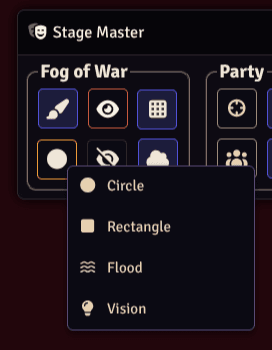
You can choose between a variety of brushes to paint the Fog of War. Most of them can be gridified by toggling the Grid button.
- Circle: paints a circle. Change size by
Ctrl + Scroll. - Rectangle: paints by dragging a rectangle, as if you were selecting an area on the screen.
- Flood: click on the screen and define a circle by moving the mouse. All "reachable" cells inside this radius will be painted.
Floodconsiders walls as obstacles and will not go over them. This brush is already grid-aware, so theGridtoggle will do nothing. - Vision: click on the screen and define a circle by moving the mouse. Everything visible from the center to the edge of the circle will be painted.
Party Token Pack/Unpack
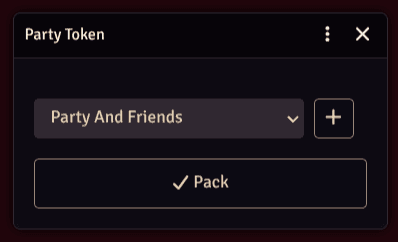
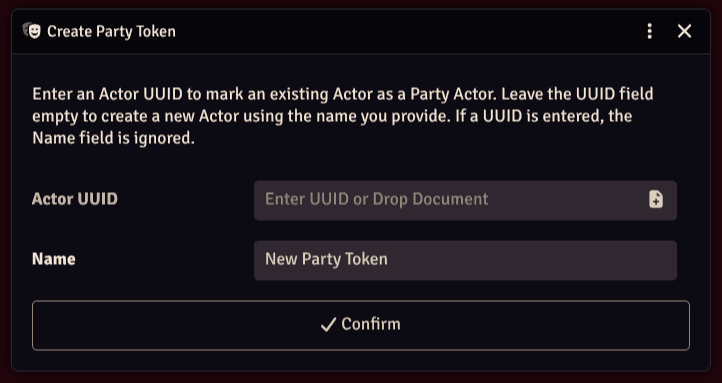
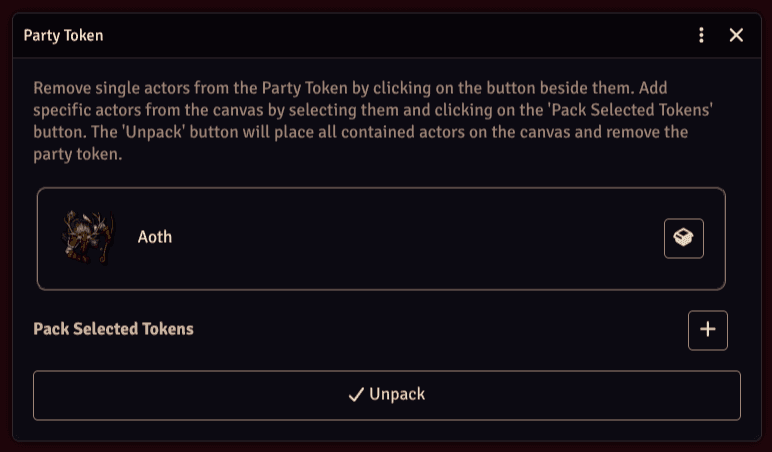
If no Party Token is available you'll have to create one. You can do so by clicking on the + button in the Party Token window.
You will be prompted to provide a UUID for an existing Actor that will be selectable as Party Token, or insert a name for a new Actor.
Packing will remove all controlled tokens from the Canvas and place the selected Party Token.
When unpacking a Party Token, you can either pop the contained tokens one at a time or Unpack it all at once.
Doing so will place all contained tokens around the Party Token and remove it from the Canvas.
When the Unpack window is open, you can also select other tokens and pack them into the existing Party Token by clicking on the + button.
Director's Cut
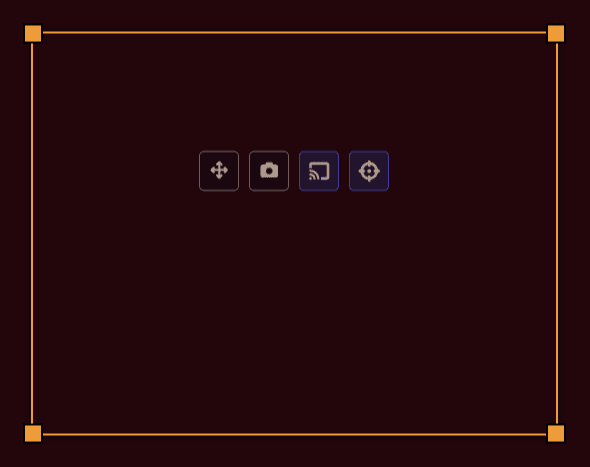
The Director can be resized by dragging the corners. It has four buttons:
- Move: moves the
Director - Current Viewport: makes the players' camera mirror the
Director's area on click - Continuous Viewport: toggle to mirror the
Director's area continuously - Follow Token: select a token then toggle
Follow Tokento make theDirectorfollow the token's movement
Hidden Elements Config
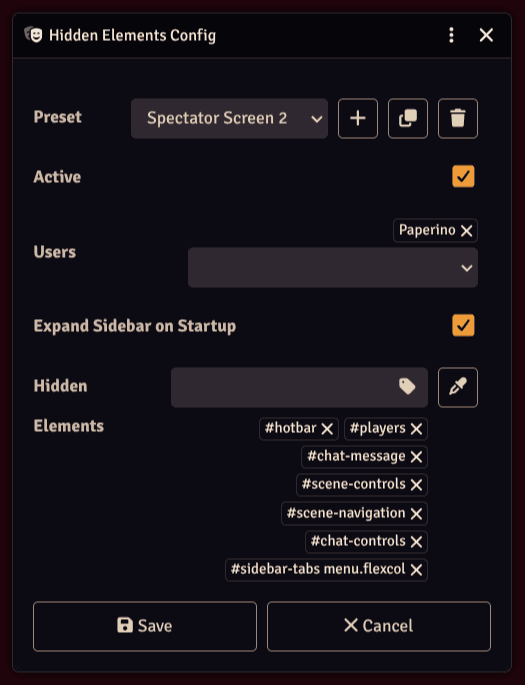
You can use the existing presets, delete them, duplicate them or create your own using the buttons near the Preset dropdown.
Active presets will be enforced on players' screens. An empty Users selection will make the preset apply to all players.
Expand Sidebar on Startup will expand the sidebar on players' screens when the game starts or when a preset changes.
You can add items to be hidden by writing their CSS selectors manually in the Hidden Elements field, or you can use the Picker button to select an existing item on the screen. If it also exists on players' screens, it will be hidden.
If you somehow managed to hide everything on GM screen and softlocked yourself, the following Macro removes Gamemaster user from all presets:
game.modules.get("stage-master").API.hiddenElementsPanicButton();Share Media
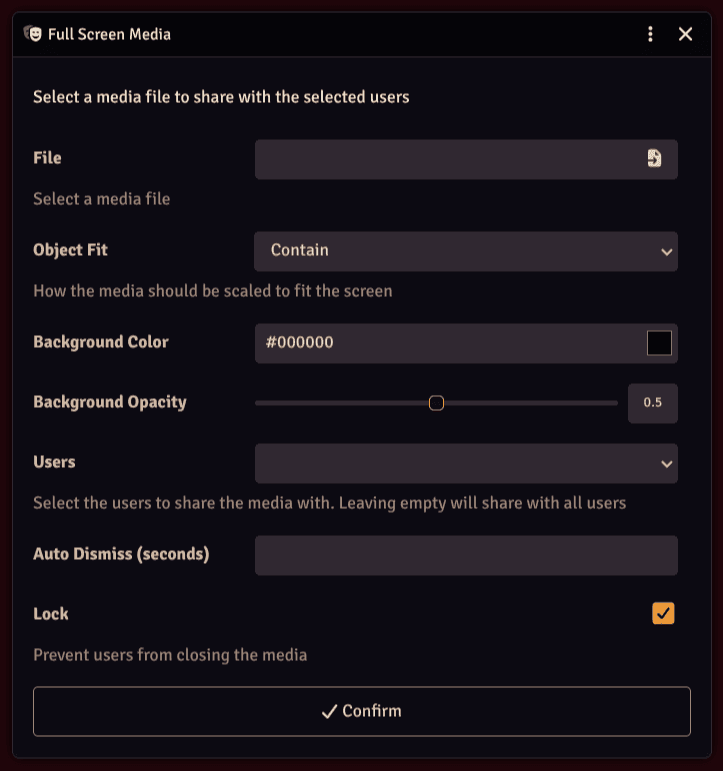
Choose the file to be shared in the File filepicker, or paste a valid path. If you opened an image in a popout, you can find Share with Stage Master in the Header context options. This will open the Share Media window with the media path already selected.
Object Fit controls how the media will be shown, you can choose between Contain, Cover and Stretch.
Background Color controls the background color of the area of the screen not covered by the media, Background Opacity controls the opacity of the background color.
Users field can be left empty to share the media with all players or you can select specific users.
Auto Dismiss (seconds) will close the media on players' screens after a certain amount of time.
Lock prevents players from closing the media on their screens.
When sharing some media, a window will open on GM screen with the preview of the media. Closing it or clicking Dismiss will close the media on players' screens.
Player Window Manager
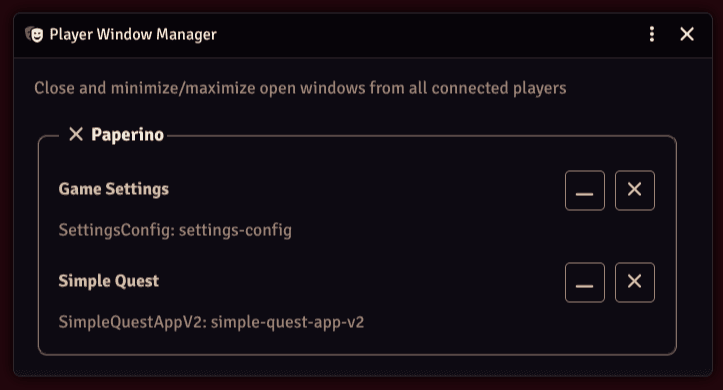
This window will show all the windows on players' screens grouped by player. You can close or minimize a specific window using the X and _ buttons beside it.
You can close all windows on a specific player's screen by clicking on the X button beside their name.
This window is updated once a second, so wait a little while after closing a window to see it disappear.
Gamepad
Stage Master lets you control the Camera with a gamepad. By default the first connected gamepad (index 0) is used, but you can change it in the module settings.
Controls
Left Stick: move the CameraRight Stick: zoom
You can also set macros or commands to be executed when a button is pressed on the gamepad.
Right now, only A, B, X, Y buttons (or equivalents) are supported.
For each button you can set a Press macro that is executed each frame the button stays pressed, and a Toggle macro that is executed once for each button press. For Toggle macros, a toggle button state is tracked automatically and passed to the macro.
// Pass custom arguments by adding them in the setting:
// myMacro|"Some string"|1337|true

/**
 * Callback function for a Press macro.
 *
 * @param {Object} [args] - System-provided parameters.
 * @param {number} args.pressedFor - Duration the button has been held down (ms).
 * @param {Array<*>} [userArgs=[]] - Optional custom arguments passed to the macro.
 * @returns {void}
 */

// Example Press macro
console.log(`Pressed for ${args.pressedFor} seconds`);
console.log(`String: ${userArgs[0]}, Number: ${userArgs[1]}, Boolean: ${userArgs[2]}`);
if (args.pressedFor < 5000) return;
ChatMessage.create({ content: "Look at me! I pressed a button for 5s!" });

/**
 * Callback function for a Toggle macro.
 *
 * @param {Object} [args] - System-provided parameters.
 * @param {boolean} args.toggle - The current toggle state.
 * @param {number} args.toggledFor - Duration the current state has been active (ms).
 * @param {Array<*>} [userArgs=[]] - Optional custom arguments passed to the macro.
 * @returns {void}
 */

// Example Toggle macro
console.log(`Toggled to ${args.toggle}`);
console.log(`Toggled for ${args.toggledFor} seconds`);
console.log(`String: ${userArgs[0]}, Number: ${userArgs[1]}, Boolean: ${userArgs[2]}`);
if (!game.user.isGM) return;
game.togglePause(args.toggle);