AutoCover - Automatic Cover Calculator
AutoCover works out how much of a creature is hidden from an attacker, so you never have to argue about cover again. It looks at walls, floors between scene levels, other tokens and areas you mark as cover (hedges, crates, smoke), shows the result on the map and, in combat, applies your game system's cover rules for you.
It works on its own (the Levels module is not needed) and is preconfigured for D&D 5e, Pathfinder 2e, Call of Cthulhu 7th Edition, Warhammer Fantasy Roleplay 4e and Daggerheart. Other systems use Active Effects you choose.
Getting Started
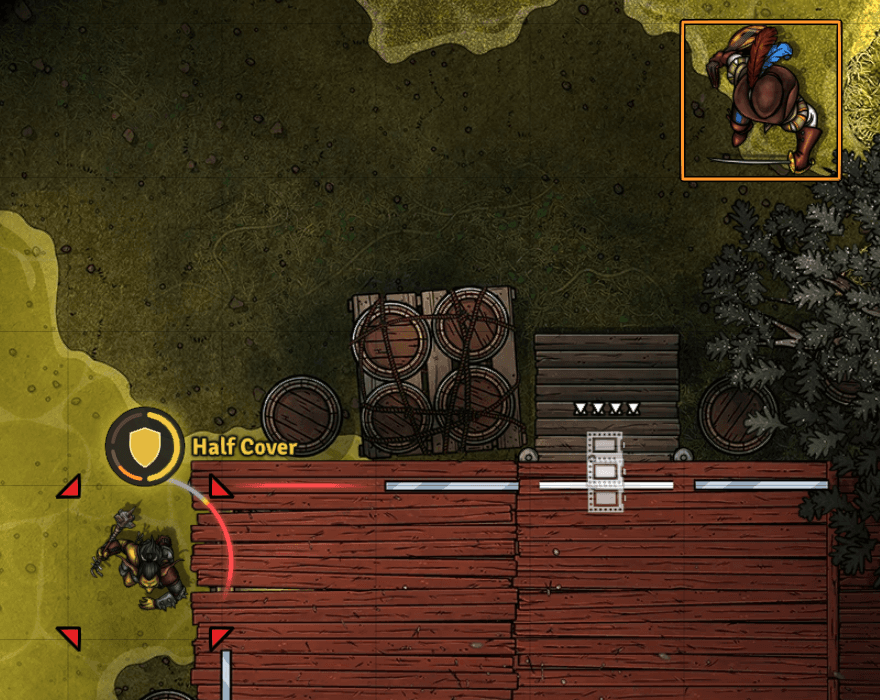
- Select one of your tokens (the attacker).
- Target an enemy (hover it and press
T, orRight-clickit and use the target button in the token HUD). - AutoCover shows how well the enemy is covered from your token:
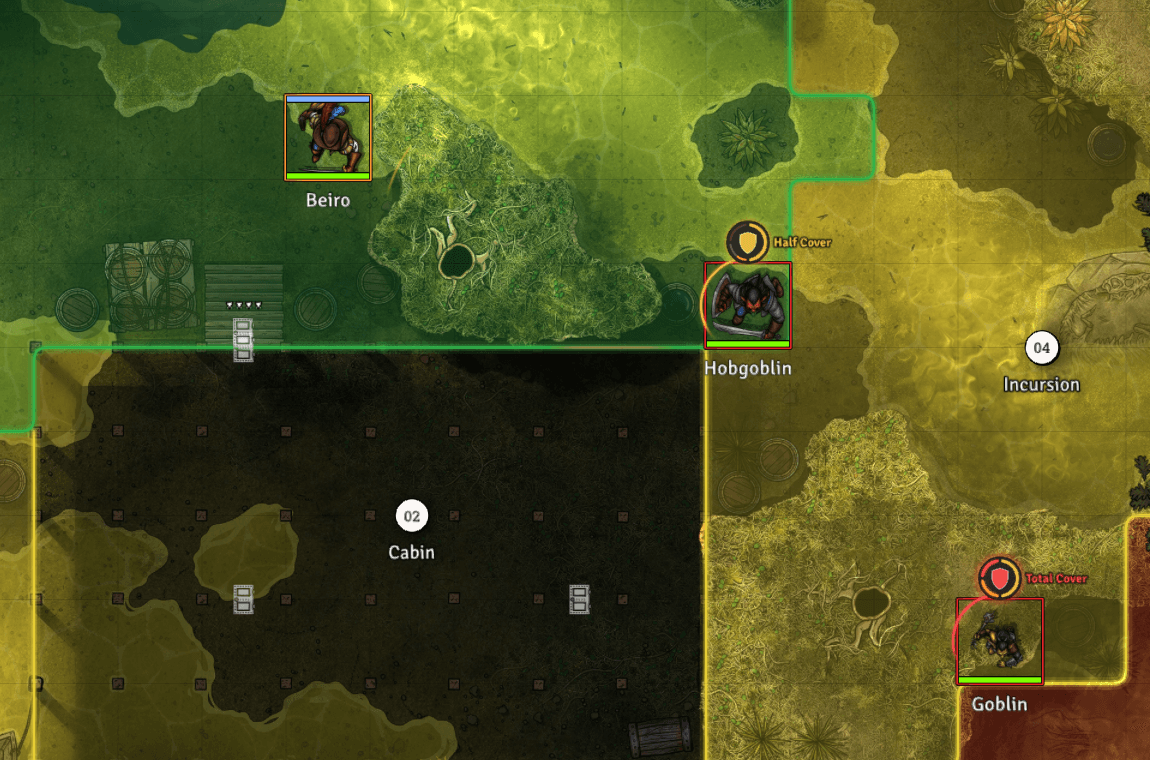
- Badge: a shield above the target with the name of the cover tier (
Half Coverin the picture). The ring around the shield fills up with the covered share of the target, one segment per tier. - Facing arc: a curve on the side of the target that faces the attacker.
- Cover sources: the walls, regions and tokens that block the line of sight are highlighted.
- Badge: a shield above the target with the name of the cover tier (
A cover tier is one of your system's cover levels, like Half Cover or Three-Quarters Cover in D&D 5e. AutoCover measures what percent of the target is covered (hidden) and picks the highest tier that percent reaches: with the D&D 5e defaults, a target that is 60% covered has Half Cover.
The calculation is in 3D: walls only block between their bottom and top, the floors of scene levels block lines
of sight between levels, and token heights come from their size. By default only walls and floors that block
movement give cover; you can change this with Cover From Walls and Floors in the Settings.
The visuals are only for you. Players see them for their own tokens and targets, and the GM can also see the players' targets (see Settings).
Cover in Combat
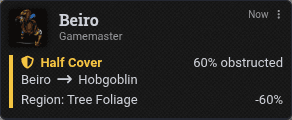
By default AutoCover applies cover only in combat, on your turn: when the token whose turn it is targets someone, the cover is applied right away.
- D&D 5e: the target receives the system's own
Half Cover,Three-Quarters CoverorTotal Coverstatus, so dnd5e adds its cover bonus to AC and Dexterity saves. - Other systems: see Cover Tiers for what each system receives.
The cover is removed when the target is untargeted, when the turn changes and when combat ends. Players can target tokens they don't own: the change is made through the GM, so a GM must be connected.
Turn on Cover Chat Card to also post a card with the cover tier, how much of the target is obstructed and what is
blocking it. Only the latest card of each user is kept, and all cover cards are deleted when combat ends.
The visuals always work, also outside combat, so players can plan their moves before their turn.
To change when cover is applied, open Game Settings -> Configure Settings -> AutoCover -> Configure Settings
and set Automatic Cover to Always (whenever someone targets) or Never (visuals only).
Cover from Areas
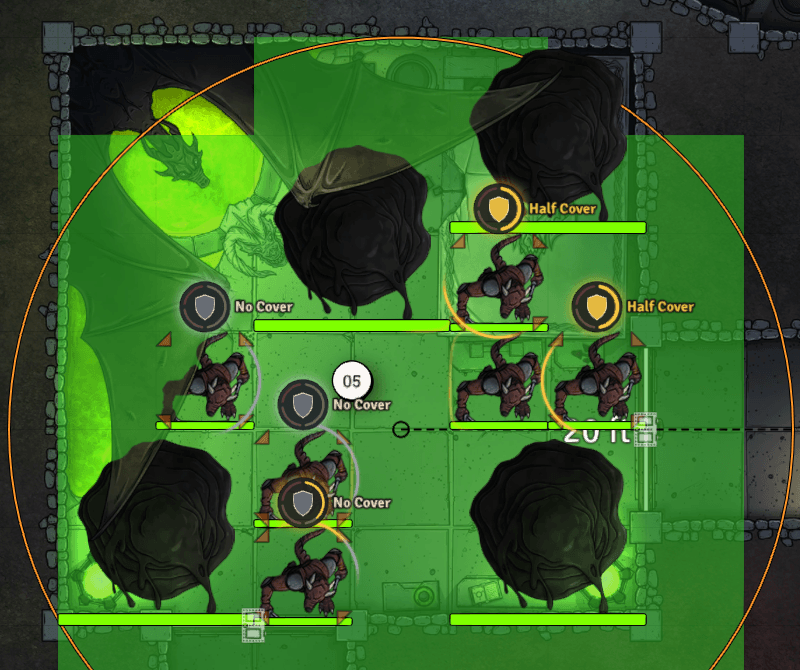
A spell like Fireball does not come from the caster: it bursts from a point, and what matters is whether something stands between that point and each creature. AutoCover takes care of this for area spells:
- Target the creatures you want to hit.
- Cast the spell and move its area on the map. While you place it, the badges show the cover of each target from the center of the area instead of from your token. In the picture, two kobolds are behind other creatures and have Half Cover from the blast, the others have none.
- Click to place the area. In combat, on the caster's turn, the cover of the targets is applied (in D&D 5e the
Half CoverorThree-Quarters Coverstatus, which adds to Dexterity saving throws).
Creatures you target right after placing the area, while they stand inside it, get their cover too. The cover stays on even if you untarget them, and it is removed when the turn changes, when the area is deleted or when combat ends.
The cover is measured from the point the area starts from: the center of a sphere or circle, the tip of a cone or line, or the token for an emanation. When the area starts from the caster, the caster's eyes are used; otherwise a point half a square above the floor.
In systems without dedicated support, area cover is applied only when Apply Effects To is set to Target
(see Other Systems). The badges work in every system.
Cover Preview
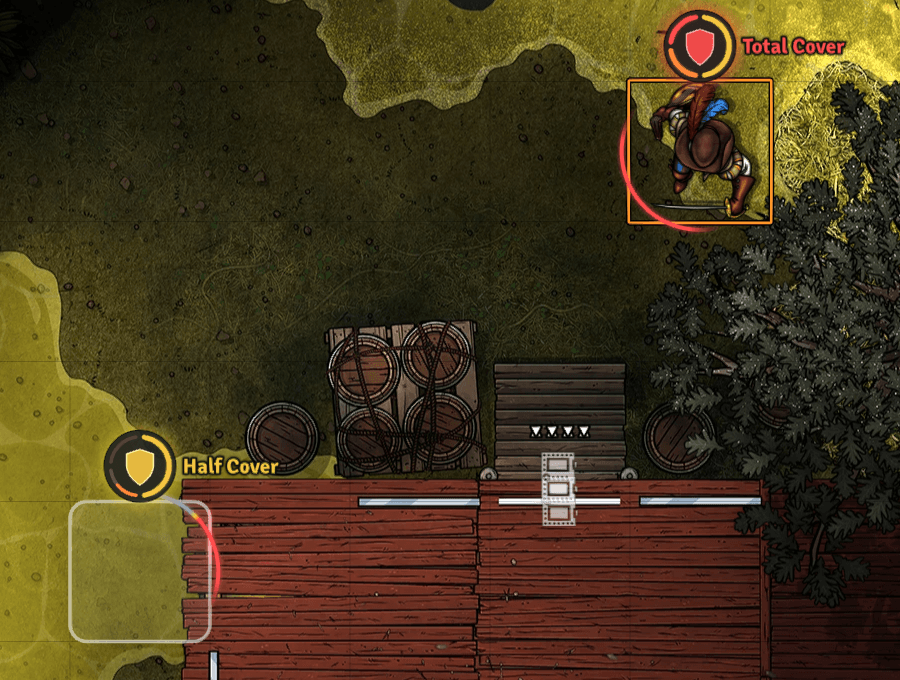
Want to know if that pillar is worth running to? Select your token, hold V and move the mouse over the map. A
square follows the cursor and AutoCover shows the cover both ways:
- on the square: the cover a creature standing there would have from your token;
- on your token: the cover your token would have from a creature standing there.
The two can differ. In the picture, a creature next to the cabin has Half Cover from Beiro, but Beiro has Total Cover from it because the cabin's corner hides him completely.
While holding V you can also click and drag: the preview then measures from where you started dragging to the
cursor, with or without a selected token. You can change the key in Configure Controls (Preview Cover).
By default players can only preview in areas they can see or have explored, so they can't use it to find hidden
walls. Change this with Cover Preview for Players in the Settings. The GM can always preview
anywhere.
Tactical View
Hold Alt (Foundry's Highlight Objects key) with a token selected to see the whole battlefield at once:
- Cover: every visible token shows its cover from your token, as if you had targeted it.
- Movement: the grid spaces your token can reach this turn are highlighted with the colors of the system's ruler, accounting for walls and difficult terrain. In D&D 5e, green is your normal speed and yellow is the extra distance of a Dash. In combat, the current combatant's range is shown too.
Click a highlighted space while holding Alt to move your token there along the shown path.
Cover Regions
Walls and tokens are not the only things that hide a creature. Bushes, crates, low walls or a cloud of smoke can be turned into cover with a Foundry region:
- Draw a region over the hedge, crates or smoke (
Regionstools on the left). - Open the region's configuration and go to the
Behaviorstab. - Add a behavior and pick
Cover. - Choose how much cover it gives (see below) and click
Update Region Behavior.
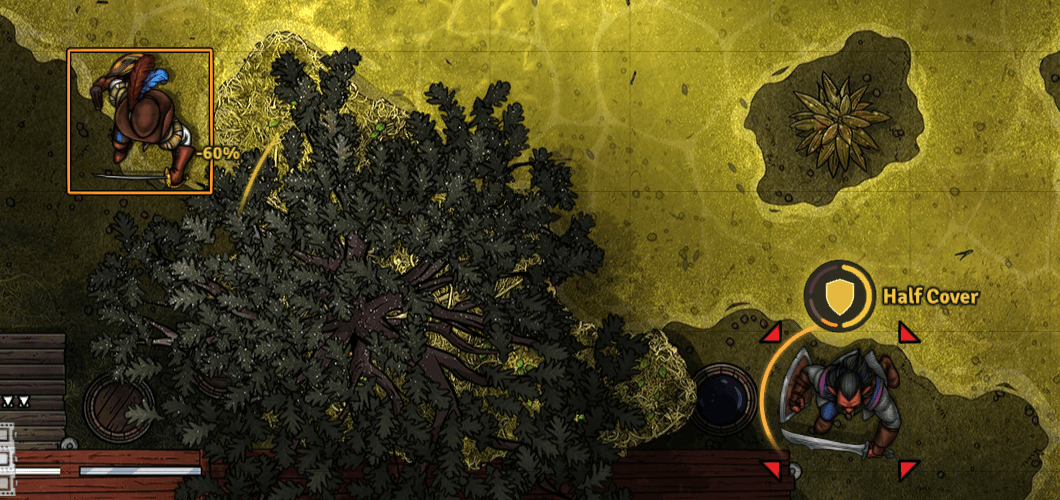
The region now blocks part of every line of sight that crosses it: in the picture, the tree gives the Hobgoblin Half Cover from Beiro. The region's bottom and top elevation are respected, so a low wall only covers what is behind it at its height.
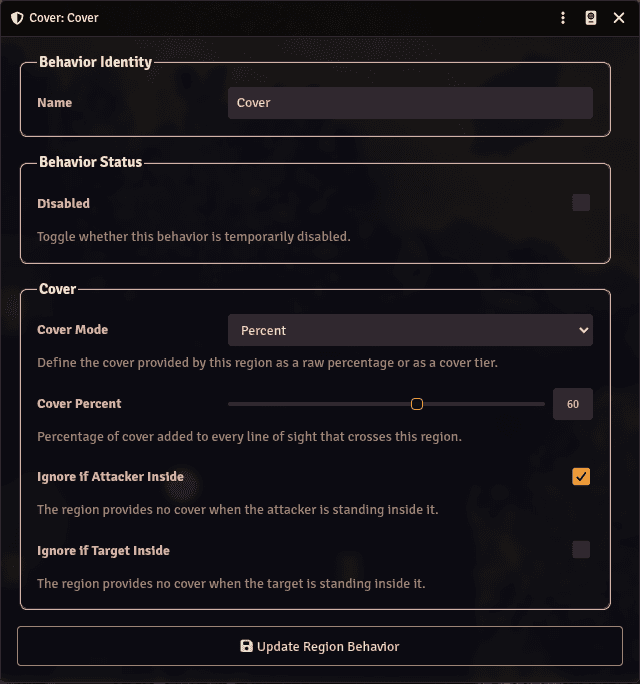
- Cover Mode:
Percentto set the cover yourself, orCover Tierto use one of your system's tiers. - Cover Percent / Cover Tier: how much of the line of sight the region blocks.
- Ignore if Attacker Inside: the region gives no cover when the attacker stands in it, so you can shoot out of a hedge (on by default).
- Ignore if Target Inside: the region gives no cover when the target stands in it. Turn it off for a fog bank that hides whoever stands in it (off by default).
Cover Tiers
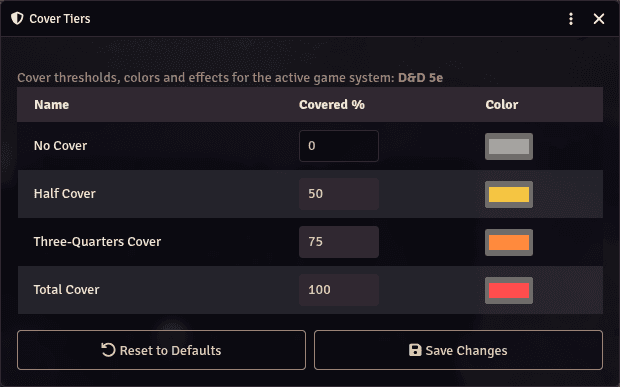
Open Game Settings -> Configure Settings -> AutoCover -> Configure Tiers to see the cover tiers of your
system. You can change the Covered % each tier starts at and its color. Reset to Defaults brings back the
original values.
| System | Default tiers | What is applied |
|---|---|---|
| D&D 5e | Half (50%), Three-Quarters (75%), Total (100%) | the system's cover status on the target |
| Pathfinder 2e | Lesser (25%), Standard (50%), Greater (75%) | Effect: Cover on the target, with the right level selected |
| Call of Cthulhu 7th Edition | Under Cover (50%), Total (100%) | the cover option on ranged attack cards |
| Warhammer Fantasy Roleplay 4e | Soft (25%), Medium (50%), Hard (75%) | an effect on the target with a ranged attack penalty (Modifier column: −10, −20, −30) |
| Daggerheart | Cover (50%), Total (100%) | disadvantage on attack rolls against covered targets |
| Savage Worlds (SWADE) | — | nothing: the system handles cover itself, AutoCover shows visuals and the preview |
| Any other system | Half (50%), Three-Quarters (75%), Total (100%) | the Active Effects you choose (see below) |
The top of the Configure Settings window tells you which kind of support your system has.
Other Systems
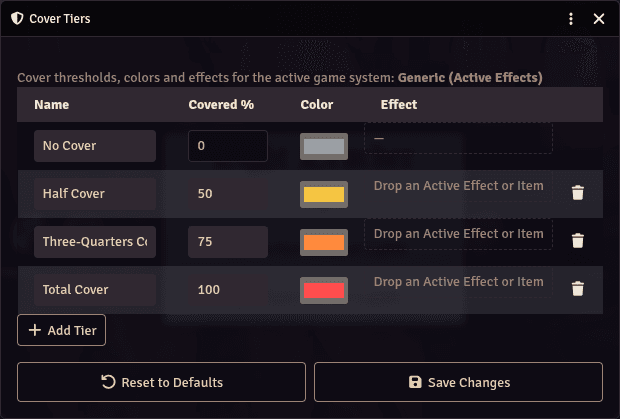
For systems without dedicated support you decide what each tier does:
- Create an Active Effect with the bonus or penalty you want (or an Item that has one).
- Drag it from the sidebar onto the
Effectcell of a tier. - Rename, add (
Add Tier) or remove tiers as you like, then clickSave Changes.
A tier without an effect still applies an empty effect named after the tier, so you can see it on the actor.
Apply Effects To in the Settings chooses who receives the effect: the attacker, as a penalty (the
default, which works with any system), or the target. The attacker penalty is only applied when exactly one token
is targeted.
Settings
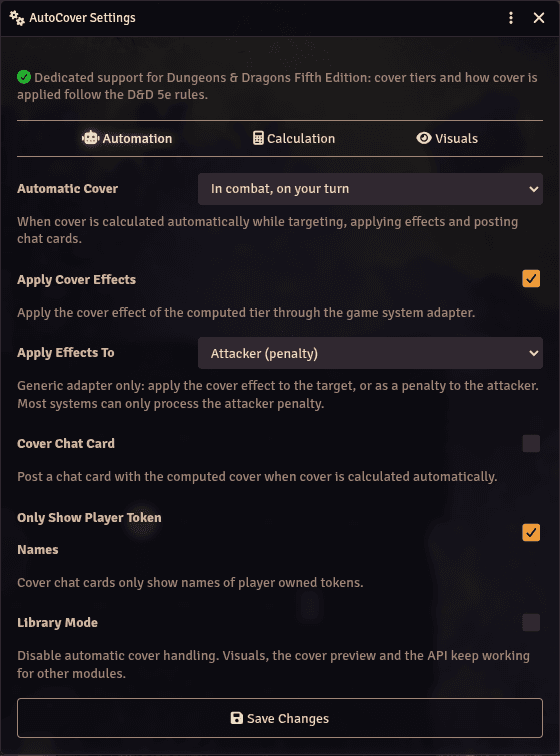
Open Game Settings -> Configure Settings -> AutoCover -> Configure Settings. The window has three tabs:
- Automation: when cover is applied (
Automatic Cover), whether effects are applied (Apply Cover Effects) and theCover Chat Card. - Calculation: what provides cover. The most useful options are
Cover From Walls and Floors(which walls count, see All Settings),Tokens Provide CoverwithToken Cover Percent(how much cover a creature in the way gives),Ignore Tokens of the Same Disposition(allies don't block each other) andCorpses Provide Cover(defeated creatures give cover at a third of their height). - Visuals: what you see on the map. Turn off the badge, the arc or the highlighted sources if you find them
distracting, or turn on
Cover Source Percentagesto see how much each wall, region or token blocks. As GM, turn onPlayer Coverto see the cover of the players' targets too.
Every setting is listed in All Settings.
Upgrading from Version 4
Version 5 is a complete rewrite. When a GM first loads the world, the old settings are converted automatically:
the old cover definition becomes the cover tiers, the effects of the old LevelsAutoCover item are linked to the
tiers of systems without dedicated support, and the chat and Active Effect options carry over.
- In D&D 5e you no longer need to import the cover item: the system's own cover statuses are used.
- The old
flags.levelsautocover.noaeflag is no longer used. - Midi-QoL: AutoCover now applies cover itself, so Midi-QoL's cover option is no longer needed. If you keep
using Midi-QoL's
Levels Auto Covercover option instead, turn onLibrary Modeso cover isn't applied twice.
Advanced
All Settings
Automation (world settings)
Automatic Cover:In combat, on your turn(default),AlwaysorNever.Apply Cover Effects: apply the cover of the computed tier (default on).Apply Effects To: systems without dedicated support only,Attacker (penalty)(default) orTarget.Cover Chat Card: post a card when cover is applied (default off).Only Show Player Token Names: chat cards show???instead of the names of tokens without a player owner (default on).Library Mode: see Library Mode (default off, needs a reload).
Calculation (world settings)
Precision: see Precision and Cover Stacking (default 4).Cover From Walls and Floors: which walls and region floors give cover.Block Movement(default): those that stop movement. Invisible walls and windows give full cover, ethereal walls don't.Block Sight: those that block sight, as Foundry's vision does. Invisible walls don't count, windows with a proximity threshold only block when the attacker is far enough away, and darkness sources count.Block Movement or Sight: either kind.
Cover Stacking:Highest(default),AdditiveorDensity (multiplicative).Tokens Provide Cover(default on) andToken Cover Percent(default 50%, 25% in Pathfinder 2e).Ignore Tokens of the Same Disposition(default off).Corpses Provide Cover(default off). What counts as defeated depends on the system (for example the defeated status or 0 HP in D&D 5e).
Visuals (each user sets their own, except Cover Preview for Players)
Cover Visuals: show the visuals when targeting with a token selected (default on).Cover Badge Emblem,Cover Badge Text,Facing Arc:Always(default),NeverorOnly when in cover(once the first tier is reached). The cover preview always shows them.Cover Sources(default on) andCover Source Percentages(default off).Player Cover: GM only, show the visuals of the players' targets, labelled with the player's name (default off).Cover Preview for Players: world setting,Known areas only(default),DisabledorAnywhere.Tactical View: CoverandTactical View: Movement(default on).
Precision and Cover Stacking
AutoCover casts lines of sight from the attacker's eyes to a grid of points spread through the target's volume, and
the covered percent is the share of those lines that are blocked. Precision is the number of subdivisions per
side of that grid (2 to 20): higher values are more accurate but slower. Results are cached until something on the
scene changes, so even high values are usually fast.
Regions and tokens block only part of a line of sight (their cover percent). When a line crosses several of them,
Cover Stacking decides how they combine:
Highest: the line is covered by the strongest one.Additive: their percents are added up, to a maximum of 100%.Density (multiplicative): each one lets through only part of what passes the previous ones, like layers of smoke.
Library Mode
Library Mode turns off all automatic cover handling (effects and chat cards), while the visuals, the preview and
the API keep working. Use it when another module (for example Midi-QoL) applies cover using AutoCover's
calculation.
API
Compute the cover between two tokens:
const api = game.modules.get("levelsautocover").api;

const result = api.computeCover(attackerToken, targetToken, { precision: 8 });
result.percent;      // covered percent, 0-100
result.tier;         // { id, label, percent, color }
result.contributors; // [{ type: "wall" | "surface" | "region" | "token", object, amount }]
The attacker or the target can also be a position instead of a token: { document: tokenDocument, x, y, elevation }.
Get the tiers of the current system, or the tier for a covered percent:
api.getTiers();
api.getTier(60);
Hooks
levelsautocover.preCompute({ attacker, target, options, obstacles }): called before the calculation.obstacles.walls,obstacles.regions,obstacles.tokensandobstacles.surfacescan be filtered or extended.levelsautocover.computed(result): called after every calculation that was not taken from the cache.
System Adapters
Systems and modules can add dedicated support for a system:
game.modules.get("levelsautocover").api.registerAdapter("my-system", {
    id: "my-system",
    label: "My System",
    editableTiers: false,
    embedded: "ActiveEffect",
    applyTo: "target",
    tokenCoverPercent: 50,
    defaultTiers: [
        { id: "none", percent: 0, color: 0x9aa0a6, label: "No Cover" },
        { id: "partial", percent: 50, color: 0xf5c542, label: "Partial Cover" },
    ],
    isDefeated: (tokenDocument) => tokenDocument.actor?.statuses.has("dead"),
    getCoverDocuments: async (tier) => [{ name: tier.label, img: "icons/svg/shield.svg", changes: [] }],
});
getCoverDocuments returns the documents (ActiveEffect or Item, as set by embedded) to create on the actor
for a tier. AutoCover tracks them and removes them when the cover changes.
Legacy API
AutoCover.calculateCover(source, target, options) still returns the version 4 results: [coverIndex, isTokenCover],
or in Library Mode { rawCover, visibleVolume, coveredVolume, obstructingToken, obstructingTokens, cover }. The
source can also be a template or any object with a position (as Midi-QoL passes for area spells): the cover is then
measured from a point half a square above it. Use the API above for new macros and modules.