Camera & Controls
How to look around a 3D scene, move tokens and other objects, place tiles with the 3D gizmo and ping your players. Everything here works for players too, except where it says GM.
Moving the Camera
3D Canvas has two cameras:
- The Tactical Camera: on the Token controls, for everyone. It follows your token and keeps a readable angle. See Tactical Camera.
- The free camera: on every other layer (Tiles, Lighting...), or on the Token controls after you press
K. You move it anywhere.
The table is for the free camera; the Tactical Camera uses the same mouse buttons.
| Action | Mouse | Keyboard |
|---|---|---|
| Rotate | Hold the middle button and drag | |
| Pan | Hold the right button and drag | W A S D |
| Zoom | Mouse wheel | |
| Reset the view | Shift + R | |
| Look straight down | O | |
| Switch Tactical / free camera | K | |
| Focus on the selected token | Shift + X | |
| Keep the camera where it is | Hold H |
The left mouse button does not rotate the camera: it selects and drags things. This is the Alternative Camera Controls setting, on by default.
Turn it off in Configure Settings -> 3D Canvas to rotate with the left button and zoom by dragging with the middle button.
Two settings in Configure Settings -> 3D Canvas change how the camera feels. They are per player, so each player picks their own:
Alternative Camera Controls: see above. The Tactical Camera always works this way.Enable Damping: the camera glides to a stop after you move it. Turn it off if the motion makes you feel sick. It applies at once.
The 3D Canvas Tools Panel

When a scene is in 3D, a column of buttons appears next to the sidebar tabs. It shrinks after a few seconds; click the cube button in the sidebar tabs (3D Canvas Tools) to open it again.
The top group is for building the map (GM only):
- Map Maker, Materials, Effects, Cutscenes: tools of 3D Canvas - Advanced Tools.
- Props: the Asset Browser, to place 3D models. See Tiles & Map Building.
- More Tours: guided tours of the 3D Canvas tools (shown while some tours are not done).
- Community Maps: download maps made by other GMs. See Community Maps.
The bottom group is for playing:
- Focus Camera on Selected Token: same as
Shift + X. - Toggle Tactical Camera (Token Layer) (chess knight): same as
K. Highlighted while the Tactical Camera is on. - Toggle Distance Fog (GM): lifts the scene's
View-distance Fogfor you, to see the whole map while you work. Only in scenes with that fog (see Scene Setup). - Performance & Optimization (GM): a report on what makes the scene slow. It turns red when the scene could run smoother. See Performance.
- Show Controls (
?): opens the cheat sheet of camera and token controls you saw while the scene was loading. Click again to close it. - 3D Canvas Tile Editor Controls (GM): selects the Tiles controls and posts a short list of tile and token controls in the chat, for you only.
- Set Performance Mode: the graphics quality of this computer. See Performance.
Selecting and Moving Things
Tokens, tiles, lights and the other placeables work as in 2D: pick their controls in the left toolbar, then click to select, drag to move, right-click for the HUD, double-click for the configuration.
- Select several: drag on empty ground with the left button to draw a selection box. Holding
Fwhile you drag does the same. - Move a token: drag it. It follows the ground and climbs onto what is under the cursor (a roof, a bridge).
- Change elevation while dragging: scroll the mouse wheel. Each step is one grid square (5 ft on most maps); hold
Shiftfor smaller steps. The token then stops following the ground. - Free Placement: hold
Fwhile dragging to keep the current elevation instead of snapping to the surface. ReleaseFto snap back. - Waypoints:
Ctrl + Left-clickwhile dragging adds a waypoint (or release the mouse withCtrlheld to keep placing them).Right-clickorSpaceremoves the last one, and cancels the move when there are none left. - Hidden move: hold
Altwhen you start dragging, so other players don't see the ruler. - Rotate: select one or more objects and press
Ctrl + Mouse Wheel(15° per step).Ctrl + Shift + Mouse Wheelturns in 45° steps. Lights turn 5° per step, and 15° withCtrl + Shift. While placing a model from the Asset Browser,Ctrl + Mouse Wheel(15°) andShift + Mouse Wheel(45°) turn the preview. - Lights and sounds: with the Lighting or Ambient Sound controls active, each one shows as a small icon in 3D. Click the icon to select it, drag it to move it, and drag the square handle on the edge of its range to change the radius. See Lights and Ambient Sounds.
- Drop things on the 3D view: actors become tokens where you drop them, on top of whatever is there. 3D model files and images become tiles: see Tiles & Map Building.
How tokens find their path, collide and stay grounded is on the Tokens page.
Placing Tiles in 3D
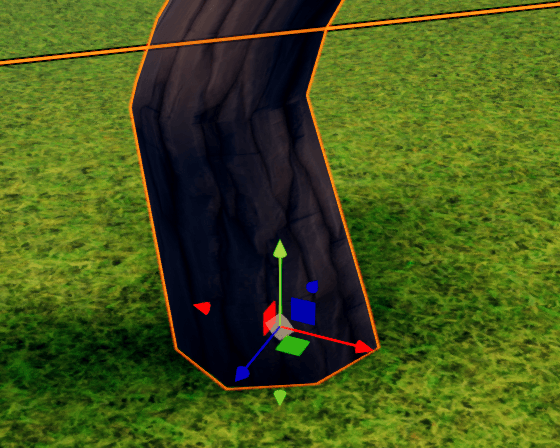
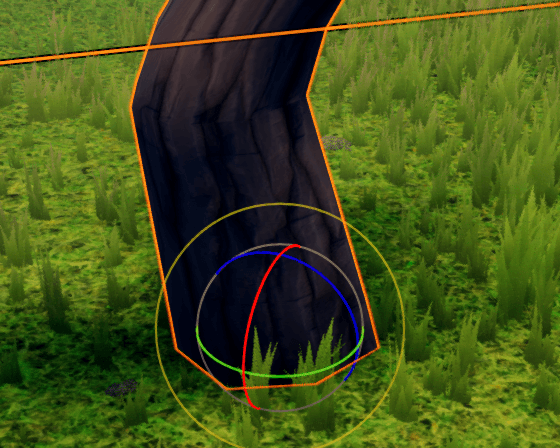
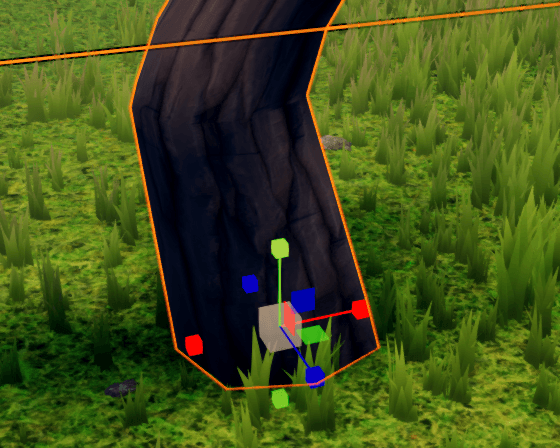
When you select a tile in the Tiles controls, a gizmo appears on it: colored handles you drag to move, turn or resize the tile along one direction.
T,R,S: switch the gizmo to move, rotate or scale.G: turns the gizmo off and on. With the gizmo off, dragging a tile drops it on the ground or on whatever is under it; holdShiftwhile dragging to snap it to the grid.- Hold
Shiftwhile dragging a handle to turn off snapping (by default it snaps to half a grid square and 45°). - Hold
Ctrlbefore you start a transform to leave a copy of the tile behind. Q: switches selected tiles between the three ways of fitting a texture (fit, stretch, tile).
Everything else about tiles (models, shapes, materials, doors) is on Tiles & Map Building.
Tactical Camera
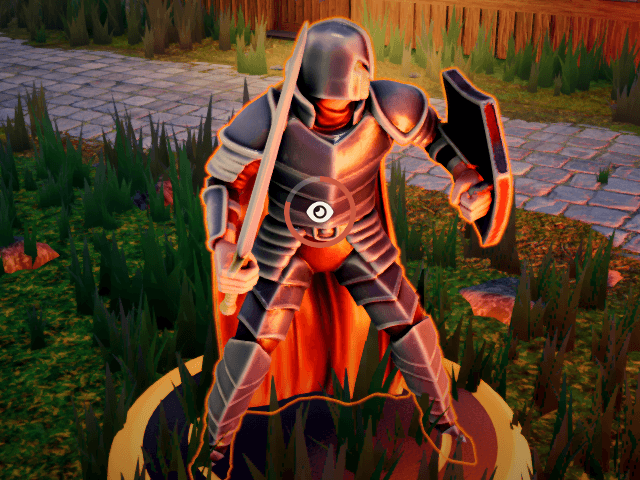
The Tactical Camera is a game-style camera that stays on your token. It is on by default for everyone, GM included, whenever the Token controls are active.
- What it follows: the token you select. On each combat turn it moves to the new combatant, if you own it. When a player turns it on with nothing selected, it follows their character's token (or the first token they own); for the GM it stays where it is.
- Zoom: scroll the mouse wheel. The angle changes with the zoom: close up it looks across the scene, far out it looks almost straight down.
- Rotate: drag with the middle mouse button. The left button never rotates it.
- Look elsewhere: drag with the right mouse button, or press
WASDwith no token selected. The camera stops following until you select a token again or pressShift + X/ Focus Camera on Selected Token. - Jump to a spot: double right-click on the ground to move the camera there. This needs Foundry's
Display Mouse Cursorpermission (in Foundry's permission settings), which every role has by default. - Look straight down:
O. Press it again to go back to the normal angle. - Into first-person: with one token you own selected, zoom all the way in and keep scrolling. A ring with an eye fills up on the screen; when it is full you are in first-person. Scroll out two steps to come back.
- Switch it off: press
Kor click Toggle Tactical Camera (Token Layer) for the free camera. Your choice is remembered on this computer.
With a token selected, W A S D move the token (Foundry's own Move keys) and the camera just follows it.
First-Person Camera
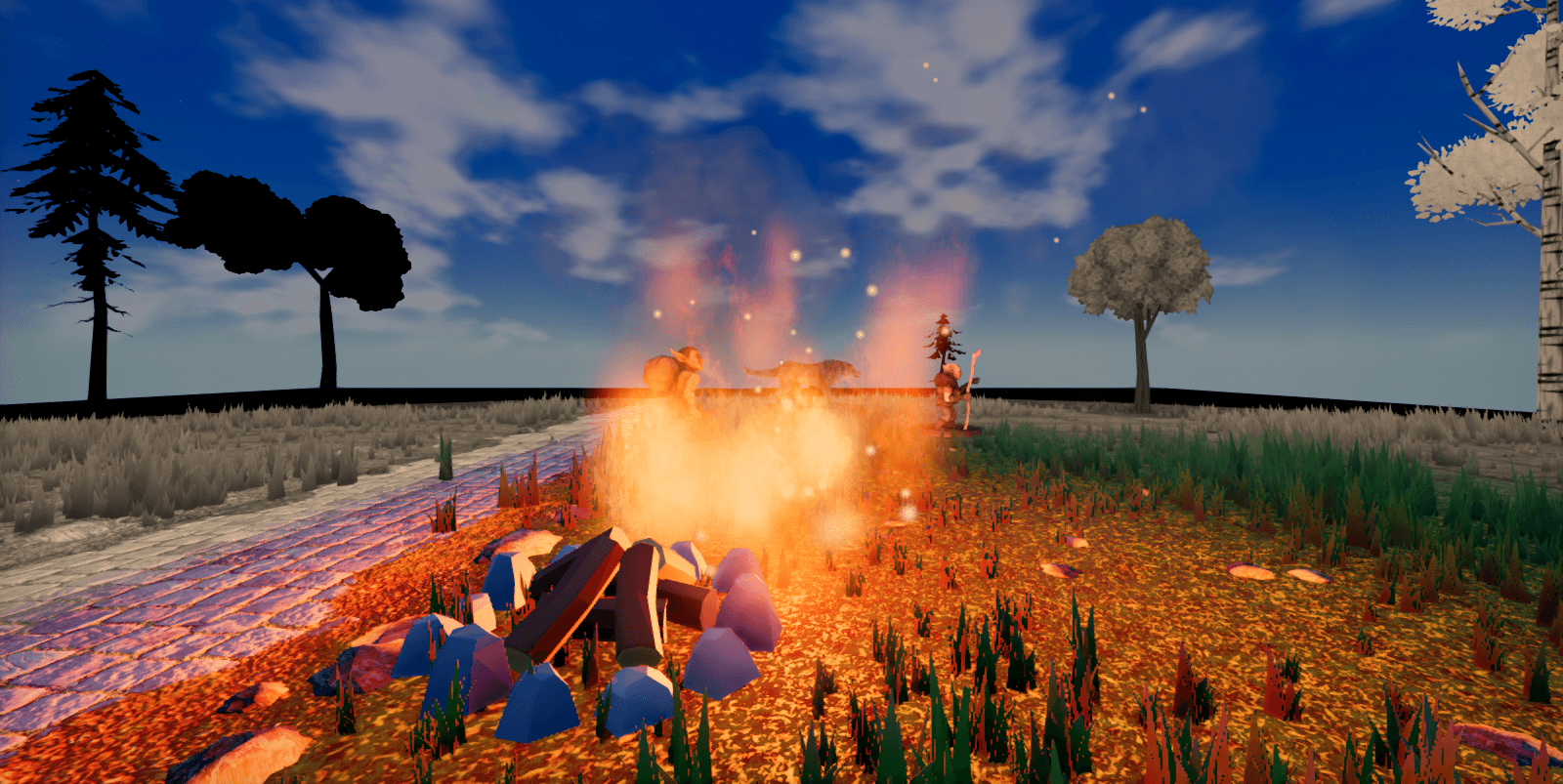
See the scene through a token's eyes.
- Select a token you own and press
L(or scroll into it with the Tactical Camera). - Move the mouse to look around. A small dot marks the center of the screen; clicking acts on what is under it (for example a door).
- Press
WASDto walk the token one square at a time, as with Foundry's keyboard movement. - Press
Lagain, or scroll out two steps, to leave. The token turns to face where you were looking.
The mouse pointer is captured while you look around: press Esc to get it back, click the 3D view to capture it again.
Pings
- Quick ping: hold the left mouse button on a spot for a moment (with the Token controls active).
- Tactical ping: hold
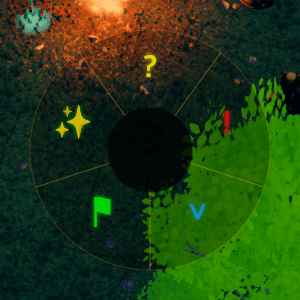
Shift + E. A wheel opens around the cursor: move onto ? (question), ! (danger), the arrow (go here), the flag (target) or the sparkles (your own emote), then release the keys. Release in the middle for a normal ping. - Show everyone your view:
Shift + Qmoves every player's camera to what you are looking at.Shift+ holding the left mouse button on a spot does the same.
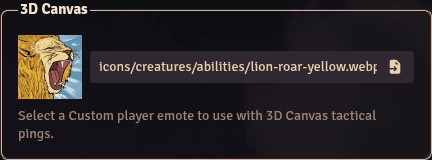
Your own emote is an image you pick in User Configuration (click your name in the players list) -> 3D Canvas section.
The GM decides who can ping in Configure Global Settings -> Permissions tab: Players Can Ping (on by default) and Players Can Send Camera Position (off by default). The sound is set by Ping Sound in the Misc tab.
Keyboard Shortcuts
All the 3D Canvas shortcuts and their default keys, as listed in the Settings sidebar tab -> Configure Controls, where you can change them.
They only act while the 3D view is open.
| Shortcut | Default key |
|---|---|
| Reset Camera View | Shift + R |
| Focus Camera on Selected Token | Shift + X |
| Remove Last Waypoint | Space |
| Toggle Tactical / Free Camera | K |
| Top-Down Camera View | O |
| Lock Camera in-place (Hold) | H |
| Toggle First-Person Camera | L |
| Camera: Pan Up | W |
| Camera: Pan Down | S |
| Camera: Pan Left | A |
| Camera: Pan Right | D |
| Ping and move Camera to Current view for all Clients | Shift + Q |
| Ping current mouse position location for all Clients | Shift + E |
| Free Placement Mode (Hold) | F |
| Tile Editor: Scale | S |
| Tile Editor: Translate | T |
| Tile Editor: Rotate | R |
| Tile Editor: Toggle Gizmo | G |
| Tile Editor: Cycle Fill Style | Q |
| Group Selection (Hold while dragging) | F |
Top-Down Camera View with the free camera resets the view to look straight down.
Advanced
Keys That Do Two Things
Some default keys are shared on purpose. You only need to change them if the overlap bothers you:
Space: removes the last waypoint while you drag a token, measure or draw a shape.F: keeps the elevation while you drag something (Free Placement); held when you start a drag on empty ground, it draws a selection box.S: pans the camera down and also switches the tile gizmo to scale.WASD: on Foundry v14 these are also Foundry'sMove Up/Move Left/Move Down/Move Rightkeys. With a token selected on the Token controls they only move the token (the Tactical Camera follows it); with nothing selected they move the camera.