Fog of War & Vision
This page explains what your players can and cannot see in 3D: token vision, fog of war, 3D models that block sight, and how to hide part of the map by hand. It works on top of Foundry's own vision, so a scene that is set up for vision in 2D needs only a couple of extra checks.
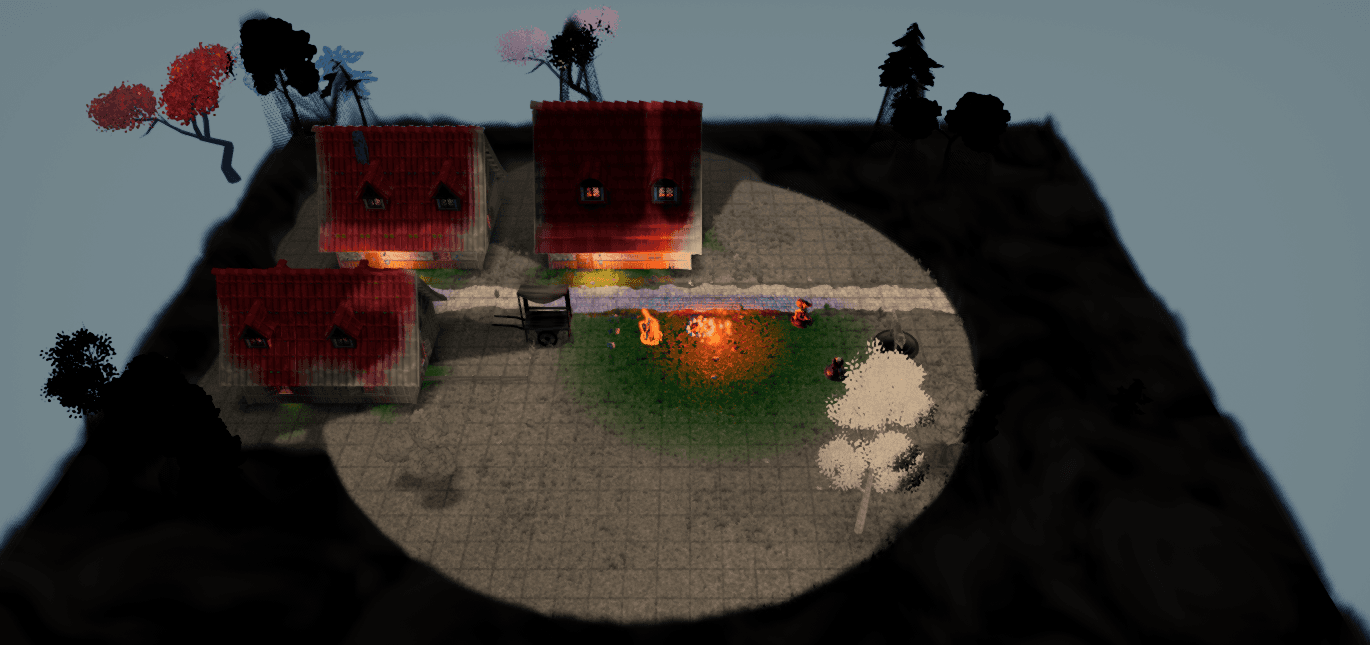
How Players See a 3D Scene
What a player sees in 3D follows their tokens' vision, as in 2D:
- In sight: around their tokens, in full color where there is light. Areas seen only with darkvision are shown in grey, like in 2D.
- Explored: places their tokens saw before stay on screen, dimmer.
- Unexplored: black.
- Tokens that their own tokens cannot see are hidden.
- A player with no token in the scene sees only black.
Doors: a closed door hides what is behind it from players, an open one lets them see through.
- This holds for Foundry's wall doors (with
Use 3D Geometry for sight calculationson or off) and for 3D door tiles (see Tiles). - With
Door StyleTransparentthe open door no longer blocks anything. WithAnimated (Pivot)(used by Map Maker houses) the swung-open leaf still blocks sight where it stands: a thin strip straight through the doorway stays hidden.
Each player can also turn on Volumetric Fog of War in their Graphics Settings: a low drifting mist over the explored and unexplored areas (it is on in the image above).
Fog of war is flat, as in 2D: exploring a spot explores everything above and below it, at every height.
The Vision Options
Four options decide what players see. Two are Foundry's own, two belong to 3D Canvas.
In Scene Config -> Visibility tab (Foundry):
Token Vision: players see only what their tokens see. Off: the whole scene and every token is visible.Exploration Mode:IndividualorSharedremember explored areas;Noneshows only what tokens see right now.
In Scene Config -> 3D Canvas tab -> Miscellaneous sub-tab:
Use 3D Geometry for sight calculations: 3D models thatBlock Sight(houses, rocks, trees) block vision and hide what is behind them. Off: only Foundry's walls block sight, and you can see through every 3D model.Enable Recommendedturns it on.Enable Fog of War(on by default): draws the fog in 3D, black for unexplored areas and dim for explored ones. Off: players see the whole 3D map, but tokens their tokens cannot see stay hidden.
Foundry's walls keep blocking sight in both cases. Which models block sight is set per tile in its 3D Canvas tab, see Tiles & Map Building.
The other options of this sub-tab are explained in Scene Setup.
With Use 3D Geometry for sight calculations on, vision does not work in the 2D view: a player who switches to 2D sees only their own token. Play these scenes in 3D.
Pick a Setup
Most scenes fit one of these. Changes apply as soon as you save the scene.
Full fog of war: dungeons and exploration, where players discover the map.
Token Visionon,Exploration ModeIndividualorSharedUse 3D Geometry for sight calculationsonEnable Fog of Waron
Map visible, tokens hidden: the whole map is visible, but players don't see enemies their tokens can't see.
Token VisiononUse 3D Geometry for sight calculationsonEnable Fog of Waroff
No vision: battle maps where everyone should see everything. Also the lightest setup for slow computers.
Token Visionoff (the other options don't matter)
Walls only: a 2D map turned into 3D, where the walls already do the job and the 3D models are decoration.
Use 3D Geometry for sight calculationsoff, the rest as in one of the setups above.
Seeing Your Token Behind Objects
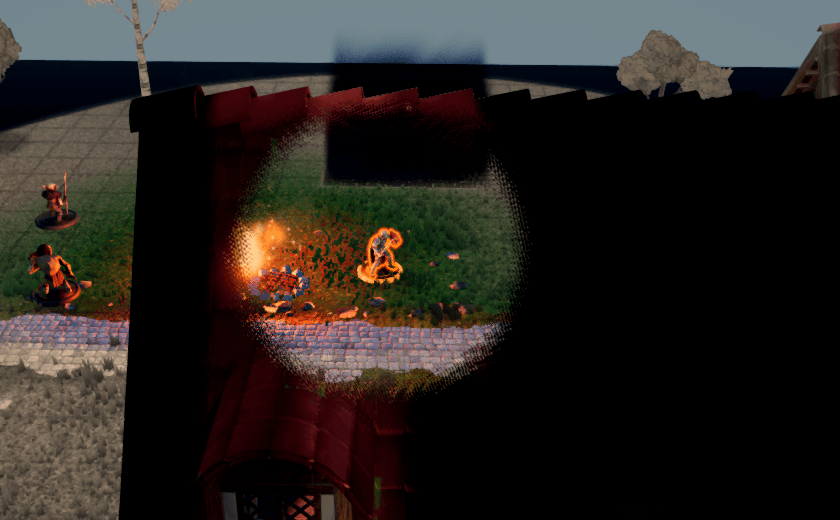
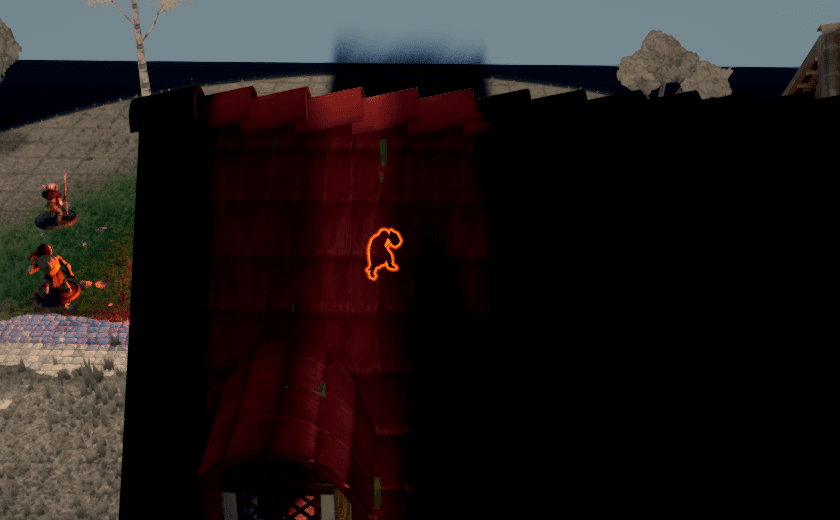
When a house or a tree stands between the camera and a selected token, Reveal Selected Tokens cuts a round window through it so you can still see the token and what is around it.
With the option off you see only the token's outline through the object.
It is a world setting, on by default: Configure Settings -> 3D Canvas -> Configure Global Settings -> Canvas tab.
This only changes what the camera shows, not what the token can see.
Hiding Part of the Map: Obscure 3D Vision
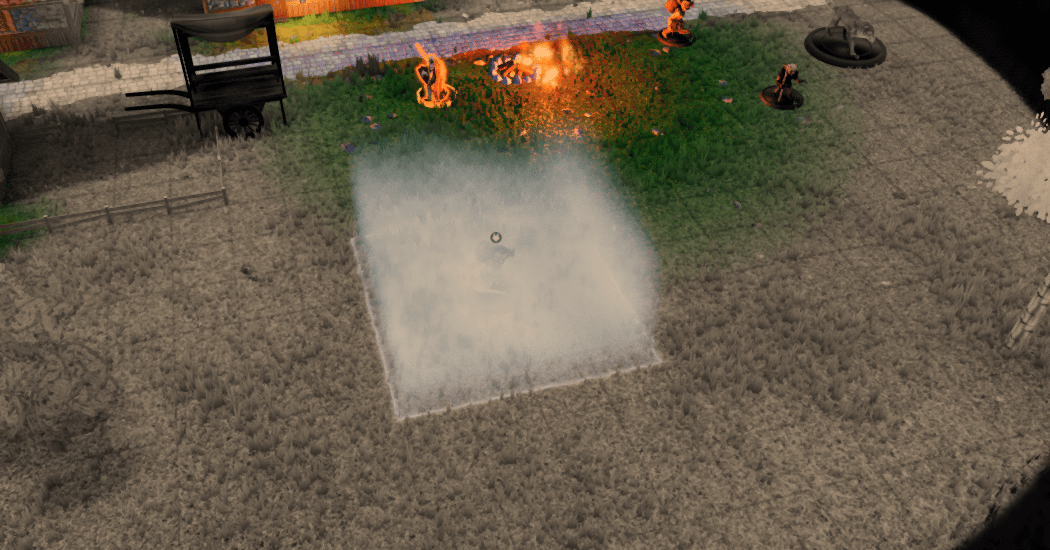
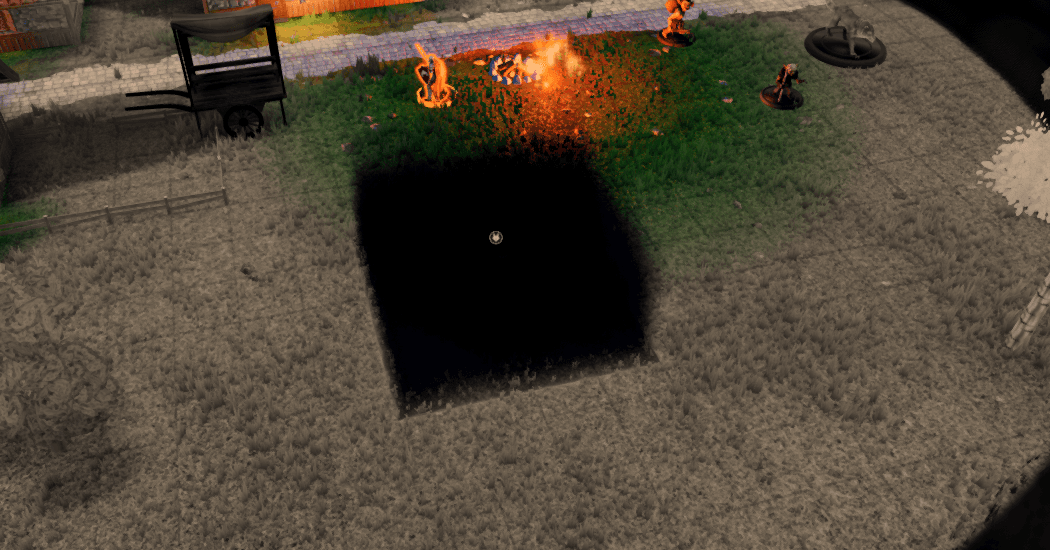
To cover an area by hand, like a sheet of paper on the table, use a region with the Obscure 3D Vision behavior. It fills the region with a thick mist that hides what is inside, and you can move, resize or delete it whenever the players get there.
- Draw a region with Foundry's Regions controls over the area to hide.
- Open the region's configuration ->
Behaviorstab, click+and pickObscure 3D Vision. - In the
Placementtab, set the bottom and topElevation (ft): the mist fills that height. - Make it visible to players:
- in the
3Dtab, setEffect ThemetoFog(white mist) orDarkness(black box); or - in the
Appearancetab, setVisibilitytoAlways for Anyone.
- in the
- Click
Update Region.
With Effect Theme on Automatic and Foundry's default region visibility, the mist is drawn only while the Regions controls are active, so players never see it.
- The GM and the players see the same box.
- It only hides things visually: tokens inside are not hidden by Foundry's vision, and the mist does not block sight. Use a dark theme if a token inside must not show.
- Disable the behavior (the toggle next to it in the
Behaviorstab) to lift the mist and keep the region for later.
The other region options are explained in Walls, Notes & Regions.
Scenes with Several Levels
On Foundry v14 scenes with several levels, the 3D view shows the level you are viewing.
- Switching level with Foundry's level controls keeps 3D open and swaps the content.
- Tiles, lights and other objects you create while in 3D go on the level you are viewing.
- Only the tiles of the level you are viewing are drawn, even if that level is set to show the levels below it. Tokens of the levels it shows are drawn too.
Enable Tile Occlusion(3D Canvastab ->Miscellaneous->Scene Objects, on by default) mirrors Foundry's own tile occlusion (theOcclusionoptions of a tile) in 3D.
Advanced
Settings That Change Vision
In Configure Settings -> 3D Canvas -> Configure Global Settings -> Token tab (see Settings), Token Visibility Test decides how 3D Canvas checks whether a token can be seen:
Core (2D): Foundry's own flat check, at one height.Standard(default): checks the corners and the center of the token at its full height. So a tall creature behind a low wall can still be seen.Detailed: likeStandard, with more points on large tokens. Slower in scenes with many big tokens.
What the Old Fog of War Box Became
Older versions used box templates with Is Fog of War Box. On Foundry v14 templates are regions, and the same job is done by the Obscure 3D Vision behavior.