Weather, Shaders & Effects
3D Canvas can make a scene feel alive without any scripting: rain or snow that builds up on the ground, burning or frozen tokens, rippling water, swaying trees and quick token animations. This page covers weather, shaders, the token effects on the Token HUD and where the other effects live.
Weather
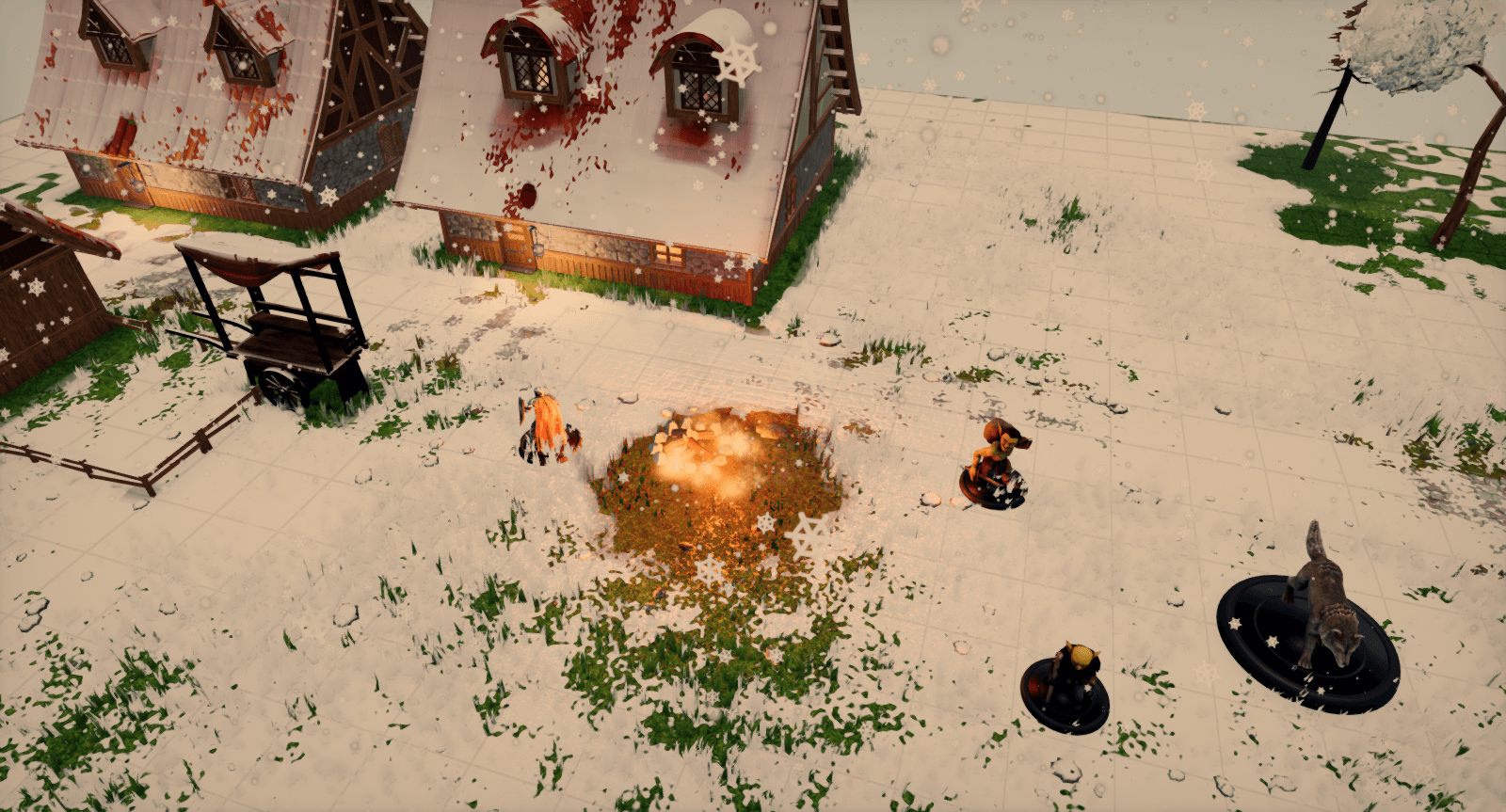
Weather is set per scene and everyone sees it.
- Open the scene's configuration ->
3D Canvastab ->Essentials. - Pick a
Weatherand set itsIntensity. - Click
Save Changes. The weather fades in over a few seconds.
The weathers, by kind:
- Rain and storms:
Overcast,Drizzle,Rain,Heavy Rain,Thunderstorm - Snow and ice:
Snow,Blizzard,Hail - Fog:
Fog,Mist - Dust and smoke:
Blowing Sand,Sandstorm,Ashfall,Dust,Smoke,Toxic Fumes - Ambience:
Leaves,Petals,Embers,Fireflies,Mysterious Lights,Stars,Starfall Custom: your own particles, set up in theWeathersub-tab (see below).
How many particles each player sees depends on their Effects Quality in Graphics Settings; Off hides weather and other effects on that computer.
With Weather on None, 3D Canvas shows Foundry's own Weather Effect (scene configuration -> Basics) instead. For no weather at all, set both to none.
Weather Sub-Tab
The 3D Canvas tab -> Weather sub-tab fine-tunes the weather. Most GMs only need the first two options.
Basics
Additional Weather: a second weather on top of the first, for exampleRainplusFog.Link Sky and Light(on): clouds cover the sky and dim the sunlight.
Weather
Wind Direction,Wind Strength,Gustiness: how the wind pushes rain, snow and leaves. Trees with theWindshader sway with it.Haze: a veil of haze over the scene.Lightning: how often lightning flashes.
Each weather fills these with its own values when you pick it.
Surface Accumulation
Surface Accumulation(on): snow, hail, ash, sand and dust build up on open ground, and rain makes surfaces wet. Places under a roof stay clear, and the heat of fire lights (campfires, torches) melts the snow around them.Build-up Time (minutes): real minutes the weather takes to cover the ground fully.Melt / Dry Time (minutes): real minutes snow takes to melt, and wet surfaces to dry, after the weather stops. Rain melts snow faster.Starting Cover,Starting Cover Amount,Starting Wetness: what is already on the ground when the scene opens (Snow,Hail,Ash,SandorDust). Use them to start a scene already snowed in. Changing them resets the current build-up.
Custom Particles (only with Weather set to Custom)
Texture: the image of one particle.Density,Size,Particle Color,Opacity: how many, how big, which color.Direction,Speed,Velocity,Rotation Speed: how they move.Random Rotation,Random Size: variety between particles.Blend: additive blending, for glowing particles.Ground Offset: how high above the ground they start.
Sky, time of day and the rest of the scene's look are on Scene Setup.
Shaders
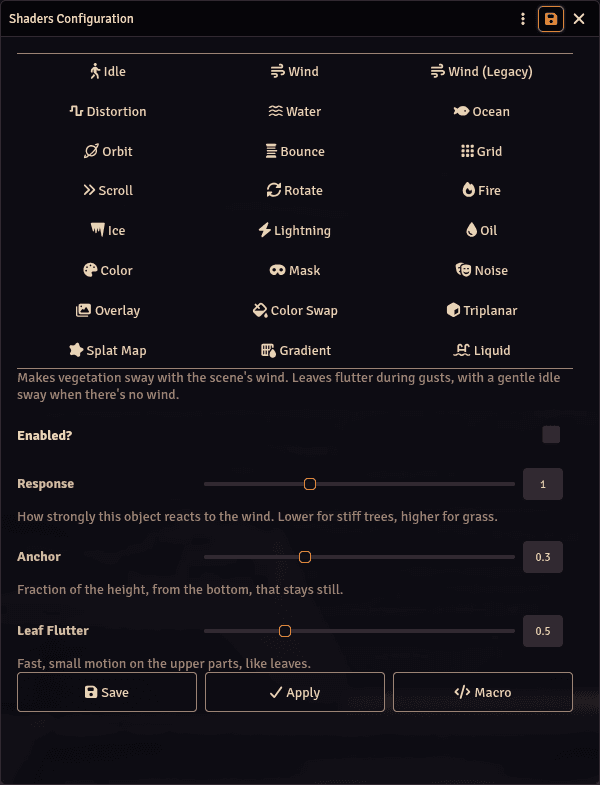
Shaders are animated effects painted on a 3D object: a burning token, a lava pool, water, a tree that sways. They work on tiles, tokens and regions.
- Open the configuration of a tile or token ->
3D Canvastab ->Effectssub-tab, or of a region ->3Dtab. - Click
Configure Shaders. The Shaders Configuration window opens. - Click a shader's name, tick
Enabled?and adjust its options. - Click
Applyto see it,Saveto keep it.
Several shaders can be on at the same time. Other buttons:
- Autosave (save icon in the title bar): when highlighted, every change is saved right away.
Macro: makes a macro that applies these shaders to the selected objects, see Shader Macros.
The Shaders
Movement
Idle: a slow breathing motion, to make tokens look alive.Wind: vegetation sways with the scene's wind, leaves flutter in gusts. Use it on trees and grass.Wind (Legacy): the old wind effect, with its own speed and direction.Orbit: the object spins and circles around a point.Bounce: the object bobs up and down.
Water and liquids
Liquid: water, lava and other liquids with soft shorelines. Pick aPreset(Water,Ocean,River,Swamp,Acid,Lava,Magical Fire,Sewage) and aStyle(RealisticorStylized). Use a box or plane tile.Water: simple, cheap waves.Ocean: bigger layered waves, heavier thanWater.Distortion: a slow wobble, good for lava or thick liquids.
Surfaces
Fire,Ice,Lightning,Oil: the object burns, frosts over, crackles with electricity or looks like liquid metal.Color: glow, hue shift and flicker. The glow looks best withBloomon in the scene'sVisualssub-tab.
Textures (need a texture on the object)
Scroll,Rotate: the texture slides or turns, for rivers, conveyor belts or magic circles.Mask,Noise: hide parts of the texture with a mask image or moving noise.Overlay: lays a second texture over the object, for moss, snow or dirt.Color Swap: replaces up to three colors of the model with others.Triplanar: fixes textures that look stretched on steep slopes.Splat Map,Gradient: paint up to four textures by a color map, by height or by slope. For terrain.
Other
Grid: draws the scene's grid on the object (square grids only).
Common options: Speed, Intensity, Scale and Color control the animation and look; Mix Blending blends the effect with the object's own texture; Anchor sets how much of the object, from the bottom, stays still.
Texture fields have an Open Material Browser button, which needs Advanced Tools.
Shaders run on every player's computer. A player with a slow machine can turn them off with Enable Shaders in Graphics Settings.
Token Effects from the Token HUD
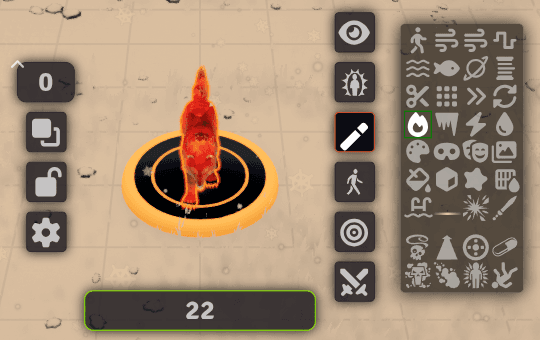
In 3D, the Token HUD has an extra button with a magic wand, Animations. Use it mid-fight, for example to set a token on fire or show a hit.
- Right-click a token in the 3D view.
- Click the magic wand in the right column.
- In the panel that opens:
- Top part: one icon per shader. Click to turn it on or off for this token with its default settings (the active one is highlighted). The setting is saved on the token.
- Bottom part: one-shot animations everyone sees:
Twirl,Slash,Swipe,Charge,Bow,Bulk Up,Bulk Down,Breath,Shake,Knockback.
To change a shader's settings, use Configure Shaders in the token's configuration.
Other Effects
- Regions: regions get a 3D look picked from a list of themes (fire, cold, poison, fog, darkness...). On dnd5e and pf2e, regions placed by spells get a theme automatically from the spell; other regions from their name ("Stinking Cloud" looks poisonous). See Walls, Notes & Regions.
- Lights: light presets (torch, campfire, lantern...) with flames, glow, light shafts and particles. See Lights.
- Effect Browser (Advanced Tools): a library of ready-made ground effects (magic circles, cracks, spills, roads, lava, ice and more) to drop on the 3D map from the
Effectsbutton of the 3D Canvas Tools.
Advanced
Token Animations from a Macro
This plays the Shake animation twice on the selected tokens, for every user in 3D:
game.Levels3DPreview.playTokenAnimation(canvas.tokens.controlled, "shake", { repeats: 2 });Animation ids: twirl, slash, swipe, charge, bow, buff (Bulk Up), debuff (Bulk Down), breath, shake, knockback.
Particle Effects from a Macro
3D Canvas has a particle system for spell and attack effects, controlled from macros with Particle3D.
This throws a fireball from the selected token to your target:
const caster = canvas.tokens.controlled[0];
const target = game.user.targets.first();
new Particle3D("fireball").from(caster).to(target).start();
There are 94 effects (projectiles, rays, explosions, auras...). The full list and every option are on Particles API; other scripting on Macros & API.
Shader Macros
The Macro button of the Shaders Configuration window asks for:
Macro Name;Export enabled only: include only the shaders that are on;Allow Players: give players permission to use the macro.
The macro applies the saved shaders to every selected object of the active layer (tiles or tokens). Select the objects first, then run it.