Settings
A reference of every 3D Canvas setting, in the order Foundry shows them. The defaults work for most groups: come here when you want to change one specific behavior. Options of a single scene, tile, token or light are not here: they are in that object's configuration, see Scene Setup and the pages under Your scene in 3D.
Where the Settings Are
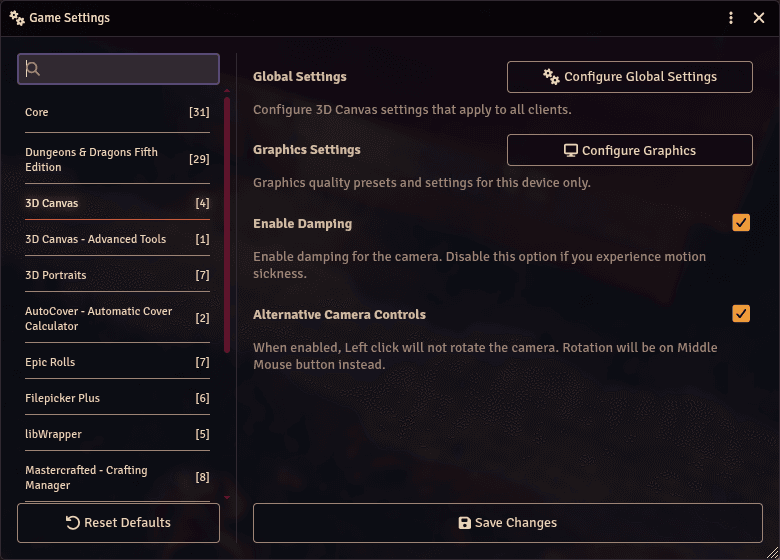
Configure Settings -> 3D Canvas has two buttons and two plain settings:
Global Settings->Configure Global Settings(GM only): the settings for the whole world, applied to every user. See Global Settings.Graphics Settings->Configure Graphics: graphics quality for this computer only. Each player sets their own. See Performance.Enable Damping(on): the camera glides to a stop instead of stopping at once. Turn it off if the motion makes you feel sick. Applies at once.Alternative Camera Controls(on): the left mouse button no longer rotates the camera; rotate with the middle mouse button. Turn it off to rotate with the left button. The Tactical Camera ignores it.
Both are per user, so each player can choose their own camera feel. Camera controls in detail: Camera & Controls.
The 3D Canvas - Advanced Tools entry in the same list belongs to the paid add-on, see 3D Canvas - Advanced Tools.
Global Settings
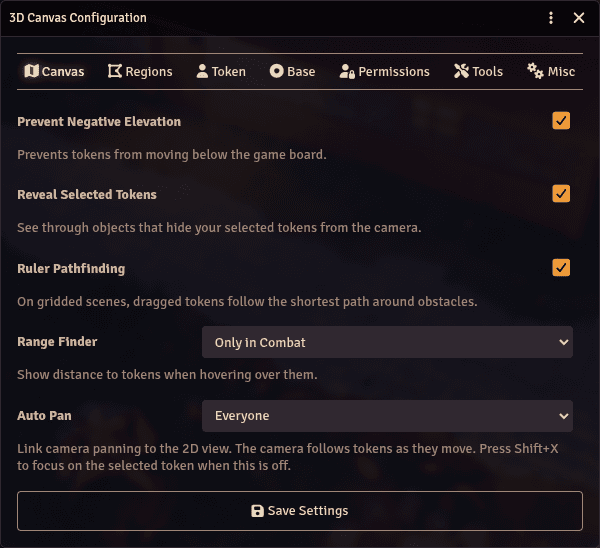
The 3D Canvas Configuration window has seven tabs. Click Save Settings when done: the 3D view reloads for everyone to apply them.
Canvas
Prevent Negative Elevation(on): tokens cannot be moved below the game board.Reveal Selected Tokens(on): when a roof, tree or wall hides your selected token from the camera, you see through it. See Fog of War & Vision.Ruler Pathfinding(on): on gridded scenes, dragged tokens walk the shortest path around obstacles.Range Finder(Only in Combat): with a token selected, hover another token to see an arc between them with the distance.Disabled,Only in Combat(once the combat has started) orAlways. See Tokens.Auto Pan(Everyone): the camera follows tokens as they move, and follows the 2D view.Disabled,Only PlayersorEveryone. With it off, pressShift + Xto focus the selected token.
Regions
Region Effect Outlines(on): a glowing outline around regions that have a 3D effect.Always Flat Regions(off): draws every region flat on the ground instead of as a volume as tall as its elevation range.Enable Template Effects(on): areas placed by spells and abilities get a matching 3D look, from the damage type (dnd5e and pf2e) or from words in the area's name (a Lightning Bolt area gets the lightning theme). See Weather, Shaders & Effects.
Token
2D Token Style(Extruded (Standing Up)): how tokens without a 3D model look:Flat (Face Camera),Extruded (Standing Up)orCoin (Top Down). See Tokens.Combat Highlight(on): highlights the current combatant.Turn Start Marker(off): in combat, a marker on the ground where the current token started its turn. Only the token's owners see it.Token Visibility Test(Standard): how 3D Canvas decides whether a token can be seen. See Fog of War & Vision.Core (2D): Foundry's own flat check.Standard: checks the corners and the middle of each token, at its full height.Detailed: adds more points on large tokens. Slower on busy scenes.
Base
The base under each 3D token. Explained with pictures on Tokens.
Base Style(Ring Simple): one of 19 bases (rings, rounded, sharp, and JB2A round, hex and square bases, with or without a facing indicator).Base Color(#2b2b2b): a hex value or any CSS color name.Remove Model Base(on): removes the part named "base" from token models, so they don't stand on two bases.
Permissions
Players Can Ping(on): players can ping a spot for everyone (Shift + E).Players Can Send Camera Position(off): players can move everyone's camera to their view (Shift + Q).
Tools
Show All Tokens(off): the Token Browser shows every model, not only the colored ones.Auto Assign 3D Model(3D Model Only): when an unlinked token is placed without a model, give it a matching one from the Token Collection.Disabled,3D Model Only, or3D Model and Top Down Token(also swaps its 2D image for a top-down picture of the model). See Tokens.Custom Asset Path: a folder of your own 3D models to show in the Asset Browser (Props). See Tiles & Map Building.Automatically Apply Materials(on): a material is applied as soon as you pick it in the Material Browser (Advanced Tools).Close Material Browser(on): the Material Browser closes after you pick a material.
Misc
Ping Sound: the sound played with pings.
Other Places with 3D Canvas Options
Configure Controls->3D Canvas: every keyboard shortcut, see Camera & Controls.User Configuration->3D Canvassection: a custom picture (emote) for your tactical pings.Tour Management->3D Canvas: the guided tours, see Getting Started.