Scatter & Furnish
These two modes of Map Maker fill your map with life. Scatter paints grass, flowers, trees and rocks over the land; Furnish fills rooms with furniture that fits the room type. Both also let you place single objects by hand.
Scatter
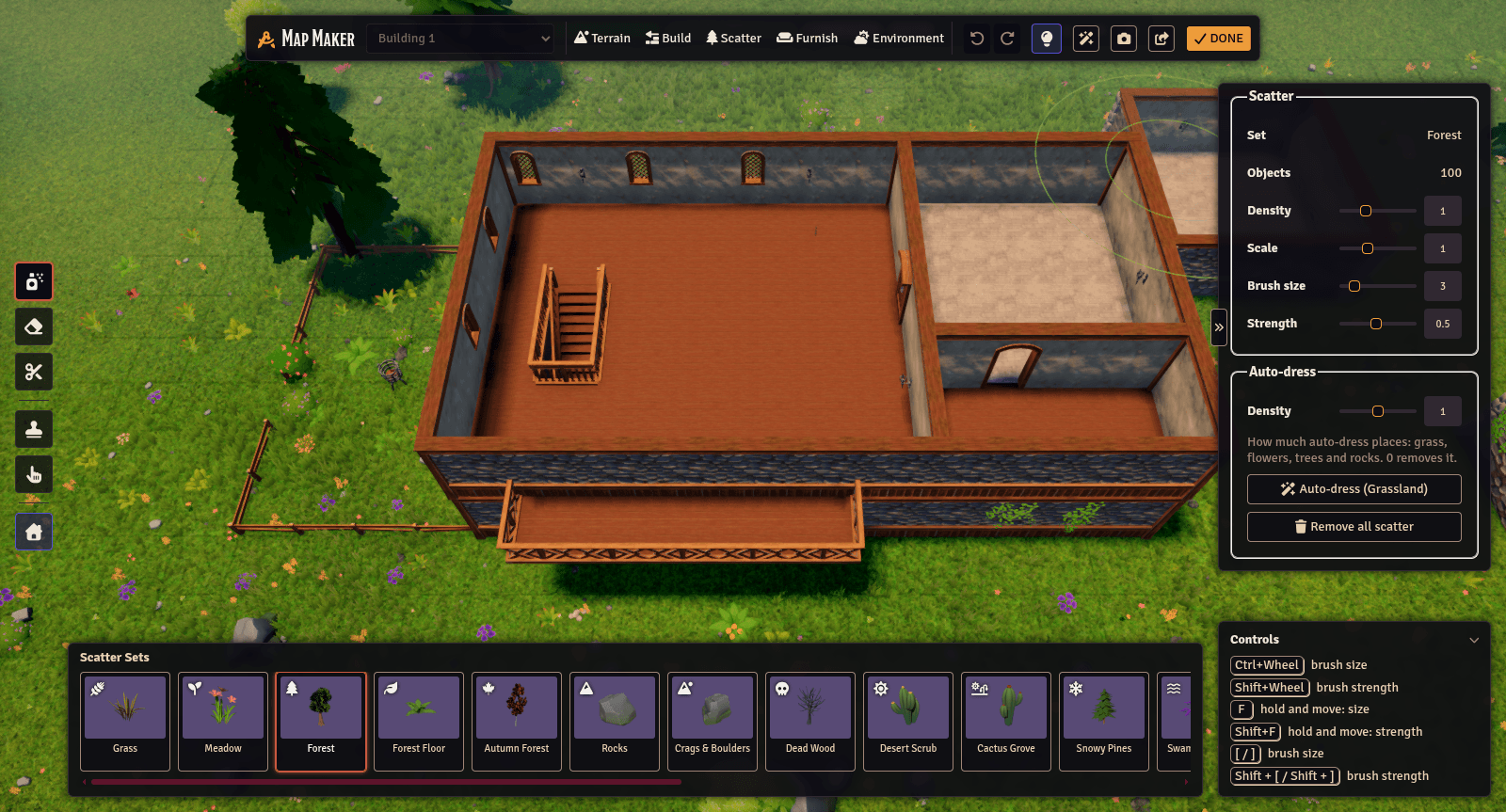
Click the Scatter tab. Scatter needs a Map Maker terrain (see Terrain).
Auto-dress
The fastest way to dress a whole map: click Auto-dress (<terrain look>) in the inspector.
Map Maker picks plants and rocks that suit the terrain look (for Grassland: meadow grass and flowers, trees, rocks) and spreads them everywhere except on buildings, roads and water.
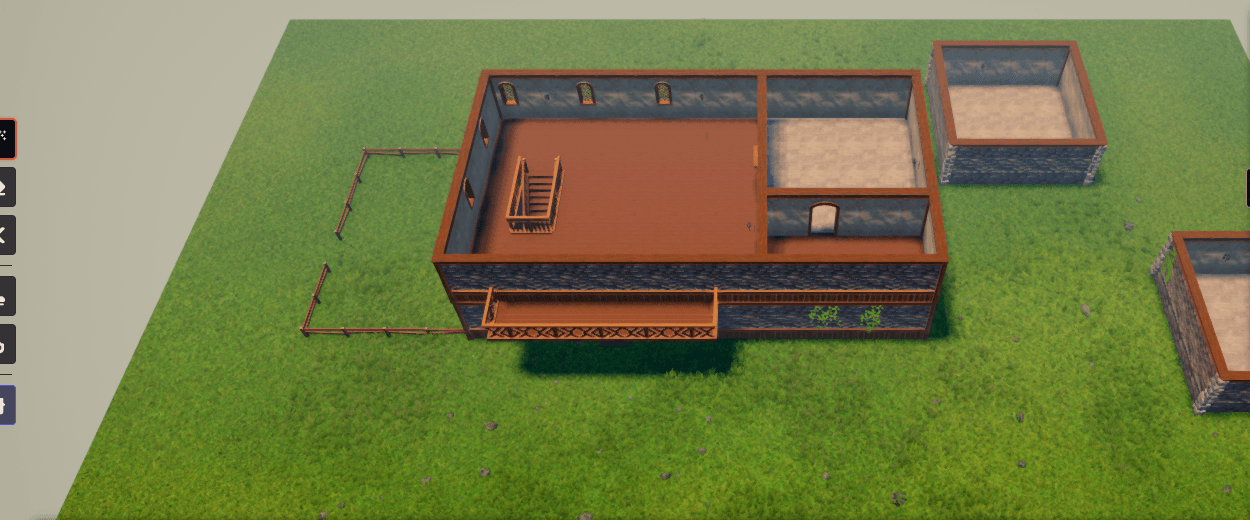
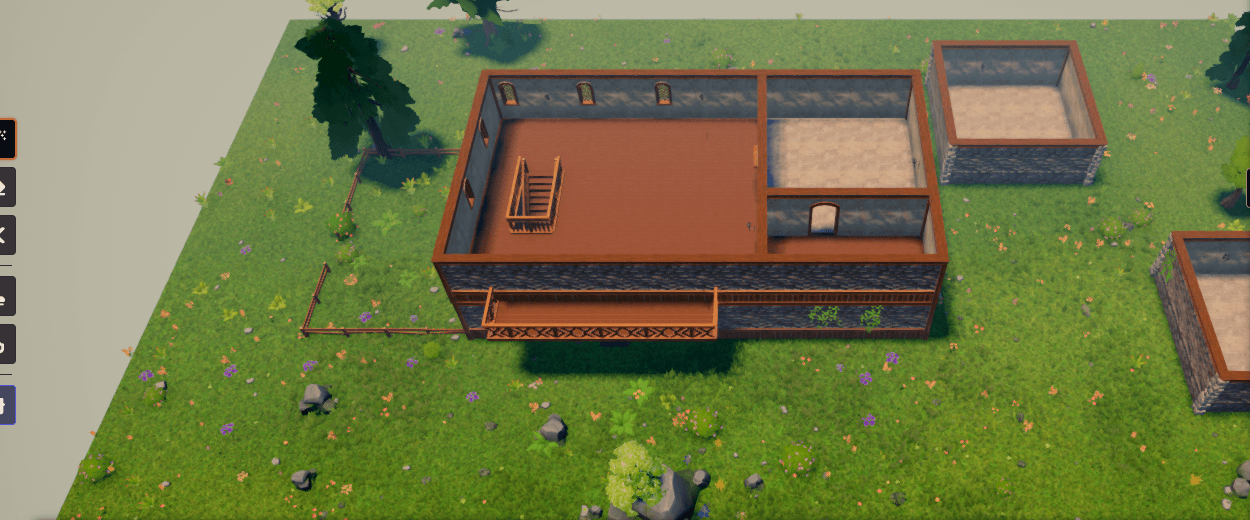
Density(0 to 2): "How much auto-dress places: grass, flowers, trees and rocks. 0 removes it." Change it and clickAuto-dressagain.Remove all scatter: clears every painted and auto-dressed plant from the scene.
Painting Scatter
The scatter tools are brushes, like the terrain tools.
- Pick a set in the
Scatter Setspalette:Grass,Meadow,Forest,Forest Floor,Autumn Forest,Rocks,Crags & Boulders,Dead Wood,Desert Scrub,Cactus Grove,Snowy Pines,Swamp & Reeds,Mushroom Glade,Wildflowers,Stylized Forest,Blossom Grove,Cave Rubble,Ice Cave Rubble,Lava Cave Rubble,Mine Clutter,Market Goods. - Pick a tool:
- Paint (
1): "Paint the selected set onto the ground." For a wood, a field of flowers, rocks along a cliff. - Erase (
2): "Remove the selected set." Clears a path or a camp site. Only the set picked in the palette is erased. - Thin (
3): "Halve the density of the selected set once per stroke." Makes a wood sparser without leaving bare holes.
- Paint (
- Drag over the ground.
The inspector shows the picked Set and, once it is on the map:
Objects: how many plants or rocks of this set the scene has.Density(0.1 to 3) andScale(0.5 to 2): how close together and how big this set's objects are, on the whole map.Brush sizeandStrength: as for terrain brushes ([/],Shift + [/Shift + ],Ctrl + Wheel,Shift + Wheel, holdF).
Scatter keeps off buildings, roads and water. Every stroke can be undone with Ctrl + Z.
Furnish
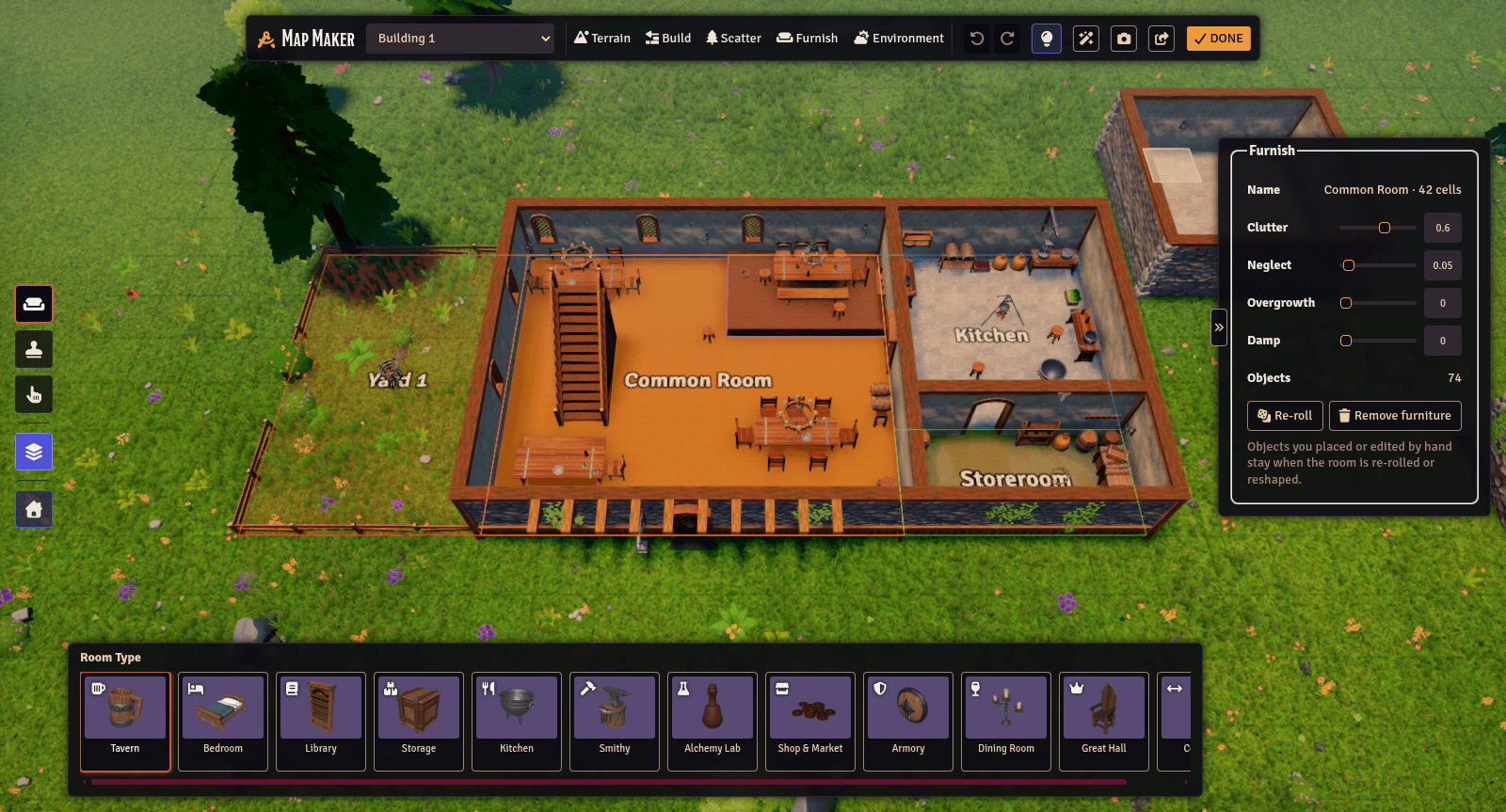
Click the Furnish tab. You need a building first ("Create a building in Build mode first."); pick it in the building selector.
- With Furnish Rooms (
1), click a room. - Click a type in the
Room Typepalette. The room fills with furniture, lights and props in a moment. - Click the next room and repeat.
You have furnished your building!
The room types depend on the building's theme:
| Theme group | Room types |
|---|---|
Village | Tavern, Bedroom, Library, Storage, Kitchen, Smithy, Alchemy Lab, Shop & Market, Armory, Dining Room, Great Hall, Corridor |
Dungeon (Dungeon, Prison Cells, Crypt) | Guard Room, Prison Cell, Crypt, Shrine, Treasure Vault, Storeroom, then all the village types |
Dungeon (Temple Hall, Overgrown Ruin) | Rubble Hall, Collapsed Storage, Overgrown Shrine, Abandoned Camp, then all the village types |
Sci-Fi | Bridge, Engineering, Xeno Lab, Cargo Hold, Teleporter Room, Crew Quarters, Mess Hall, Med Bay, Armory, Corridor |
Modern | Living Room, Kitchen, Bedroom, Bathroom, Office, Café |
Caves | all the village, dungeon and ruin types |
Custom | the theme's own Room Types; with none set (as Desert Adobe), all the village, dungeon and ruin types |
Dressing Sliders
The inspector's Furnish panel, for the selected room:
Name: the room and its size.Clutter: how full the room is. Low for a tidy room, high for a hoarder's den.Neglect: dust, cobwebs, dirt and worn furniture. For abandoned places.Overgrowth: plants and vines growing in.Damp: puddles, moss and water stains.Objects: how many objects the room has.Re-roll: a new random arrangement of the same room type.Remove furniture: empties the room.
The sliders (0 to 1) update the room as you drag them ("Building dressing…" shows while it works).
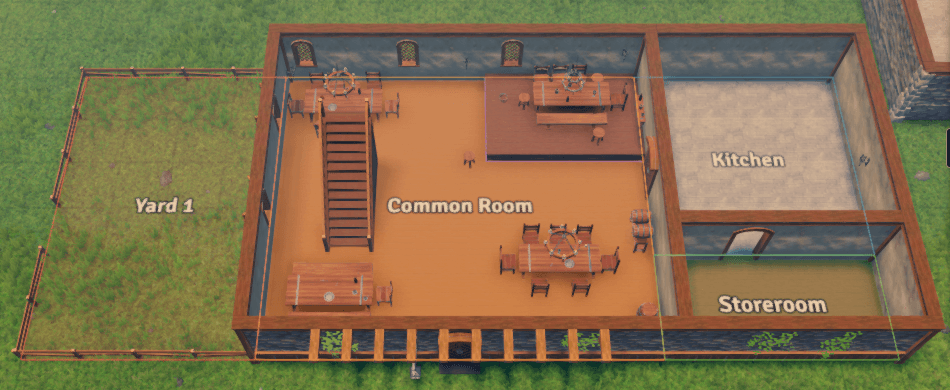
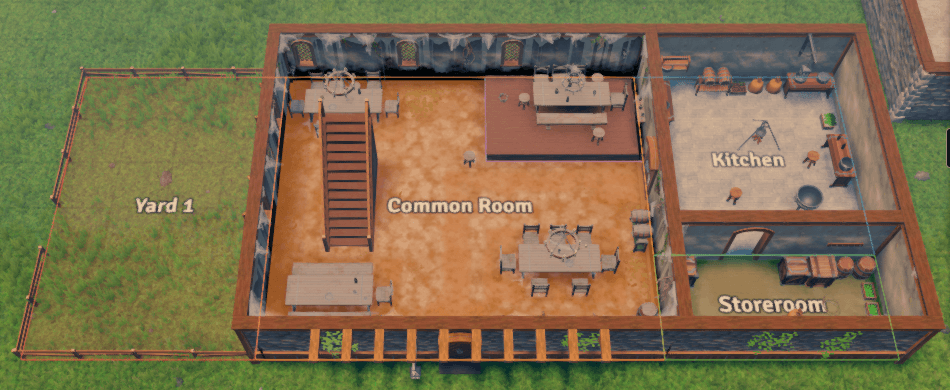
"Objects you placed or edited by hand stay when the room is re-rolled or reshaped." When you change a room's shape in Build mode, its furniture is arranged again.
Furnishing, the sliders, Re-roll and Remove furniture can all be undone with Ctrl + Z.
Placing Objects by Hand
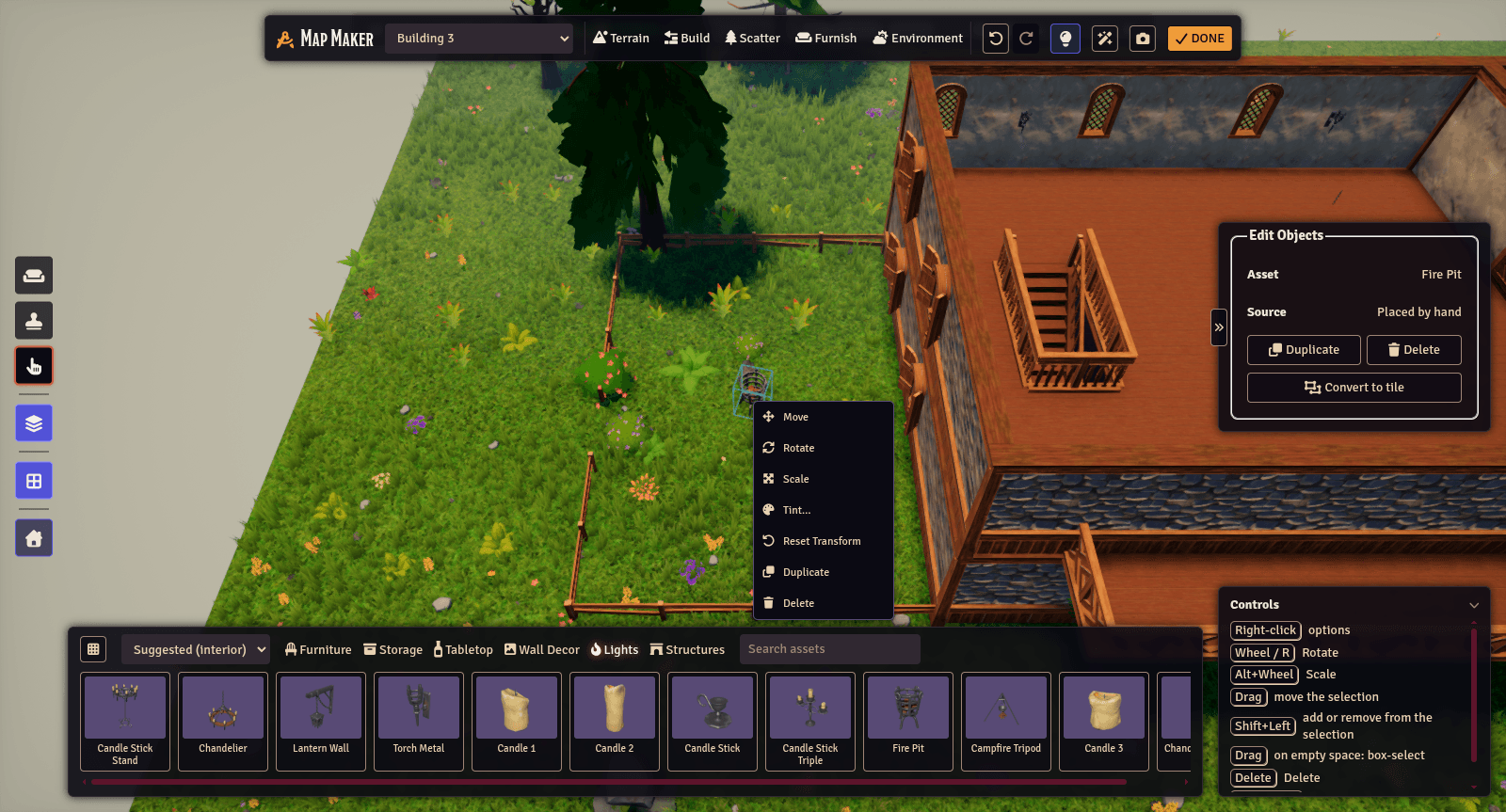
Both modes have two more tools for single objects: Place (Scatter 4, Furnish 2) and Edit Objects (Scatter 5, Furnish 3).
Place
The palette becomes an asset browser:
- The drop-down picks the asset kit:
Suggested (exterior)in Scatter orSuggested (interior)in Furnish, thenFantasy Props,Stylized Nature,Medieval Village,Modular Ruins,Modular Dungeon,Sci-Fi,Sci-Fi Station,Modern City. - Category tabs (only the ones the kit has):
Furniture,Storage,Tabletop,Wall Decor,Lights,Trees,Plants,Rocks,Structures,Clutter. Search assets: type to filter (Escapeclears it).- The grid button on the left switches to a two-row view.
Click an asset, then click on the map to place it. You can keep clicking to place more.
WheelorRrotates it (15° per step),Shift + Rthe other way;Alt + Wheelscales it. The inspector showsRotationandScale.Wall Decoritems snap to a wall near the cursor. Placed away from walls they lie on the floor (a sword lies flat).Snap to grid(toolbar toggle): "Positions snap to quarter cells; wall items snap along the wall. Hold Shift to place freely."Escapedrops the picked asset.
Lights, torches, candles, lanterns and fire pits also create a matching Foundry light. The assets come from the Mapmaking Pack. For any other model, use the 3D Canvas Asset Browser.
Edit Objects
"Select, move, rotate or delete objects." Works on everything Map Maker placed: scatter, furniture and objects placed by hand.
- Click an object to select it;
Shift + clickadds or removes objects; drag on empty ground to box-select. - Drag the selection to move it.
Deletedeletes it,Ctrl + Dduplicates it. - The inspector shows the
Asset, itsSource(Room furnishing,Placed by handorScatter), andDuplicate,Delete,Convert to tile. - Convert to tile: turns the object into a normal 3D Canvas tile, with its own Tile configuration (for a door, a light effect, a shader...).
Right-click an object for more:
Move,Rotate,Scale: a 3D handle (gizmo) to move, turn or resize it freely.Tint…:Tint(a color over the object) andHue Shift(-180 to 180, shifts all its colors).Reset Transform: undoes moves, turns and resizing.Duplicate,Delete.
Edited furniture stays put when you re-roll the room.
Shortcuts
| Key | Scatter | Furnish |
|---|---|---|
1 | Paint | Furnish Rooms |
2 | Erase | Place |
3 | Thin | Edit Objects |
4 / 5 | Place / Edit Objects | |
[ / ], Shift + [ / Shift + ] | Brush size / strength | |
Wheel, R / Shift + R | Rotate the asset (Place) | Rotate the asset (Place) |
Alt + Wheel | Scale the asset (Place) | Scale the asset (Place) |
Ctrl + D | Duplicate objects | Duplicate objects |
Delete | Delete objects | Delete objects |
V | Show room outlines | |
Escape | Drop the asset or deselect | Drop the asset or deselect |