3D Canvas - Advanced Tools
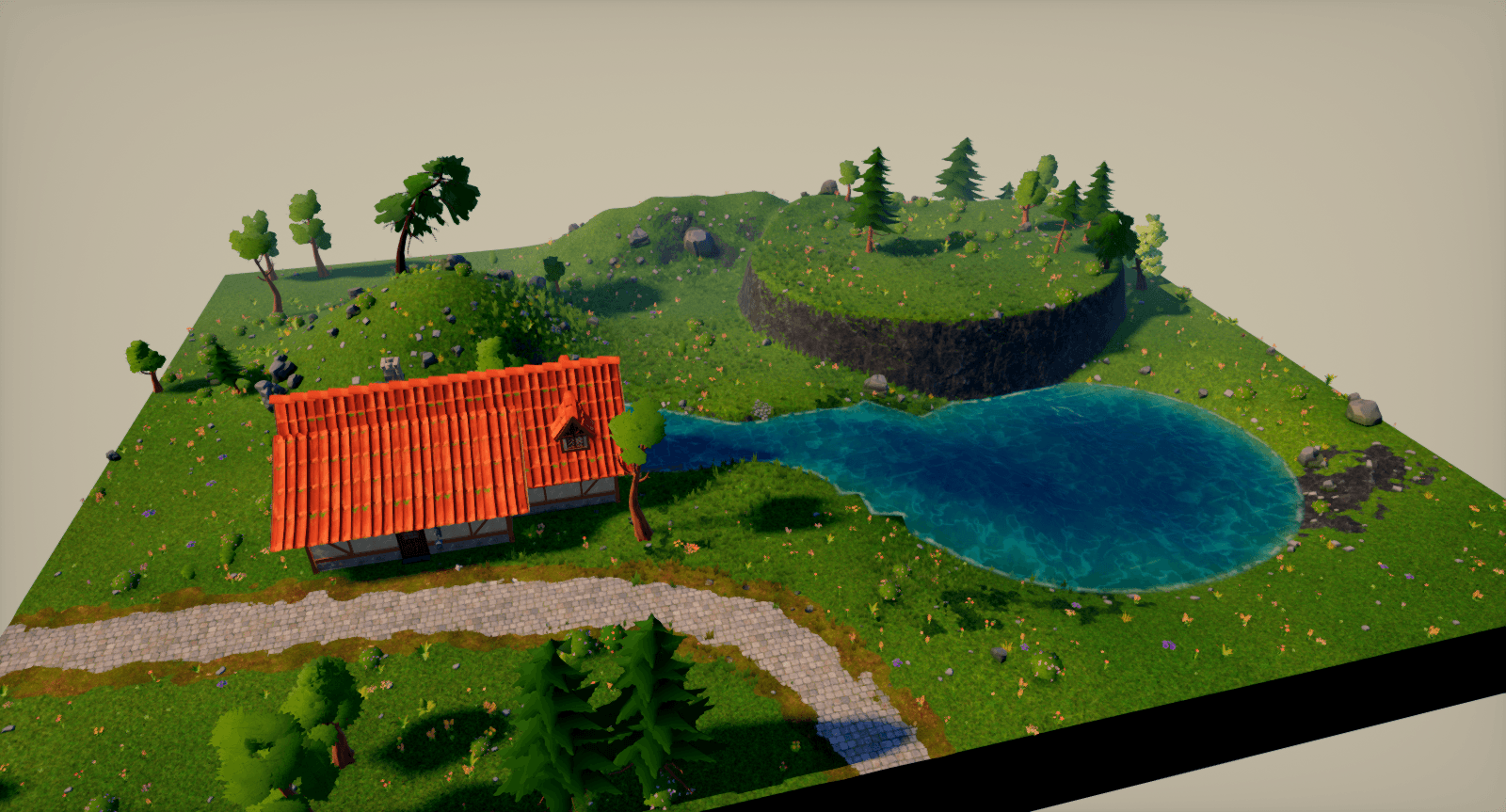
3D Canvas - Advanced Tools adds map-building tools to 3D Canvas. Its main feature is Map Maker, an editor that lets you sculpt terrain, build houses, dungeons and caves, scatter trees and furnish rooms in a few clicks, without placing 3D models one by one. It also adds a Material Browser, an Effect Browser, Cutscenes and a Heightmap Painter.
What You Need
- Foundry VTT v14 and 3D Canvas (required).
- The free Mapmaking Pack (
3D Canvas - Mapmaking Pack), installed. Map Maker builds everything (walls, roofs, furniture, trees, terrain textures) from its models and textures, and the Material Browser lists its materials.
Install the Mapmaking Pack and keep it up to date before you use Map Maker. Without it, or with an old version, Map Maker refuses to build kit buildings and starter layouts ("... could not be loaded, so nothing was built. Update the "3D Canvas - Mapmaking Pack" module to its latest version, then reload."); terrain, scatter and texture themes are not checked and come out without textures.
If you are new to 3D Canvas, read its Getting Started page first.
Where to Find It
Advanced Tools has no buttons of its own in the scene controls. Everything is in two places:
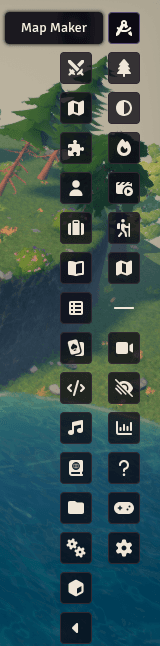
- The 3D Canvas Tools column next to the sidebar, shown while a scene is in 3D (GM only). If it has slid away, click the cube button
3D Canvas Toolsat the bottom of the sidebar tabs. Advanced Tools adds these buttons to it:- Map Maker (first button): opens Map Maker.
- Materials: the Material Browser.
- Effects: the Effect Browser.
- Cutscenes: the Cutscene Panel.
- More Tours: the 3D Canvas guided tours (shown until you have finished them all).
- The Create Scene window: the checkbox
Start in Map Makercreates the new scene and opens it in Map Maker (see Map Maker: Getting Started).
The first time you load the world, Advanced Tools whispers a welcome message to the GMs in the chat, with a link to this page.
Map Maker
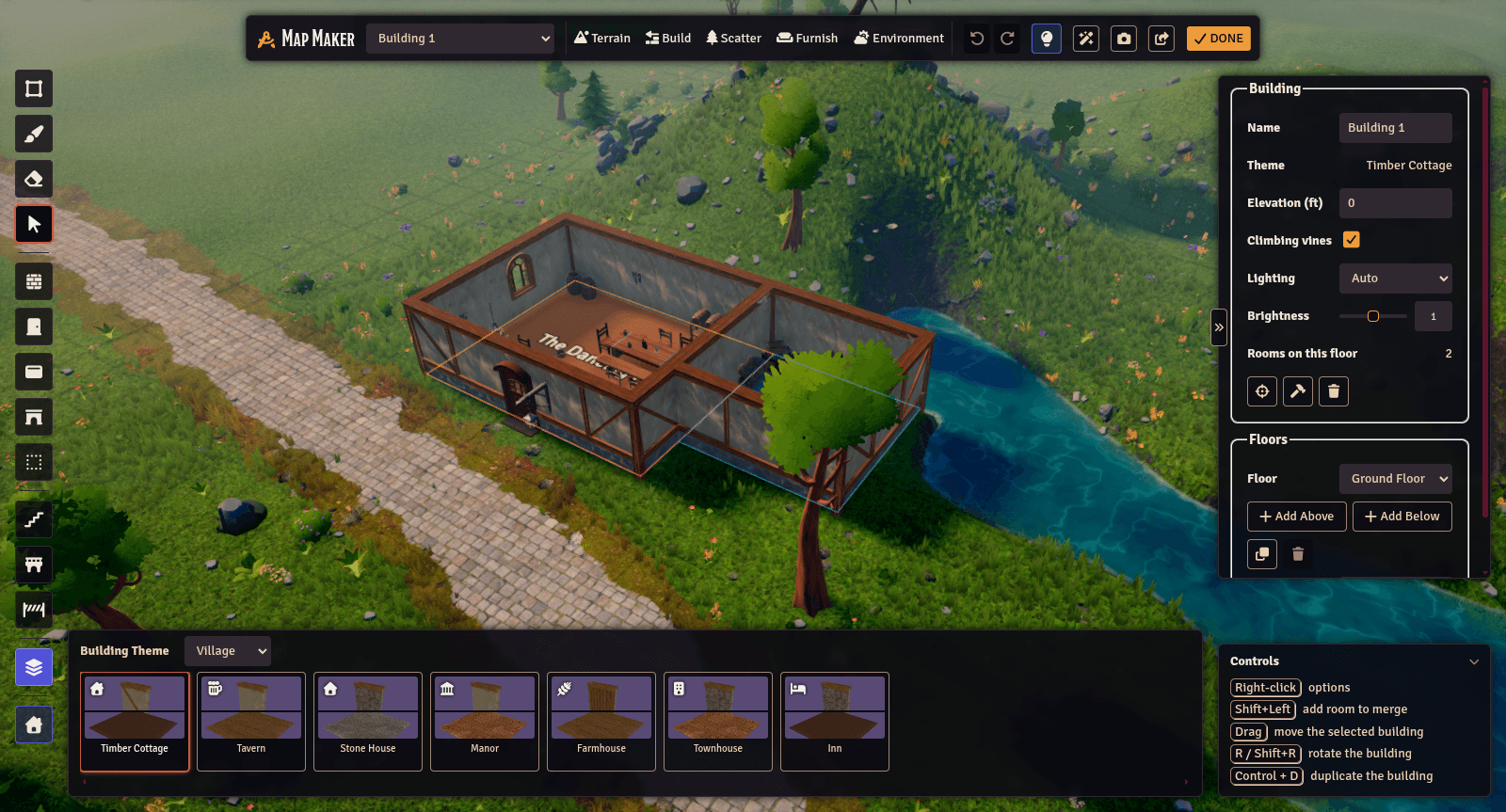
Map Maker is a full-screen editor on top of your 3D scene. You work in five modes, one per tab:
- Terrain: raise hills, dig lakes, paint grass and rock, lay roads, fill water.
- Build: draw rooms on the grid and Map Maker builds the walls, floors, doors, windows, roofs, stairs and upper floors.
- Scatter: paint trees, grass, flowers and rocks onto the land, or let Map Maker dress the whole map for you.
- Furnish: pick a room type (tavern, bedroom, prison cell, bridge...) and the room is filled with furniture.
- Environment: time of day, light, weather and the color style of the scene.
A Quick Start window can set up an outdoor, indoor or underground scene and build a sample layout for you, so you never start from an empty map. Everything saves as you go, and the result is an ordinary 3D Canvas scene your players can explore.
Read the Map Maker pages in this order:
Material Browser
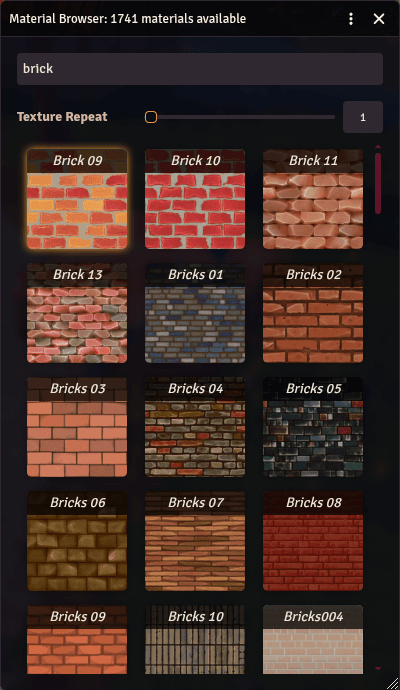
The Material Browser shows the textures (materials) of the Mapmaking Pack as a grid of previews: bricks, wood, stone, metal, grass and many more. Use it to give 3D tiles a new surface without hunting for texture files.
From the 3D Canvas Tools column (Materials):
- Select one or more tiles on the scene.
- Click
Materialsand type inSearch...to filter the list (for example "brick"). - Click a material: it is applied to all selected tiles. With no tile selected you get "Please select a tile first."
Texture Repeat(1 to 128): how many times the texture repeats across the selected tiles. Raise it when a texture looks stretched on a big tile.
From a configuration window: a half-circle button, Open Material Browser, sits next to these texture fields:
- Tile configuration ->
3D Canvastab -> the texture field. - 3D Canvas
Shaders Configuration(from the tile'sConfigure Shaders) -> its texture fields.
Token and Wall configurations have no such button on Foundry v14.
Clicking a material fills the field; save the window as usual. If the 3D Canvas setting Close Material Browser is on, the browser closes after you pick.
Effect Browser
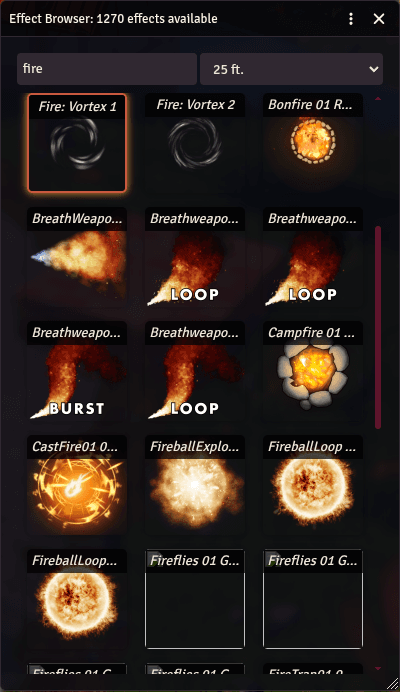
The Effect Browser places ground effects that follow the shape of the 3D surface: magic circles and vortexes, cracks, splashes and spills, roads, lava, ice, moss and more, many in several elemental versions (fire, acid, ice...). If JB2A (free or Patreon) is installed, its animated effects are listed too.
- Click
Effectsin the 3D Canvas Tools column. - Type in
Search...to filter, and pick a size in the drop-down (5 ft. to 120 ft. on a 5 ft. grid). - Place an effect:
- drag it from the list onto the 3D view, or
- click it to select it, then
Shift + Left-clickon the 3D view. Place as many as you like.
- To place a mix:
Ctrl + clickadds or removes effects,Shift + clickselects a range. EachShift + Left-clickon the map then places a random one of them. Clicking a selected effect again deselects it.
The effect lies on the ground and bends over hills and slopes. It becomes a tile, so you move, resize or delete it like any other tile.
Cutscenes
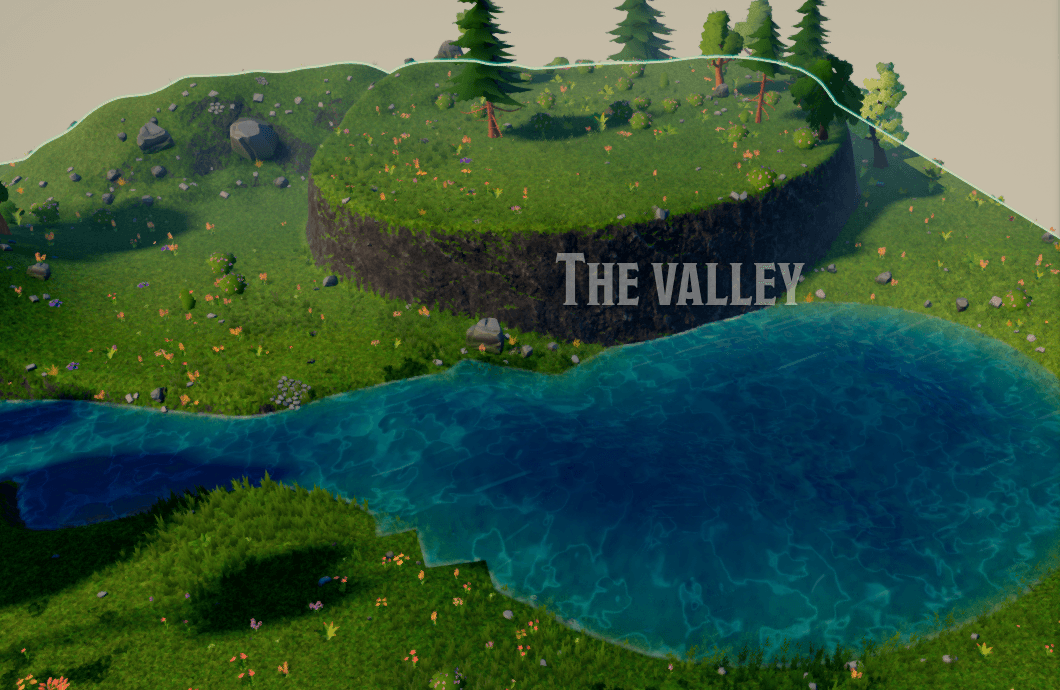
A cutscene is a camera flight through your 3D scene, with optional captions, that you play on your players' screens: a flyover of the village when the party arrives, a slow reveal of the dragon's lair. Cutscenes belong to the scene they are made in.
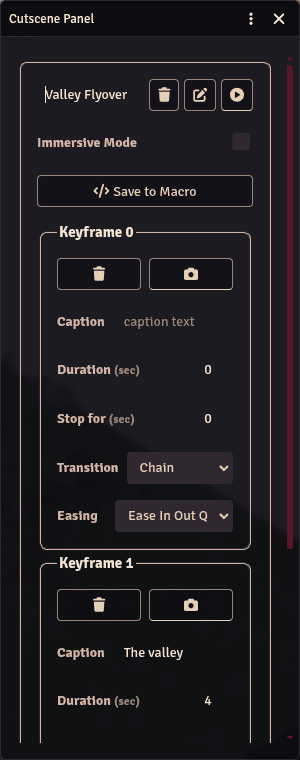
- Click
Cutscenesin the 3D Canvas Tools column. The Cutscene Panel opens next to the sidebar. - Click
Add Clip. A clip called "New Clip" appears, open for editing. - Move the camera to where the flight should start and click
Add Keyframe. The keyframe stores the current camera position. - Move the camera to the next spot and click
Add Keyframeagain. Repeat for every stop of the flight. - For each keyframe set:
Caption: text shown on screen while the camera flies to this keyframe (leave empty for none).Duration (sec): how long the flight to this keyframe takes. The first keyframe is where the camera starts.Stop for (sec): how long the camera stays still at this keyframe.Transition:Chainflies on smoothly,Cross-Fadefades the view to this keyframe.Easing: how the movement speeds up and slows down (Linear,Ease In Out Quad...).
- Click
Play Clip(play button). Tick the users who should see it (only users who are logged in are listed) and clickConfirm.
The other buttons of a clip:
- Capture Camera Position (camera button in a keyframe): replace that keyframe's position with the current camera.
- Delete Keyframe (trash button in a keyframe) and Delete Clip (trash button next to the name), each with a confirmation.
- Edit Clip (pencil): show or hide the clip's keyframes.
Immersive Mode: hides the Foundry interface and open windows while the clip plays.Save to Macro: creates a script macro "3D Canvas: Play Cutscene - clip name" in the Macro Directory. Put it on the hotbar to start the cutscene in one click. The macro plays for every user who is viewing that scene.
To rename a clip, type in its name field and press Enter or click elsewhere.
Players see the cutscene only if they are looking at that scene in 3D.
Heightmap Painter
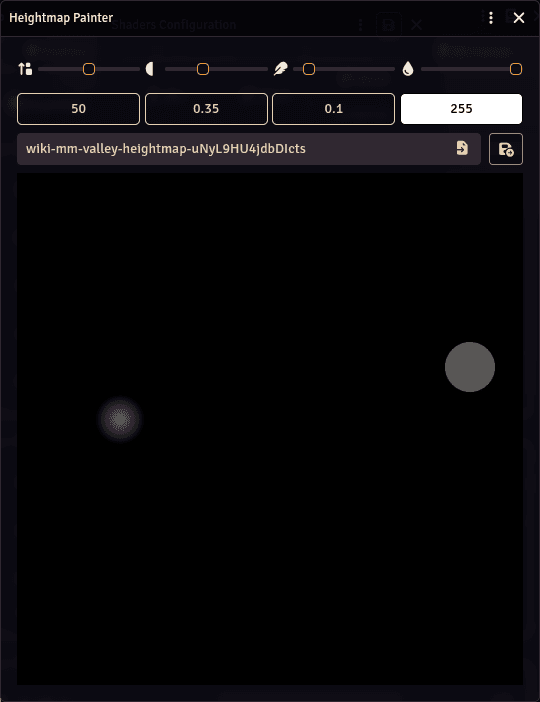
The Heightmap Painter paints black-and-white (or color) images used by 3D Canvas shaders. Most GMs never need it: it is for shader effects that blend textures with a mask (white shows one texture, black the other) or a splat map (red, green and blue each show a texture).
- Open a tile's configuration ->
3D Canvastab ->Configure Shadersto openShaders Configuration. - Go to the Mask tab (
Mask Texture) or the Splat Map tab, and click the brush button next to the texture field. - Paint with the left mouse button on the black canvas in the window. The controls at the top:
- Brush Size, Brush Opacity, Brush Hardness (soft or sharp edge), Brush Color (0 black to 255 white). Each slider has a number box under it.
- For splat maps, a palette button cycles the color you paint with.
- Pick a file name and folder with the file field and click the save button next to it. The image is uploaded and the shader field is filled with it.
Closing the painter without saving asks "Close without saving?".
Advanced
Legacy Build Tools
Before Map Maker, Advanced Tools had three separate panels. Map Maker replaces them, so they are hidden. To show them, turn on Game Settings -> Configure Settings -> 3D Canvas - Advanced Tools -> Show legacy build tools (requires a reload). They then appear in the 3D Canvas Tools column and still open on Foundry v14:
- Environment (
Environment Panel): time of day, weather and sky pictures. Use the Environment mode of Map Maker instead. - Terrain (
Terrain Panel): generates a random terrain with a theme, adds water, lava or acid;Fine Tuneopens a heightmap editor. Use the Terrain mode instead. - Dungeons & Interiors (
Dungeons & Interiors Panel): draws rooms with shapes and textures. Use the Build mode instead.
They are not maintained any more: keep them only for maps you made with them.