Lights
Foundry's ambient lights light up the 3D scene too: torches on walls, campfires, glowing crystals, a beam of light through a window.
This page explains how a light looks in 3D and every option of its 3D Canvas tab.
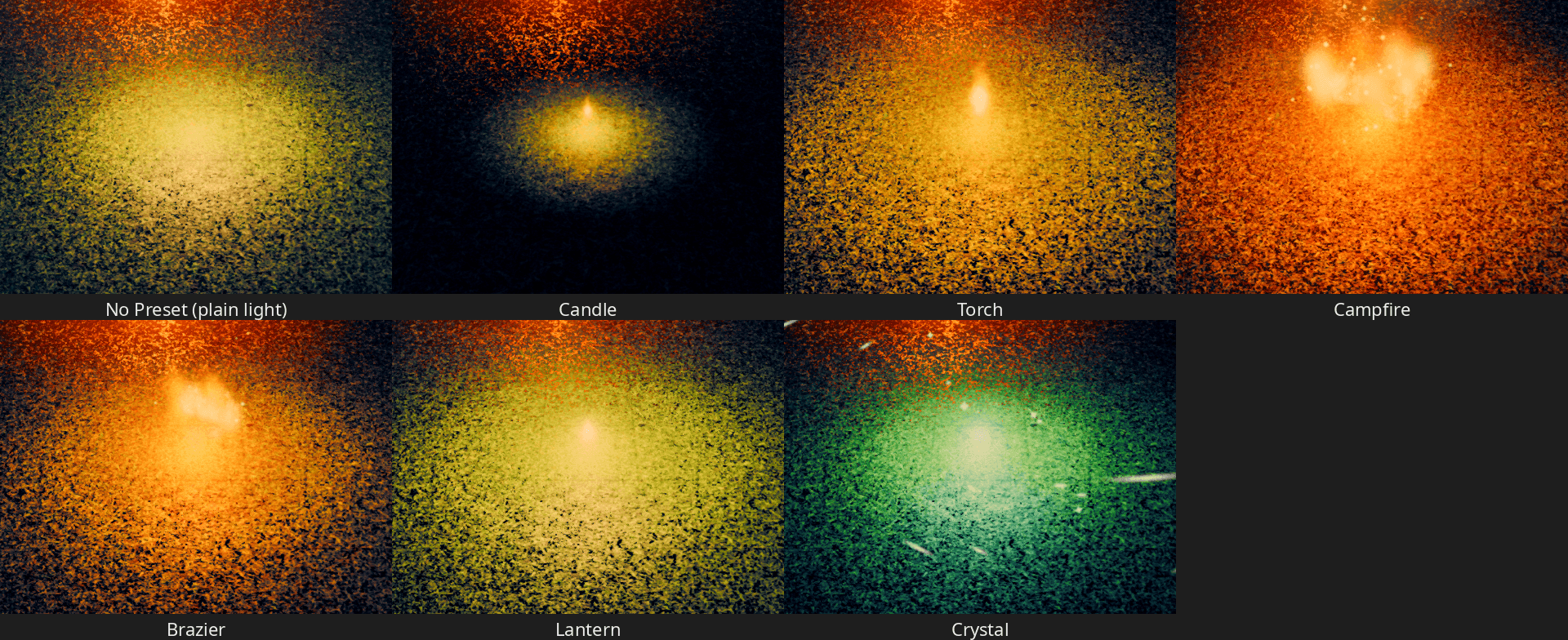
How Lights Work in 3D
You place and edit lights as in 2D, or directly in the 3D view (see Placing and Editing Lights in 3D). Every light you already have shows up in 3D.
- Color, radius and brightness come from Foundry's own options (
Basic Configurationtab):DimandBrightradius,Color,Color Intensity,Luminosity. - Height: the light's
Elevationis its height above the ground. A light on the ground lights a small circle; raise it (for example to 5-10 ft for a torch on a wall) to light a wider area and the sides of nearby objects. - 3D models don't block light unless the light casts shadows (see
Cast Shadow). - Animations: most of Foundry's light animations (
Torch,Flickering Light,Pulse,Chroma,Revolving,Siren,Fairy Light,Starlight...) flicker, pulse or change color in 3D too. - On and off: a light that is hidden (off) gives no light in 3D, unless
Visible When Disabledis on. - Many lights are fine: dozens of plain lights in a scene cost little. Shadows are what costs (see below).
On its own, a light is only a pool of light on the ground (first picture above). The presets add a visible source: a flame, a glow, particles.
A light at exactly the top elevation of the current level is not shown: keep lights below it.
Placing and Editing Lights in 3D
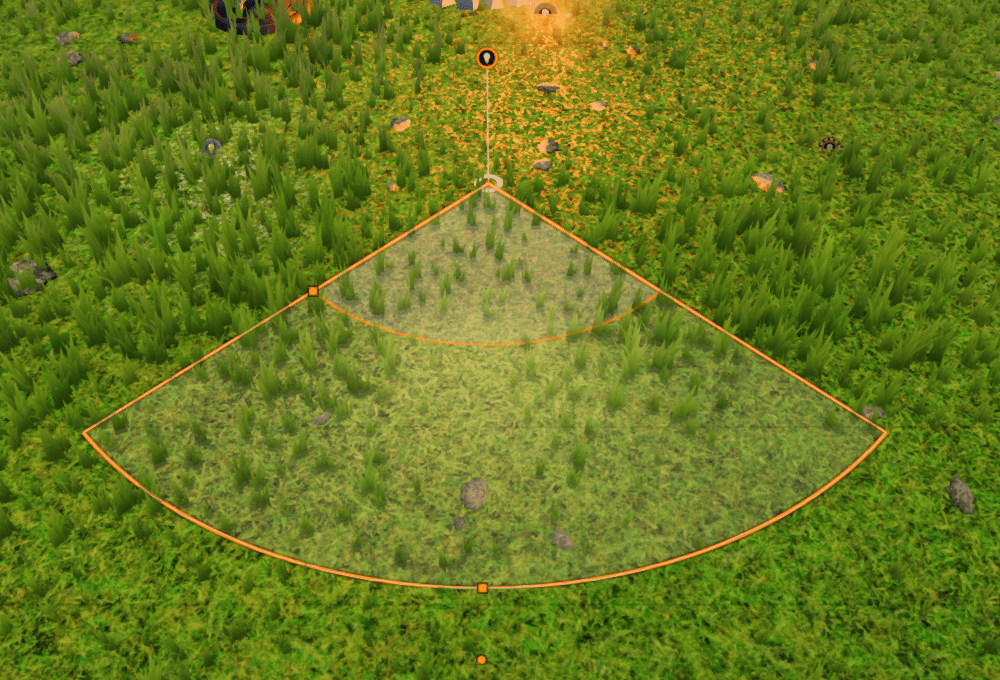
With the Lighting controls active, the GM sees every light in 3D as a small round light-bulb icon. A raised light floats at its height, with a thin line down to a small ring on the ground.
- Create: pick
Draw Light Source, then click and drag on the ground. The drag sets the radius (shown as you drag,Brightis half ofDim); release to create the light. - Select and move: click the icon to select it, drag it to move the light. Double-click the icon to open the light's configuration.
- Range: a selected light shows its range on the ground, with the area it really lights (walls cut it).
- Handles (one light selected):
- the square on the edge of the range: drag to change the radius (
DimandBrightchange together, the value is shown while you drag); - for a light with an
Emission Anglebelow 360°, also a round handle past the edge to turn it (Rotation) and a square on the side of the cone to widen or narrow it (Emission Angle).
- the square on the edge of the range: drag to change the radius (
- Hold
Shiftwhile dragging a handle to snap it: the radius to half a grid square (7.5 ft,10 ft...), the rotation and the angle to 5° steps.
Night, Day and the Sky
Placed lights matter most in the dark. How dark the 3D scene is depends on the scene's sky and time of day, set in Scene Setup:
- With
Automatic Lightinglinked to Foundry's darkness or the world time (the default), lights show up more as the scene gets darker. At midday a torch is barely visible; at night it lights the area around it. Ambient Light Intensitylights the whole scene evenly and washes out placed lights: keep it low in night scenes.Render Scene Lightsin the scene'sMiscellaneoussub-tab turns all placed lights off in 3D for that scene.
Token Lights
A token's light (token configuration -> Light tab, for example a torch carried by a character) moves with the token in 3D. It uses Foundry's options only: the 3D Canvas options below (presets, halo, particles) are for ambient lights.
To show a flame on a token, use a Particle Preset in the token's 3D Canvas tab, see Tokens.
The 3D Canvas Tab
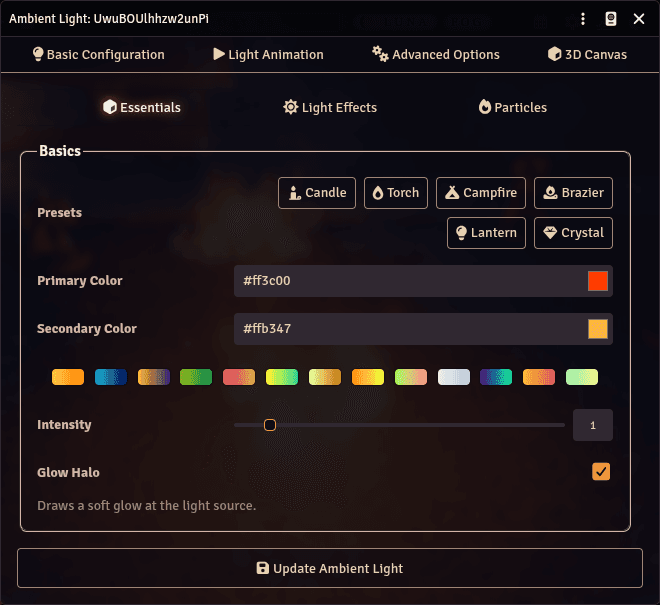
Open the light's configuration (double-click it, in 2D or on its icon in 3D) and go to the 3D Canvas tab. For most lights, clicking a preset is all you need.
Essentials
Basics
-
Presets: one click sets up a complete light: color, radius, animation, glow and particles.Candle: small warm flame, 2.5 ft bright / 7.5 ft dim on a 5 ft grid.Torch: orange torch flame, 20 / 40 ft.Campfire: large fire with sparks, 15 / 35 ft.Brazier: fire in a bowl, 15 / 30 ft.Lantern: soft steady light, 15 / 30 ft.Crystal: cold blue light with twinkling fairy dust, 10 / 20 ft.
The preset changes Foundry's own light options too (radius, color, animation); adjust them afterwards as you like.
-
Primary Color,Secondary Color: the colors of the particles, from the core of the flame to its tips. The row of color swatches below them sets both at once. Shown when particles are on. -
Intensity: how many particles. Shown when particles are on. -
Glow Halo: a soft glow at the light's source, so you can see where the light comes from. The presets turn it on.
Light Effects
Basics
Cast Shadow(off): 3D models block this light and cast shadows. A round light (Emission Angle360°) casts them only for players withSoft Shadowsoff, see Shadows and Performance. It looks great but each shadow-casting light costs performance: use it on a few important lights only. Players withShadow Qualityset toDisableddon't see these shadows. See Performance.Visible When Disabled(off): the light keeps shining in 3D while it is turned off (hidden) in Foundry.Halo Size: the size of theGlow Halo.
Spotlight (lights with an Emission Angle below 360° in Foundry's Basic Configuration)
Tilt(-90 to 90): points the spotlight down (negative) or up (positive). Its direction left and right is the light'sRotation.Light Shaft: draws the beam itself as a visible cone of light with floating dust. Good for light through a window, a lighthouse or a lamp.Shaft Intensity: how bright the visible beam is.Dust Motes(on): the floating dust inside the beam.
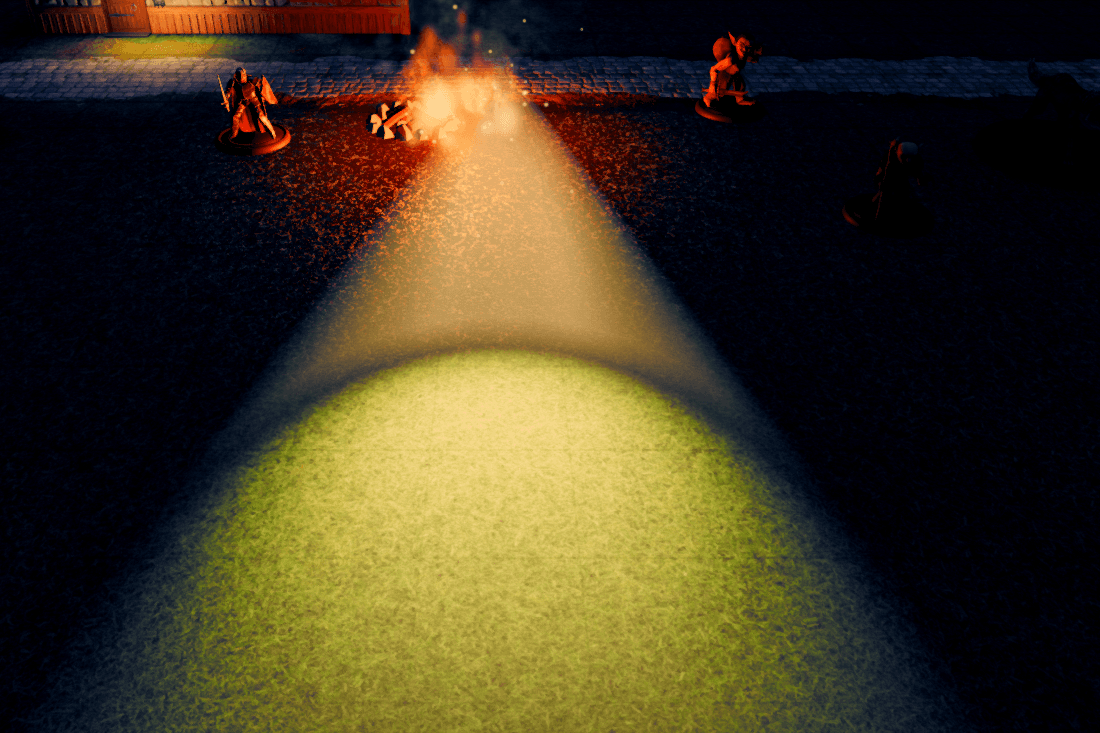
To make a window beam: set the light's Emission Angle to about 60-90°, raise its Elevation above the floor, give it a negative Tilt and tick Light Shaft.
Particles
Basics
Enable Particles: the light emits particles. The presets turn it on.Particle Preset: what it emits. Flames and fires (Torch,Fire,Candle,Lantern,Brazier,Campfire,Forge,Sparks), magic (Magic Circle,Magic Sphere,Portal,Vortex,Gravity Well,Holy Light,Ghostly Light,Tesla,Sunburst), ambience (Fireflies,Fairy Dust,Mysterious Lights,Mist,Steam,Smoke Cloud,Waterfall Mist), auras (Aura: Flame,Frost,Holy,Shadow,Shield Bubble) and volumes that fill the light's area (Fog Volume,Darkness Volume,Smoke Volume).- Directional presets (
Flamethrower,Electric Burst,Poison Cloud,Wave,Laser,Frost) need anEmission Anglebelow 360°: they shoot in the light's direction, for traps and breath weapons. CustomandCustom (JSON): your own particles (see below).
- Directional presets (
Show When Light Is Off: keep the particles while the light is off, for example smoke from a put-out fire.Scale (Grid Units): the size of the effect, in grid squares.Particle Area: how wide the area is where particles appear, compared with the light's radius.
Custom Particle (with the Custom preset; Sprite also for some presets)
Sprite: the image of one particle (image, video, gif or a JSON file).Starting Opacity,Ending Opacity,Life (Milliseconds),Count,Emit Time (Milliseconds),Force,Push X,Push Y,Push Z,Gravity,Mass: the behavior of each particle, as their names say.
How many particles each player sees depends on their Effects Quality in Graphics Settings; Off hides them.
Advanced
Shadows and Performance
- Plain lights are cheap: scenes with many lights run fine.
Cast Shadowlights render the scene again for their shadows. A handful is fine on a good graphics card; dozens will slow every player down.- Point lights (
Emission Angle360°) cast shadows only for players withSoft Shadowsoff in their Graphics Settings; spotlights cast them in both cases. - The first lights of a scene can cause a short stutter while the graphics card prepares them. 3D Canvas warms them up while the scene loads to keep this short.
Scripting
The options of this tab are flags of the light under levels-3d-preview, for example lightHalo, lightHaloScale, castShadow, visibleWhenDisabled, tilt, lightShaft, enableParticle and ParticleType. This turns the glow halo on for the selected lights:
for (const light of canvas.lighting.controlled) {
    await light.document.setFlag("levels-3d-preview", "lightHalo", true);
}
For full scripting see Macros & API. Particle effects outside lights: Particles API.