Walls, Notes & Regions
How Foundry's walls, journal notes, regions (including spell areas), drawings and ambient sounds look and behave in 3D.
Walls
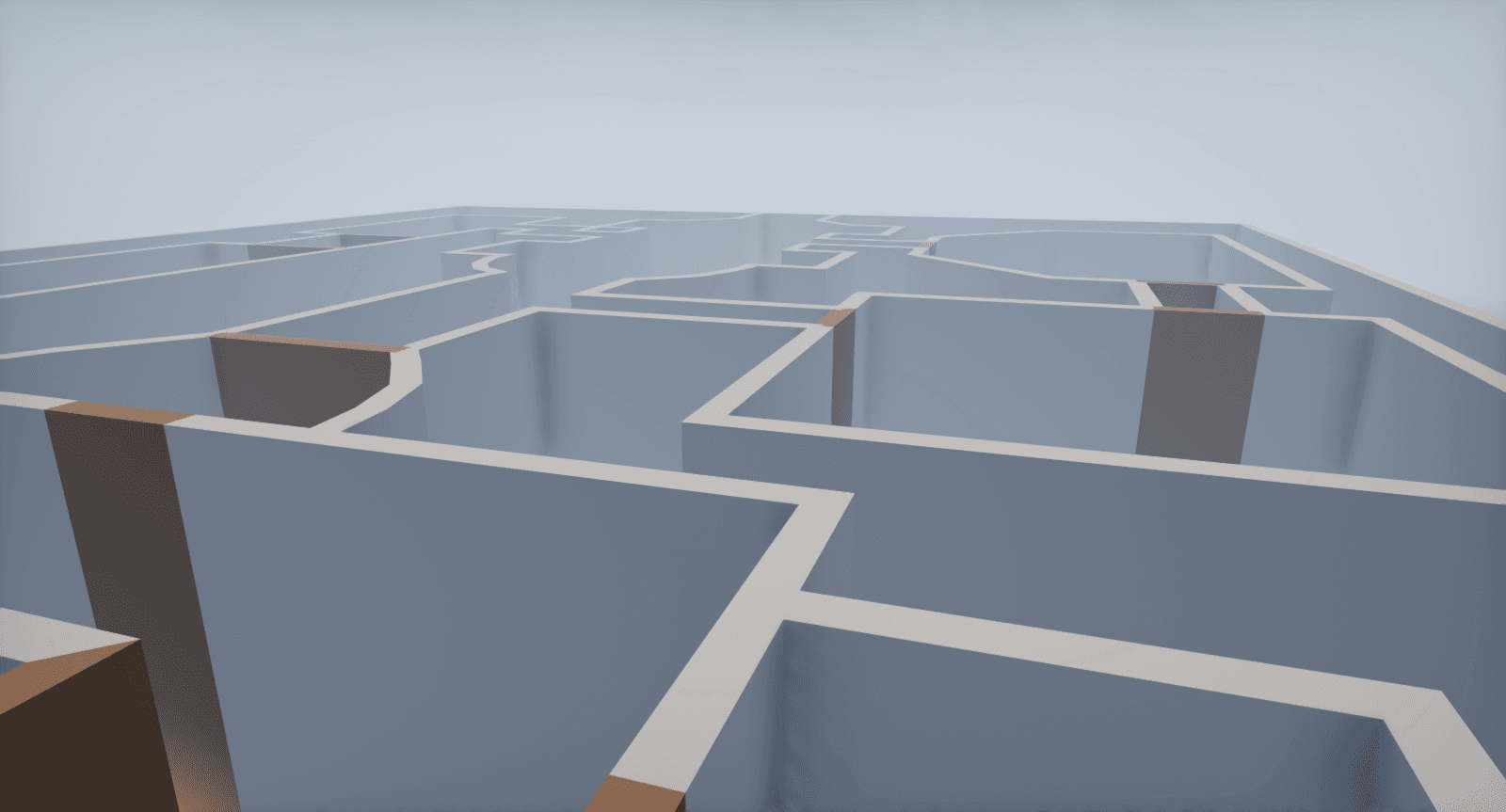
The walls you draw in 2D are raised into 3D walls automatically, so any 2D battle map with walls becomes a walkable 3D maze. They block sight and movement as in 2D.
- Walls without a texture are stone grey, doors brown. Players see secret doors as normal walls.
- Where two walls meet end to end, the corner is joined cleanly.
- While the GM has the Walls controls active, walls take Foundry's wall-type colors instead, as in 2D.
You can't draw or edit walls in the 3D view: switch to 2D for that (Toggle 3D Mode in the Token controls). Opening the Walls controls in 3D shows a reminder that the walls layer is view-only there.
For maps built in 3D, use tiles for walls instead: they can be any model, and they block sight and movement too. See Tiles & Map Building.
How Tall Walls Are
A wall is as tall as the top of the scene's current level: scene configuration -> Levels tab -> the level -> Elevation Range (ft). If the level has no top, walls are 10 feet tall.
Many maps have a top of 20 or even 999, which makes towering walls. To fix it, lower the level's top, for example to 10.
To hide the walls in 3D (they still block sight), untick Render Walls in the scene's 3D Canvas tab, see Scene Setup.
The 3D Options of a Wall
Open a wall's configuration (in 2D) and scroll to the 3D section. Select several walls first to change them all at once.
Texture: an image for the wall faces, for example bricks or wood from the Mapmaking Pack.Sides Texture: an image for the top and the ends of the wall.Color: tints the wall faces. Works with or without aTexture.Sides Tint: tints the top and ends.Stretch Texture: stretch the texture once over the whole wall instead of repeating it. On a long wall the bricks get very wide, so most walls look better without it.Opacity: lower it for glass walls or force fields (0.5is half see-through).Wall Depth: how thick the wall is, in pixels (default30).Roughness: low is shiny, high is matte (default0.85).Reflectivity: how metallic the wall looks (default0).Always Visible: a wall that doesn't block sight (sight restrictionNone, for example an invisible barrier) and has aTextureorColoris hidden in 3D. Tick this to draw it anyway.Join Wall: makes the wall longer by its thickness, so it closes the gap at corners where two walls meet.
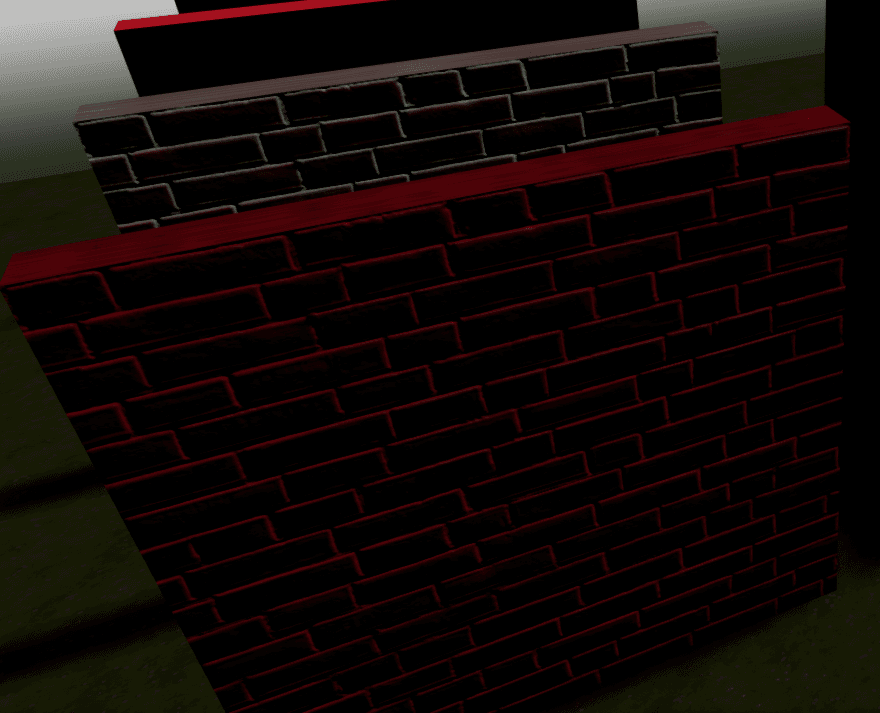
Color, Roughness and Reflectivity also work on Mapmaking Pack materials (the folders with _Color, _Roughness... files): one brick material can give red, grey and sandy walls.
Doors and Windows
Core door walls are doors in 3D too: they are drawn as brown panels and block sight and movement while closed. Click one in the 3D view (Token controls) to open or close it, as in 2D; players can do it too, and an open door turns pale. A window is a wall whose sight restriction lets sight through; give it a low Opacity to make it look like glass.
For doors that swing or slide, use a door tile instead: see Door.
Notes
Journal notes appear in 3D as map pins: a round badge with the note's icon on a thin line, standing on whatever is under them. The pin always faces the camera and shows the note's label when you hover it.
To place a note in 3D, either:
- select the Journal Notes controls and the Create Map Note tool, click in the 3D view, then fill in Foundry's usual
Create Notedialog and note configuration; or - drop a journal entry or page on the 3D view.
The note lands on the surface under the cursor. The note configuration has no 3D options.
Regions
Regions are areas on the map, and in Foundry v14 they are also what spell templates become: a Fireball is a region. In 3D, regions are drawn as volumes from their bottom to their top elevation, with an effect that matches what they are.
The 3D Tab
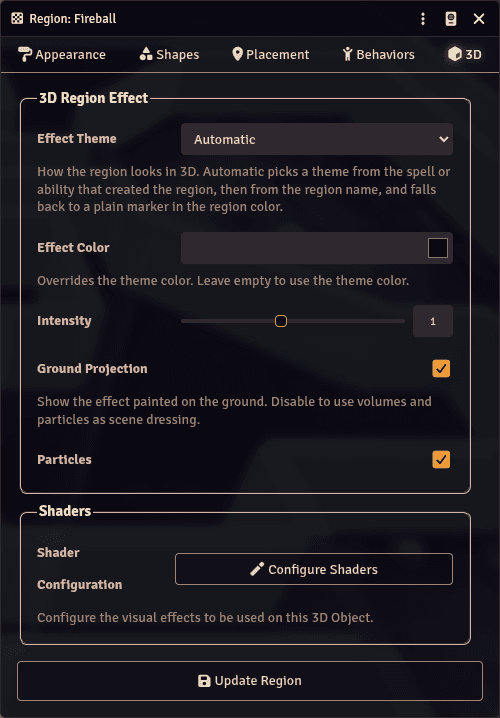
Open a region's configuration -> 3D tab -> 3D Region Effect:
Effect Theme: how the region looks.Automaticpicks it for you (see below). The others arePlain(a simple marker in the region's color),Fire,Cold,Acid,Lightning,Thunder,Poison,Necrotic,Radiant,Force,Psychic,Healing,Physical,Fog,Darkness,Smoke,Water,Web,Vines,WindandArcane.Effect Color: overrides the theme's color. Leave it empty for the theme's own.Intensity: weaker or stronger effect.Ground Projection: paints the effect on the ground. Turn it off to keep only the volume and particles, for example for a fog bank as scene dressing.Particles: the floating particles of the effect.Configure Shaders: extra animated effects, see Shaders.
Automatic Themes for Spells
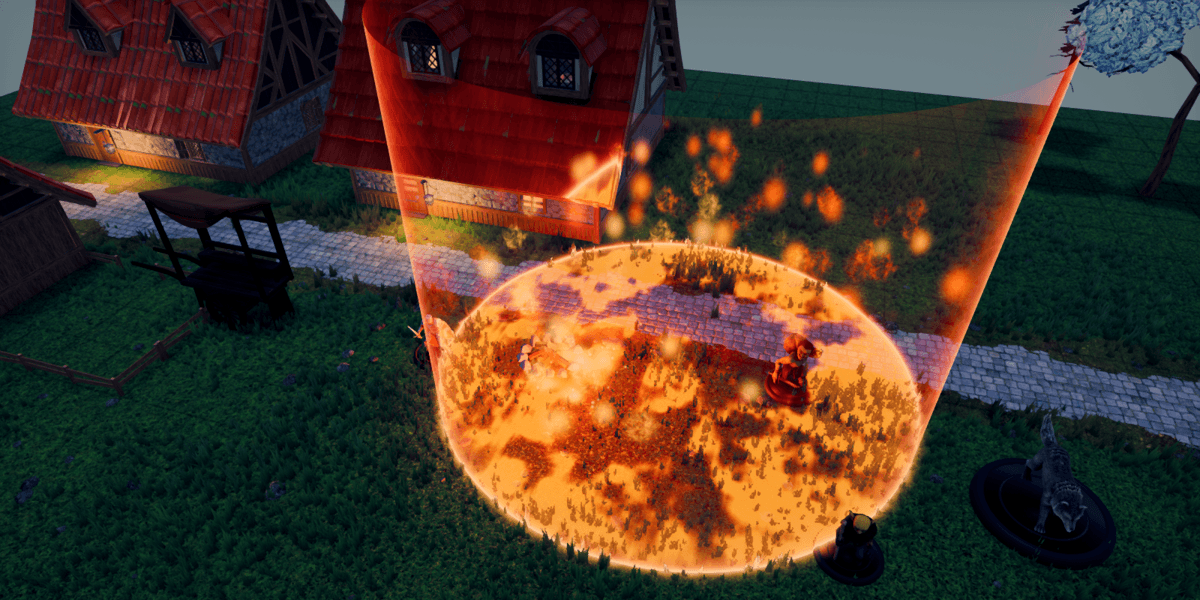
When a spell or ability creates the region, 3D Canvas picks the theme for you and saves it in the region's Effect Theme: a dnd5e Fireball gets Fire. It looks at:
- dnd5e: the activity's item name and its damage or healing type; other spells get
Arcane. - pf2e: the origin's name and traits.
- Any system: the region's name, for example a region named "Stinking Cloud" gets the poison theme.
Regions that match nothing stay Automatic and are drawn as a see-through box in the region's color with glowing edges. Turn this off in Configure Global Settings -> Regions tab -> Enable Template Effects, see Settings.
Renaming a region updates its name-based look at once (a region renamed "Stinking Cloud" turns green).
Regions with a theme (picked by you or by a spell) are shown to everyone. A region left on Automatic with default visibility is only shown to the GM while the Regions controls are active, as in 2D; region visibility Always for Anyone shows it to everyone.
Placing Spell Areas in 3D
When you cast an area spell in 3D, the area follows the mouse ("3D Region Placement: Control + Mouse Wheel to rotate (Shift for larger steps). Alt + Mouse Wheel to raise or lower (add Shift for finer steps).") and a left-click places it:
Ctrl + Mouse Wheel: rotates it (cones and lines), 5° per step; addShiftfor bigger steps.Alt + Mouse Wheel: raises or lowers it; addShiftfor finer steps.
A template gets a height that matches its width (a 5 ft wide line is 5 ft tall). To keep all regions flat, tick Always Flat Regions in Configure Global Settings -> Regions tab. Region Effect Outlines in the same tab draws a glowing outline around regions with a 3D effect.
Selecting Regions in 3D
With the Regions controls active, click a region in the 3D view to select it: it gets an orange outline of its whole volume and a see-through fill. You can also draw new regions directly in the 3D view with Foundry's region tools: while you drag, the side lengths are shown (for example 7.5 ft and 2.5 ft for a rectangle).
Hiding Part of the Map
The region behavior Obscure 3D Vision turns a region into a block of fog or darkness that players can't see into. See Fog of War & Vision.
Drawings and Ambient Sounds
Drawings
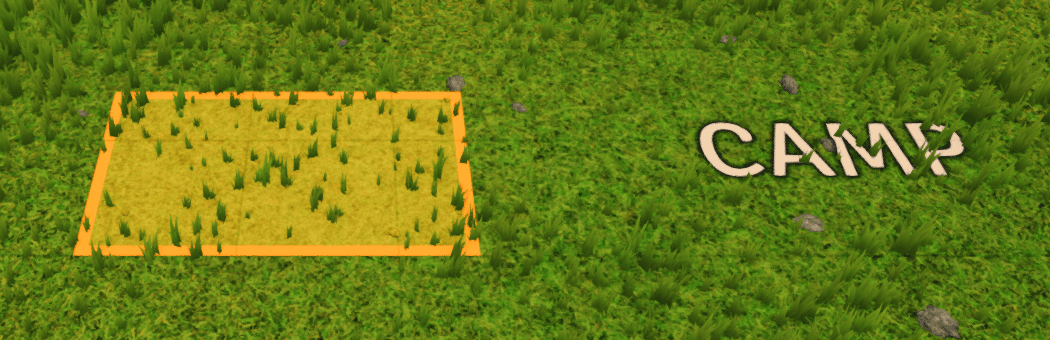
Foundry drawings (shapes, freehand lines, polygons and text) are painted onto the ground, tiles and models under them, as if projected from above. Use them to mark areas, paths or labels on a 3D map.
To draw in 3D, select the Drawings controls, pick a tool (for example Draw Rectangle) and drag in the 3D view: the drawing lands on the surface you drag over. With Select Drawings, click a drawing in the 3D view to select it.
Ambient Sounds
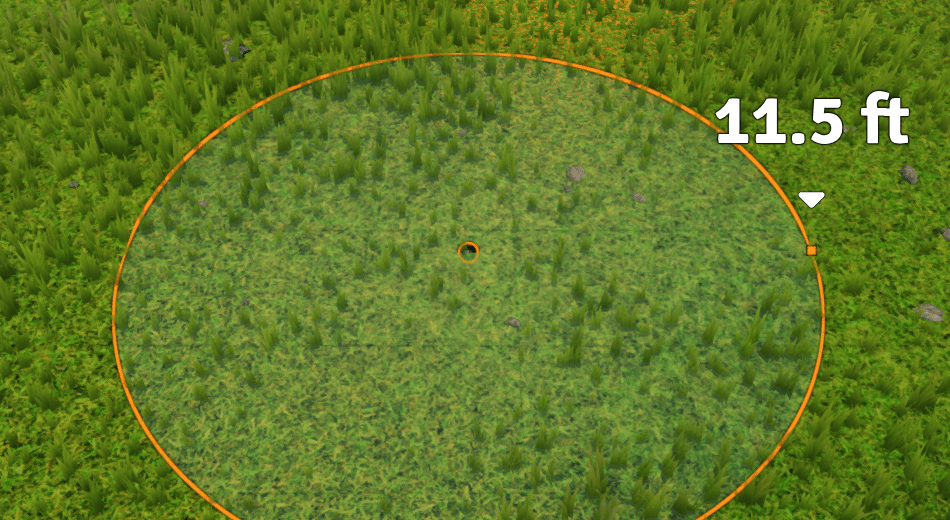
Ambient sounds play as in 2D. With the Ambient Sound controls active, the GM sees each sound in 3D as a small round icon on the ground.
- Create: pick Draw Ambient Sound, then click and drag on the ground: the drag sets the radius. The sound's configuration opens to pick the audio file.
- Select and move: click the icon to select it (its range is drawn on the ground), drag it to move the sound.
- Radius: drag the square handle on the edge of the range (the new value is shown while you drag).