Tokens
In 3D, tokens become miniatures standing on the map: a 3D model on a base, or a standing picture of their 2D image.
This page covers how tokens get a model, how they look, how they move and the options in their 3D Canvas tab.
Giving a Token a 3D Model
There are four ways. The first three use the free Token Collection module (about 3,800 miniatures).
- Automatically: unlinked tokens (most monsters) get the miniature whose name best matches the token's name when you place them while the scene is in 3D. Linked tokens (player characters) don't. Set by
Auto Assign 3D Modelin the global settings. - Quick-Match: right-click a token without a model to open its HUD, then click the magnifying glass (
Quick-Match 3D Token, left column). It also matches by the token's name. - Token Browser: open the token's configuration ->
3D Canvastab and click the person button next to3D Model. Pick a miniature from the list.Ctrl + Clickon the button does a Quick-Match instead. - Your own model: type or browse a
.glb,.gltfor.fbxfile in3D Model. See File Formats & Assets.
Matching goes by the token's name, not the actor's type: a token named "Akra" may get an "Aarakocra". Rename the token or pick the model yourself when the match is wrong.
Tokens Without a Model
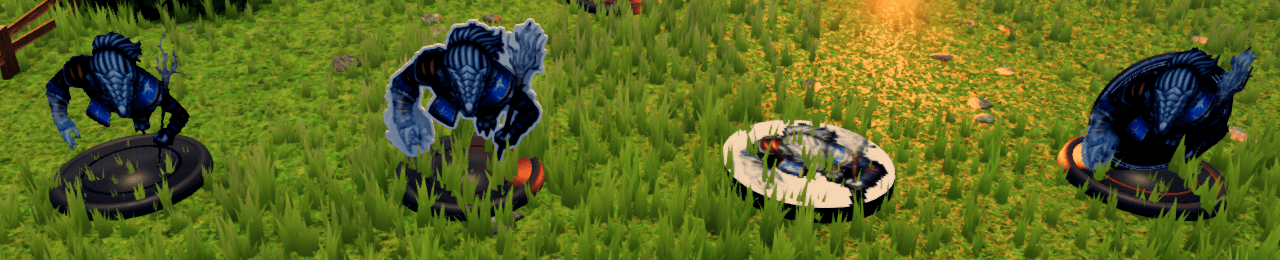
A token without a model shows its 2D image, in one of three styles (2D Token Style):
Flat (Face Camera): the image always turns to face the camera.Extruded (Standing Up)(the default): the image cut out like a cardboard standee.Coin (Top Down): a thick coin lying on the base, like the token in 2D.
The world default is in the global settings; each token can override it in its own 3D Canvas tab.
Medallion (last in the picture): a token with Foundry's Dynamic Token Ring turned on (token configuration -> Appearance tab) and its own 2D Token Style left at Global Setting (Default) is drawn as a standing ring medallion with its image inside. It always turns to face the camera.
After you change the image of a medallion token, it keeps showing the old image. Toggle 3D off and on to update it.
The Token HUD in 3D
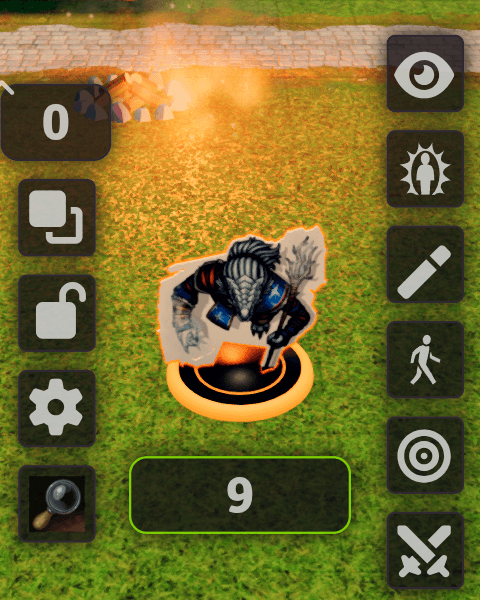
Right-click a token in the 3D view. Besides Foundry's usual buttons, 3D Canvas adds:
- Quick-Match 3D Token (magnifying glass, left column): only on tokens without a model, see above.
- Animations (magic wand, right column): turn shaders on the token on and off and play short animations (
Twirl,Slash,Knockback...). If the token's model has its own animations, one letter button per animation (the first letter of its name; hover it for the full name) lets you switch between them. Details in Weather, Shaders & Effects.
The elevation box at the top works as in 2D and lifts the token in 3D.
What You See on a Token
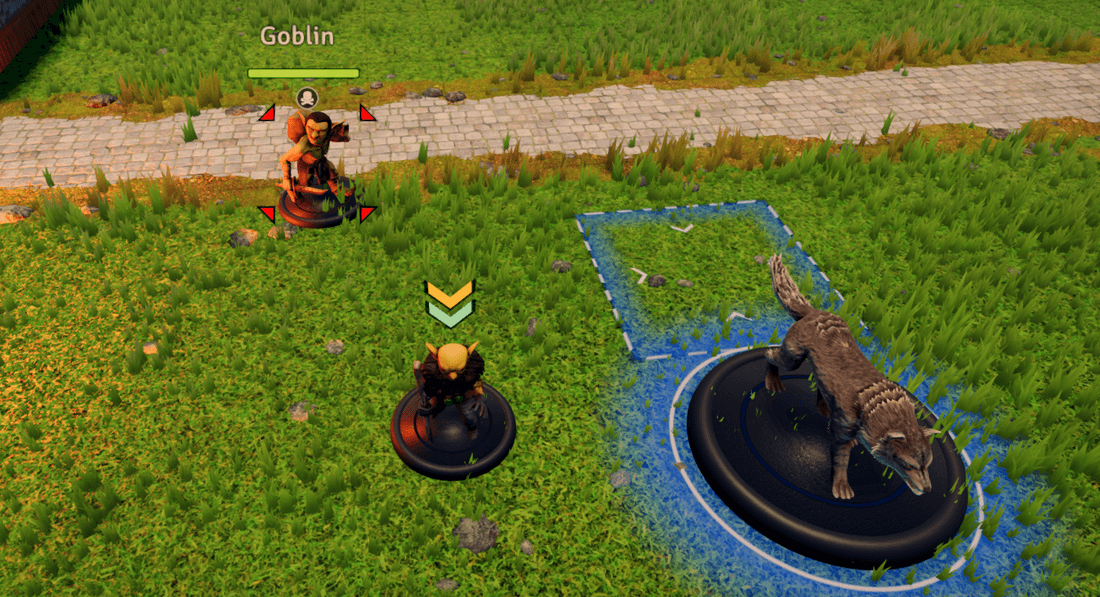
- Name and bars: drawn above the token, following the token's own
Display NameandDisplay Barsoptions. - Status effects: small round icons above the token. Always shown.
- Your targets: corner brackets around the token (top-left Goblin above), like Foundry's own target marker.
- Other players' targets: small chevrons floating above the token, one per player in that player's color (middle Goblin).
- Base color: with a ring
Base Style(Ring Hollow,Ring Simple,Ring Simple Small) the ring shows the token's disposition (red hostile, yellow neutral, and so on). Solid bases use theBase Colorinstead, whatever the disposition (Bases). - Hover and selection: an outline around the model.
- Combat Highlight: once the combat has started, a glowing ring on the ground under the current combatant (the wolf).
- Turn Start Marker: a dashed outline on the ground where the current combatant started its turn. Only its owners see it.
- Distance (
Range Finder): in combat, with a token selected, hovering another token draws an arc between them with the distance. The distance follows the scene grid's measuring rules, like Foundry's ruler.
Combat Highlight, Turn Start Marker and Range Finder can be turned off in Settings -> Token and Canvas.
Bases
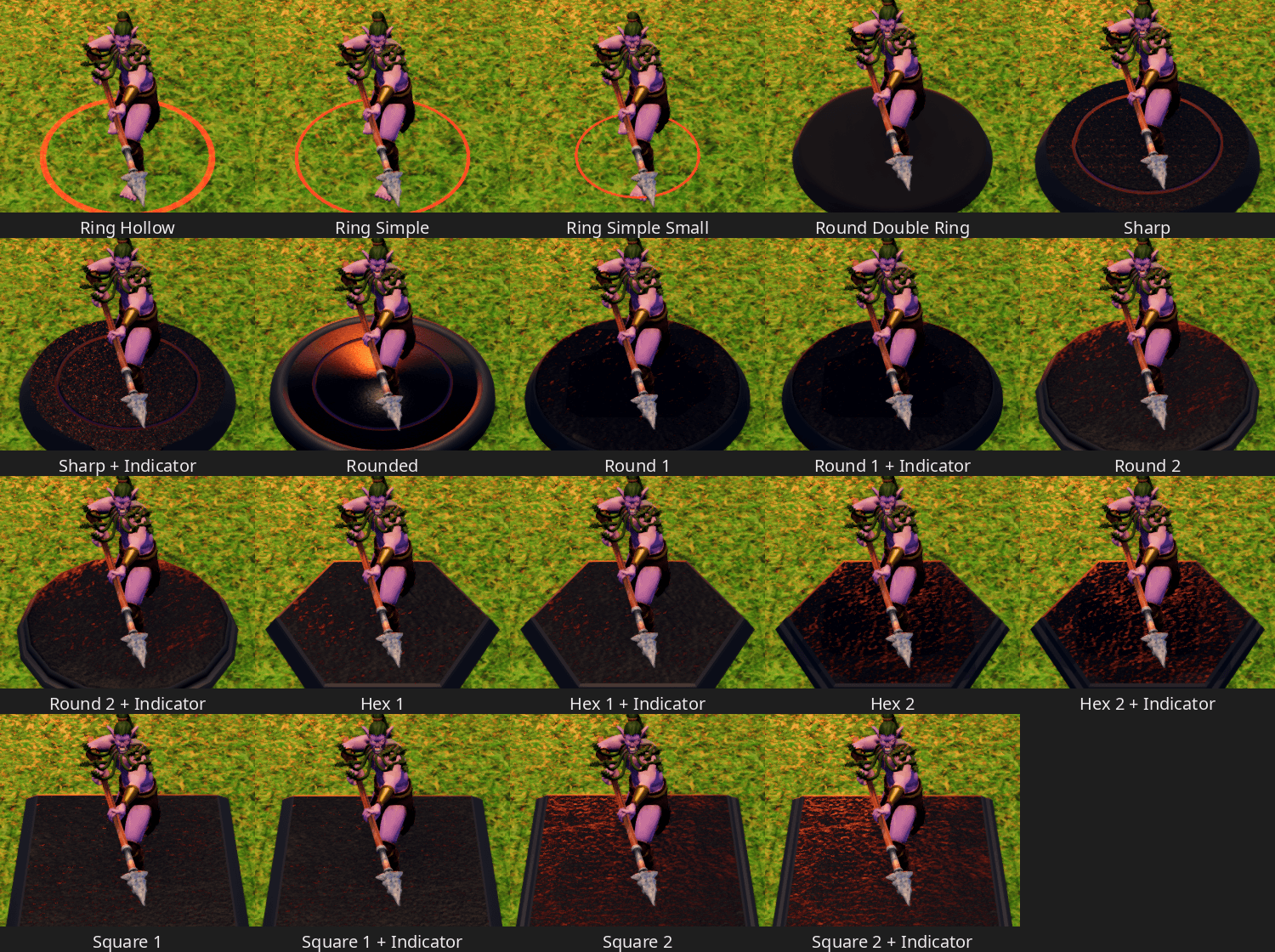
Every token stands on a base. The shape is chosen once for the whole world, in Configure Settings -> 3D Canvas -> Configure Global Settings -> Base tab:
Base Style: one of the 19 bases above. The ring styles (Ring Hollow,Ring Simple,Ring Simple Small) are just a colored ring on the ground; the others are solid miniature bases. The+ Indicatorversions have a mark that shows which way the token faces, and turn with the token.Base Color(#2b2b2b): the color of solid bases.Remove Model Base(on): many miniature files come with their own base. This removes the part of the model named "base", so tokens don't stand on two bases.
Models always stand on top of the base. The base is the same for every token: it can't be changed or hidden per token.
Moving Tokens in 3D
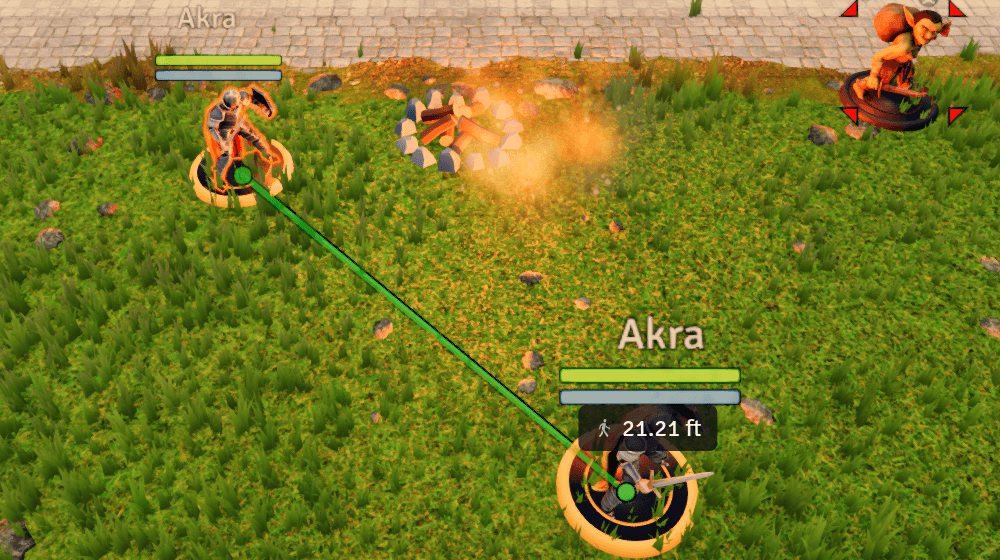
Drag a token as in 2D. While you drag, a line like Foundry's ruler shows the path with its length, and a copy of the token shows where it will land. When you drop it, the token walks along the path. Right-click to cancel.
- Following the ground: walking tokens follow the terrain and climb onto what is under the cursor: hills, stairs, bridges, roofs. They can walk up slopes up to about 60° and small steps; higher steps or walls block them.
- Going around obstacles: on gridded scenes the path goes around houses, rocks and walls instead of through them (
Ruler Pathfinding). If there is no way through, the move is stopped. - Elevation: scroll the mouse wheel while dragging to raise or lower the token. You can also type it in the HUD or the token configuration. Tokens can't go below the ground unless
Prevent Negative Elevationis off, and never above the scene'sMax Elevation(Scene Setup). - Flying: a token raised above the ground stays at its elevation, and its shadow on the ground shows where it is. Only the walking movement actions (walk, crawl) follow the ground.
- Grounding: the scene option
Groundingcan forbid players from ending a move in mid-air:None,Only if not Flying(tokens with a "fly" status are allowed) orAlways. Players then get "The attempted movement is not allowed, the token is not grounded." The GM is never blocked. - Camera: with
Auto Panon, the camera follows moving tokens.Shift + Xfocuses the selected token.
Waypoints, hidden moves (Alt), free placement (F) and the other drag controls are on Camera & Controls. The Ruler tool also works in the 3D view.
Height and Sight
A token's eyes are near the top of its model (about nine tenths of its height), plus its elevation. A taller or raised token can see over low walls and fences that block a shorter one; a ceiling above caps how high it sees. How models block sight and how fog of war works: Fog of War & Vision.
The 3D Canvas Tab
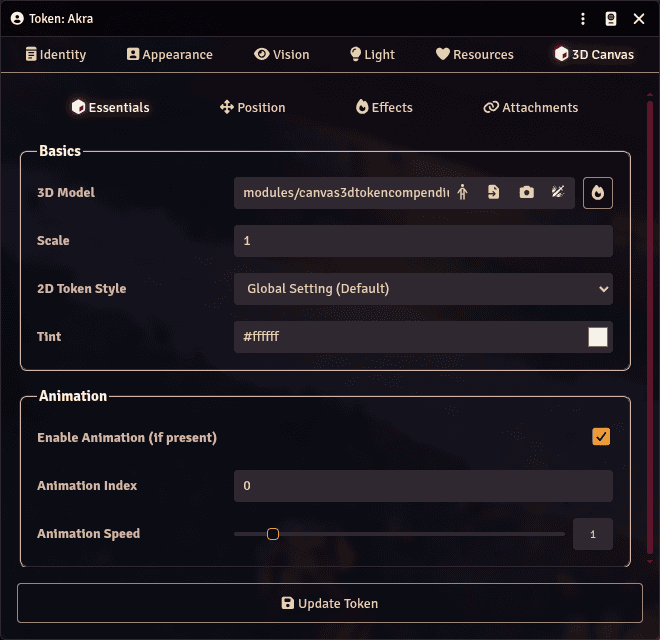
Double-click a token (or open its configuration) and go to the 3D Canvas tab. The same tab is in the actor's Prototype Token, without the Attachments sub-tab: set it there to give every new token of that actor the same look.
Most GMs only use 3D Model and maybe Scale; the rest is for fine-tuning.
Essentials
Basics
3D Model: the model file. Buttons next to it: the person opens the Token Browser (Ctrl + Clickfor Quick-Match), the file button opens a file browser, the fire buttonBake Modelmakes a lighter copy of the model (see Performance). With 3D Portraits active you also get its Photo Booth and Hero Forge buttons.Scale: makes the model bigger or smaller (2= twice as big). The model already fits the token's size, so use this only to adjust.2D Token Style: the look without a model, see Tokens Without a Model.Global Setting (Default)follows the world setting.Tint: a color for the token. It has no visible effect on 3D models.
Animation (models that come with animations, for example a walk or idle loop)
Enable Animation (if present)(on): plays the model's animation.Animation Index: which of the model's animations plays (0is the first). The letter buttons of the HUD wand change it too.Animation Speed: how fast it plays (2= twice as fast).
Position
Basics
Auto Center: centers the model on the token.Facing: turns the model (0-360°) so it looks the right way when the token's rotation is 0.
Offset
Offset X,Offset Y,Offset Z: shift the model from the token's position, in scene pixels (50= half a square on a 100 px grid), to fix models that don't stand where they should.Xmoves it right,Yup,Ztowards the bottom of the map.
Effects
Basics
Particle Preset: an effect that follows the token: fire, sparks, fairy dust, mist, an aura of flame, frost or shadow, and more.Noneby default.Intensity,Scale (Grid Units),Particle Color,Secondary Color: shown once a preset is picked, to tune it.
Aura
Aura Range: draws a ring on the ground around the token, at this distance (in the scene's units, e.g. feet).0turns it off.Aura Color: the ring's color.
Shaders
Configure Shaders: burning, frozen, glowing and other animated looks for the model. See Shaders.
Attachments
Tiles attached to this token move with it, for example a 3D torch in its hand or a mount. To attach one, select the token, then right-click the tile and click Attach Tile to Token in the tile's HUD. The tile becomes part of the token: it is removed from the scene's tiles and stored on the token. The list here shows each attachment by name with buttons to hide/show it or remove it.
Game Systems
- Prone and unconscious: tokens with a prone, unconscious, dead or defeated status lie down in 3D. This works with dnd5e, pf2e, pf1 and any system that uses those standard statuses.
- Templates and spell areas: on dnd5e and pf2e, areas placed by spells and abilities get a 3D look that matches them. See Weather, Shaders & Effects.
Advanced
Model Requirements
Models must be .glb, .gltf or .fbx, standing on their feet at the origin and facing forward. A part named base is removed when Remove Model Base is on. Details and tips for your own models: File Formats & Assets.
Setting a Model from a Macro
The model is stored in the token flag levels-3d-preview.model3d. This gives the selected tokens the model at that path:
for (const t of canvas.tokens.controlled) {
    await t.document.setFlag("levels-3d-preview", "model3d", "modules/canvas3dtokencompendium/miniatures/_Colorized/Adventurers/MZ4250 - Human Fighter Lords Alliance Guard.glb");
}
To find a miniature by name from a macro, see the Token Browser API. Token animations and other scripting: Macros & API.