Map Maker: Getting Started
Map Maker is the map editor of 3D Canvas - Advanced Tools. You sculpt the land, draw rooms and Map Maker builds the walls, roofs, furniture and trees for you. This page shows how to open it, what is on screen, how Quick Start sets up a scene, and walks you through a first small map using every mode once.
Map Maker needs the free Mapmaking Pack installed: all the models and textures it places come from there.
Opening Map Maker
Only GMs can use Map Maker. There are two ways in:
- On an existing scene: view the scene in 3D and click
Map Maker(the first button) in the 3D Canvas Tools column next to the sidebar. If the column has slid away, click the cube button3D Canvas Toolsat the bottom of the sidebar tabs first. - On a new scene: in the
Scenessidebar tab clickCreate Scene, tickStart in Map Makerand clickCreate Scene. The new scene opens with the Quick Start window.
If the scene is not in 3D yet, the Map Maker button opens the Quick Start window instead: Quick Start switches the scene to 3D for you.
On a 3D scene with a hex grid, Map Maker warns: "This scene uses a hex grid. The Map Maker builds on square cells, so buildings will not line up with the hexes. Switch the scene to a square grid for best results."
To close Map Maker, click Done in the top bar. Click Map Maker again to come back.
The Map Maker Screen
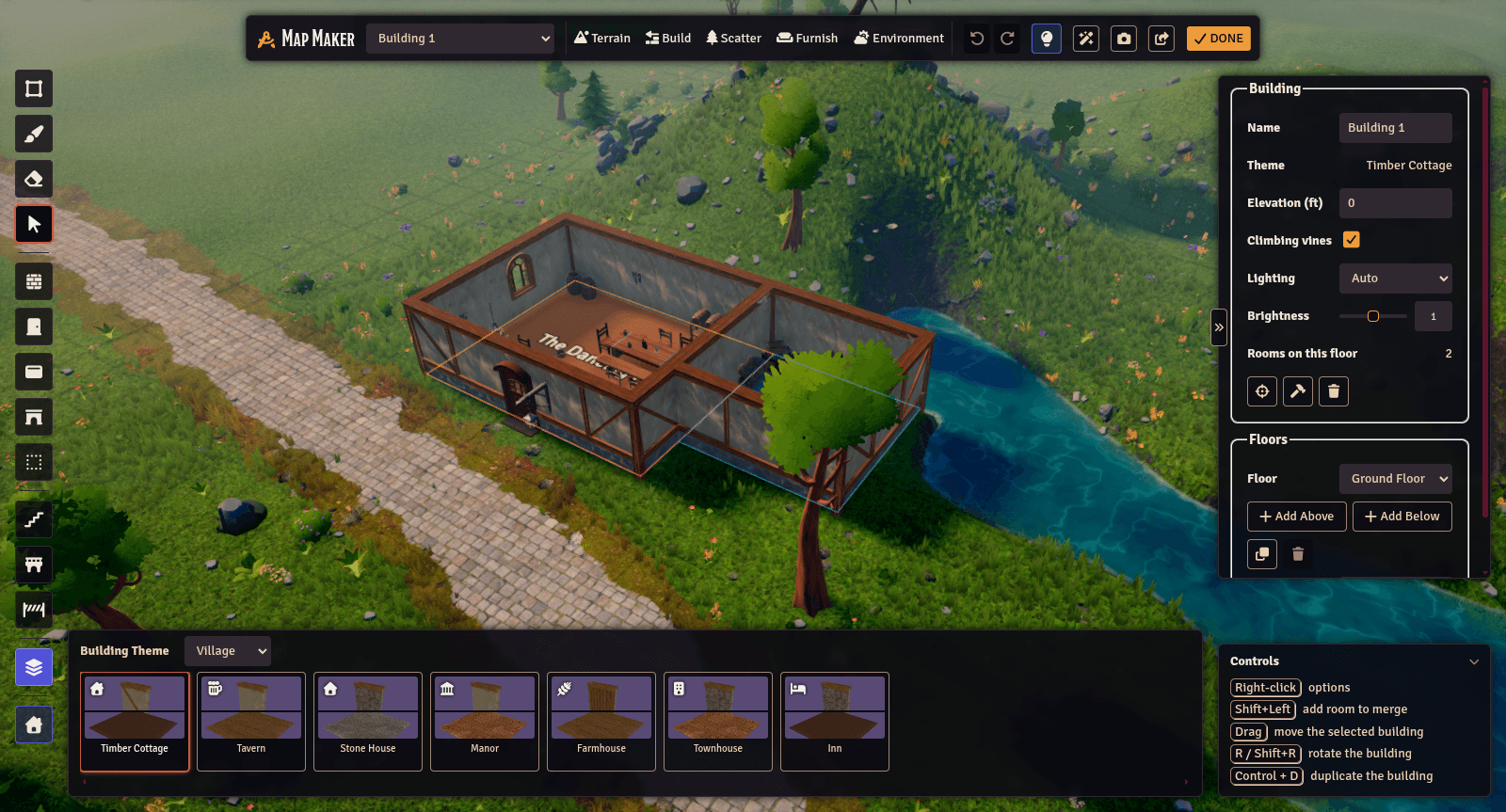
Map Maker covers the whole screen. While it is open, tokens and tiles can't be selected: the mouse belongs to Map Maker.
Top bar, from left to right:
- Building selector: the buildings and caves of the scene, plus
New structure. Used in Build and Furnish mode (see Buildings). - Mode tabs:
Terrain,Build,Scatter,Furnish,Environment. Each mode has its own tools; hover a tab to see what it is for. - Undo and Redo (arrow buttons): see Undo and Redo.
- Work Light (light bulb): see Work Light.
- Quick Start (magic wand): opens the Quick Start window again.
- Generate 3D Thumbnail (camera): see Scene Thumbnail.
- Share Scene (arrow out of a box): opens the 3D Canvas
Share Mapform for this scene, to publish it on Community Maps. Done: closes Map Maker.
Left toolbar: the tools of the current mode. Hover a tool to see its name, its key in brackets (for example Roughen [6]) and a line on how to use it. Press the key to switch tool without clicking.
Inspector (right panel): the options of the current tool or of what you selected, for example the brush size or the name of a room. The » button on its left edge hides it (Hide panel) and shows it again.
Controls box (under the inspector): the mouse and key shortcuts of the current tool. Click its header to fold it.
Palette (bottom): cards with pictures for the choice that fits the current tool: terrain looks, paint layers, liquids, road styles, building themes, door styles, scatter sets, room types, objects. Click a card to pick it.
Mouse
- Left button: use the current tool (click or drag).
- Right button drag: move (pan) the camera.
- Middle button drag: rotate the camera.
- Mouse wheel: zoom.
- Right-click without dragging: an options menu for what is under the cursor (a room, a door, an object). For example, right-click a room for
RenameandDelete.
Number fields in the inspector also change with the mouse wheel. All keys are listed in Shortcuts & Advanced.
Quick Start
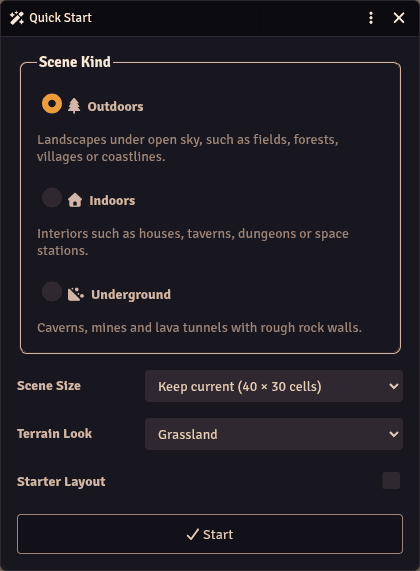
Quick Start prepares the scene for the kind of map you want and can build a sample layout to start from.
It opens by itself with Start in Map Maker, when you open Map Maker on a scene that is not in 3D, and from the magic wand in the top bar.
Scene Kind:Outdoors: "Landscapes under open sky, such as fields, forests, villages or coastlines." Pick aTerrain Look(defaultGrassland).Indoors: "Interiors such as houses, taverns, dungeons or space stations." Pick aBuilding Style(defaultTimber Cottage): any building theme, includingDesert Adobeand your custom themes.Underground: "Caverns, mines and lava tunnels with rough rock walls." Pick aCave Type(defaultRock Cave).
Scene Size:Keep current(the scene's size now, in cells),Small (30 × 20 cells),Medium (40 × 30 cells)orLarge (60 × 40 cells).Starter Layout: tick it to have Map Maker build a sample for you (see below). A "Generating…" spinner shows while it works.Start: applies everything.
What you get with Starter Layout:
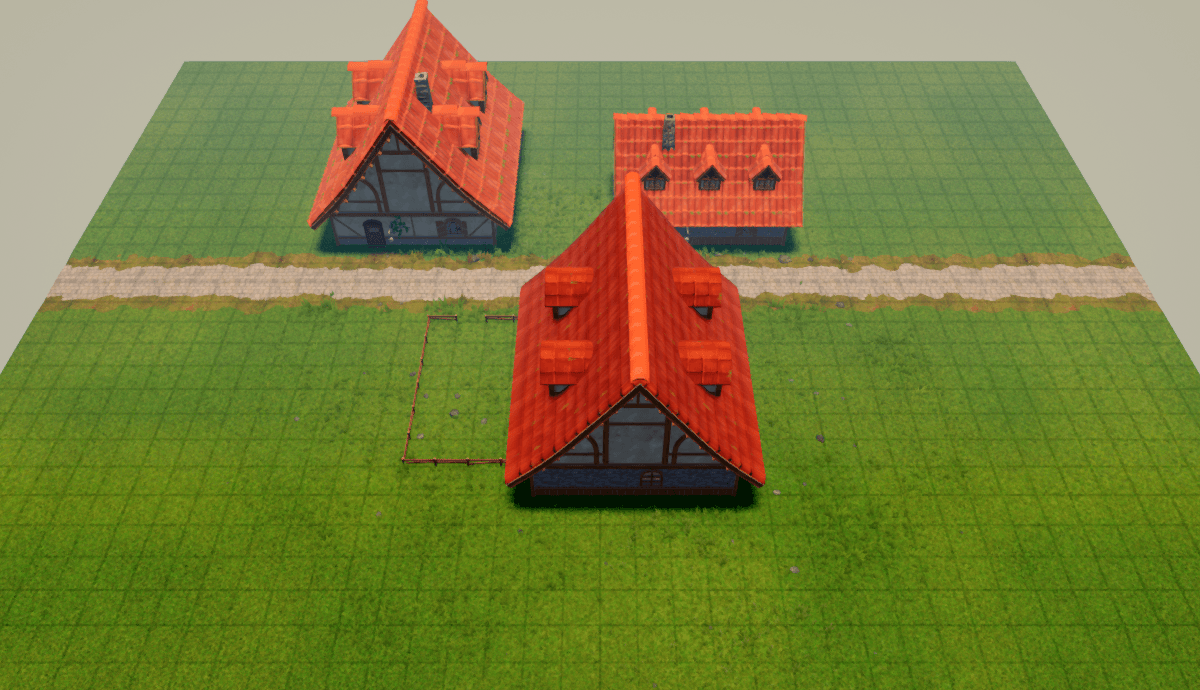
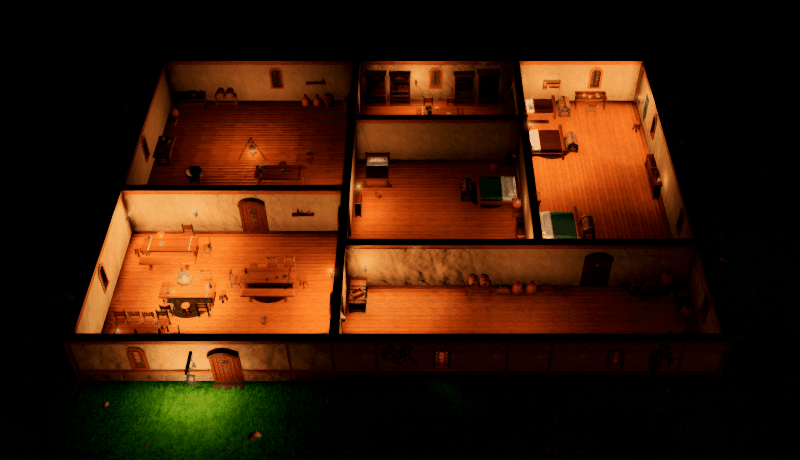
- Outdoors: a small hamlet of furnished houses along a road. Map Maker opens in
Terrainmode. - Indoors: one furnished building in the chosen style, its rooms already named (Kitchen, Bedroom, Storage...). Map Maker opens in
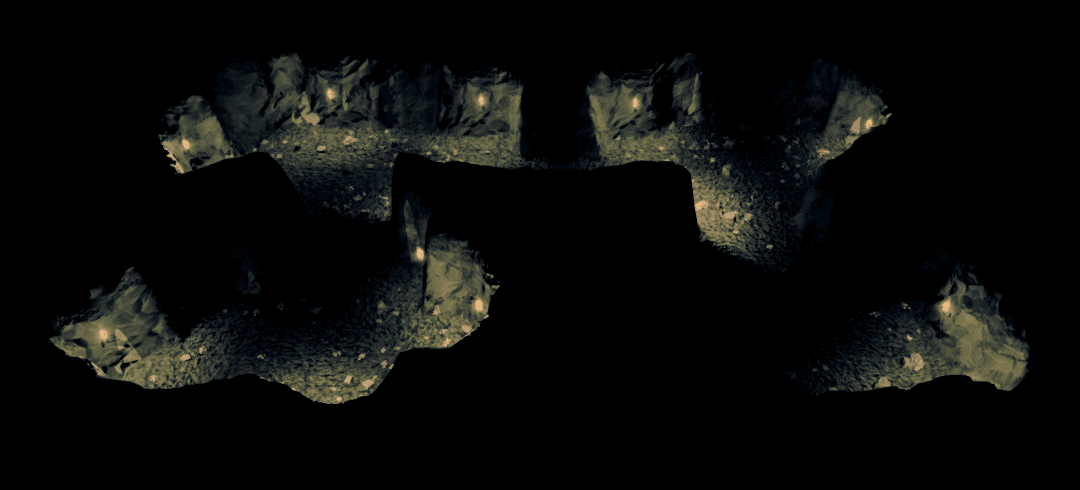
Buildmode with theRoomtool. - Underground: a cave of chambers joined by passages, with torches. Map Maker opens in
Buildmode with thePaint Cellstool and the Work Light on.
Without Starter Layout you get an empty terrain in the chosen look, ready for you to build on. The starter layout needs room: on a very small scene nothing is built.
Start overwrites the scene's 3D settings: players allowed in 3D, opens in 3D, fog of war on, sky for the chosen kind (outdoors sun at noon and Global Illumination on), no weather, no darkness, the Warm color style. It also turns a hex or gridless grid into a square grid and resizes the scene if you chose a size. It adds a terrain only if the scene has none.
Your First Map
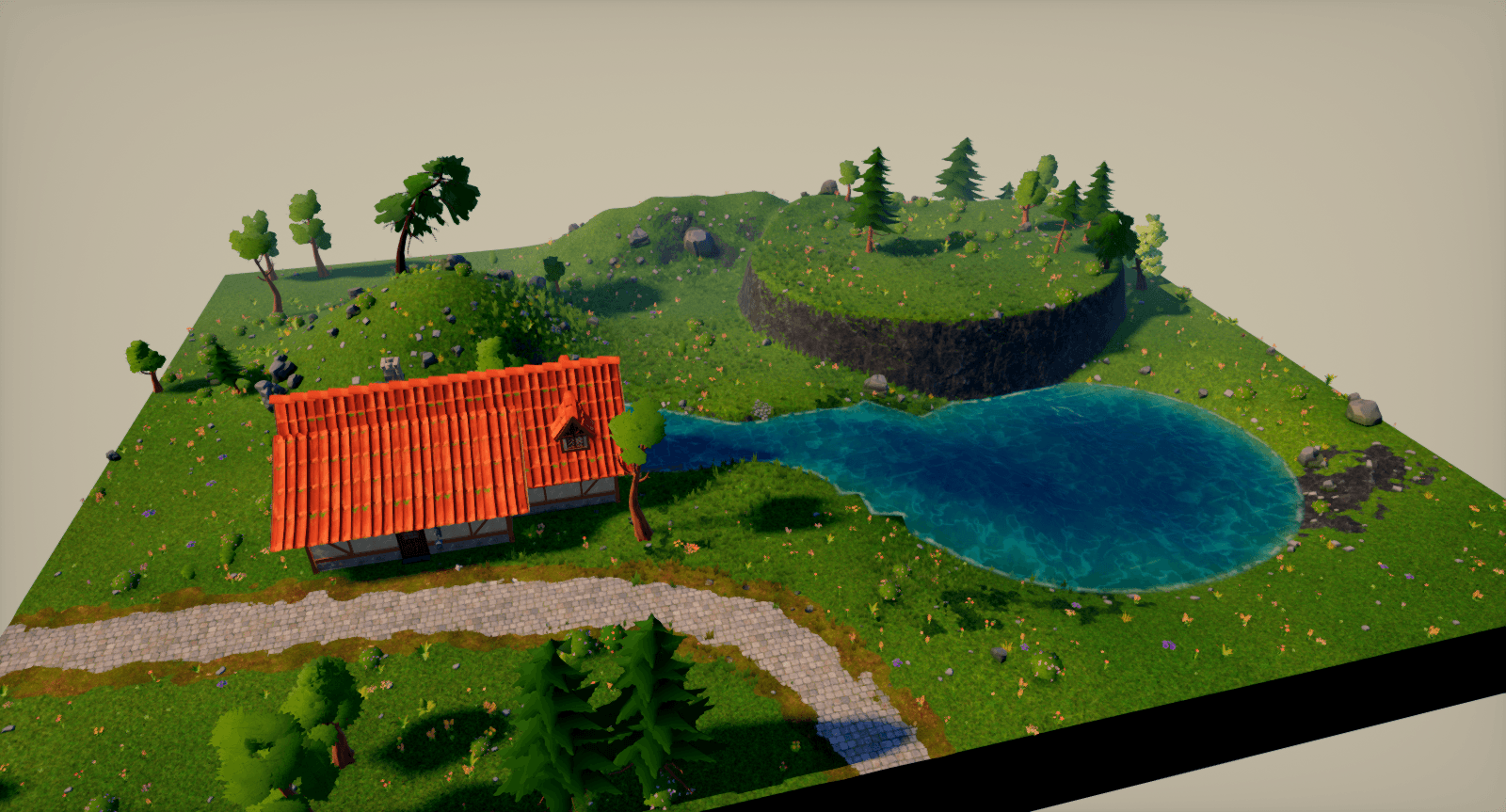
This builds a small outdoor map with a hill, a lake, a road and a tavern, going through every mode once. Each step links to the page with all the details.
- Create the scene.
Scenestab ->Create Scene, name it, tickStart in Map Maker, clickCreate Scene. - Quick Start. Choose
Outdoors,Terrain LookGrassland,Scene SizeMedium (40 × 30 cells), leaveStarter Layoutoff, clickStart. Map Maker opens inTerrainmode on a flat green field. - Raise a hill. With the
Raisetool (key1), drag in circles over one corner of the map. Press]a few times for a bigger brush. See Terrain: Sculpting. - Dig and fill a lake. Switch to
Lower(2) and drag over another spot until it is a deep hollow. Then pickFill Water(G), chooseWaterin the palette and click inside the hollow. See Terrain: Water. - Lay a road. Pick
Paths & Roads(8), click points across the map, then pressEnter. See Terrain: Paths & Roads. - Build a house. Click the
Buildtab. With theRoomtool, drag a rectangle next to the road: Map Maker builds a room with walls. Drag a second rectangle next to it for a second room. Pick theDoortool and click the wall facing the road. See Buildings. - Dress the land. Click the
Scattertab and clickAuto-dress (Grassland)in the inspector: grass, flowers, trees and rocks appear everywhere except on the road, the water and the house. See Scatter & Furnish. - Furnish. Click the
Furnishtab, click the first room and pickTavernin the palette; click the second room and pickStorage. See Scatter & Furnish. - Set the mood. Click the
Environmenttab and setTime of Day (24h)to16.5for a late afternoon light. See Environment. - Click
Done.
You have made your first map! Drop your players' tokens on it and play.
Saving and Done
There is no save button: every change is saved to the scene a moment after you make it (a terrain stroke about a second after you let go).
Done closes Map Maker, saves anything still pending and switches the Work Light off.
The map is ordinary scene data (tiles, lights, regions, levels), so you can duplicate, export or share the scene like any other.
Undo and Redo
Ctrl + Zor the Undo button undoes the last change;Ctrl + Y(orCtrl + Shift + Z) or Redo brings it back.- It covers terrain strokes, terrain looks, roads, water, buildings, scatter, furniture and environment changes.
- Up to 100 steps per scene. The history stays while you close and reopen Map Maker, but it is lost when you reload Foundry.
Work Light
The Work Light (light bulb button) lights the whole scene evenly so you can see what you build in dark places, such as caves or a scene set at night. Only you see it, and only while Map Maker is open. It flattens the shading, so hills and slopes are harder to read: turn it off to judge the real look of your map. Map Maker remembers your choice: if you leave it on, it comes back on the next time you open Map Maker.
Scene Thumbnail
Generate 3D Thumbnail (camera button) takes a picture of the current 3D view and uses it as the scene's thumbnail in the Scenes directory and navigation. You get "Generated thumbnail image for Scene name." Frame the camera on your map first.
Editing Map Maker Pieces by Hand
The walls, floors, roofs, doors and lights of a Map Maker building are normal tiles and lights, so you can also change them with Foundry's tools outside Map Maker. If you move, resize or delete one of them, or save its Tile configuration, it is no longer managed by Map Maker: you get "This piece was edited by hand and is no longer managed by the Map Maker. Use "Restore edited pieces" to regenerate it." Map Maker leaves that piece alone from then on, even when you change the building.
To undo hand edits, open Map Maker, select the building in Build mode and click Restore edited pieces (N) in the inspector. Map Maker asks for confirmation, removes the moved copies and builds the pieces again.
More on this, and on what Map Maker stores, in Shortcuts & Advanced.