Scene Setup
Every scene has a 3D Canvas tab in its configuration: it decides whether the scene opens in 3D, and sets its sky, light, weather and colors.
This page goes through it sub-tab by sub-tab, then shows how to make an existing 2D battlemap look good in 3D.
Opening the 3D Canvas Tab
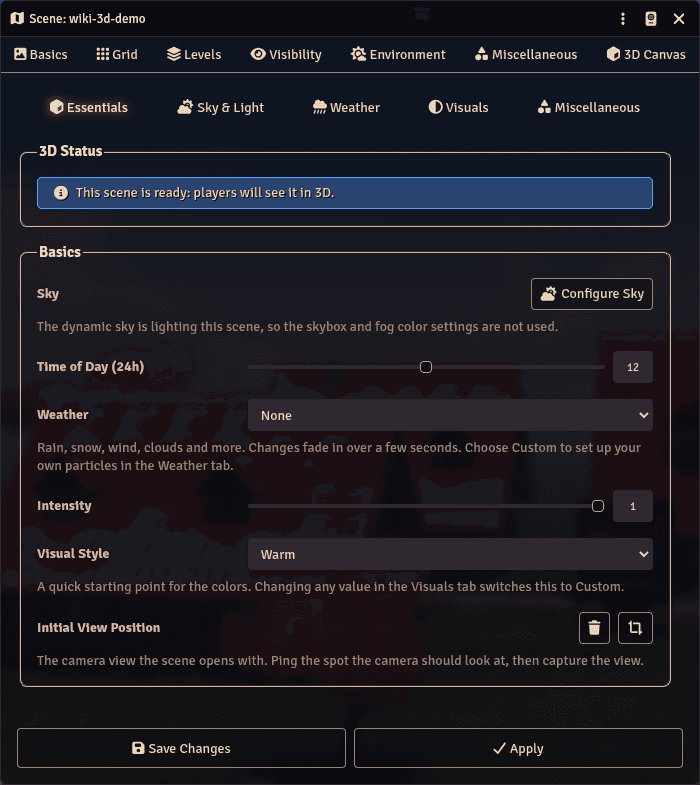
Right-click the scene in the Scenes sidebar tab (or its name in the navigation bar) -> Configure -> 3D Canvas tab.
It has five sub-tabs: Essentials, Sky & Light, Weather, Visuals and Miscellaneous.
Click Save Changes to apply them; the 3D view rebuilds itself when needed. The Sky window and the two camera view buttons are the exceptions: they save as soon as you use them.
The Short Path
Most GMs only need this:
Essentials-> 3D Status: clickEnable Recommendedif it says the scene is not ready, thenSave Changesand open the scene again.Configure Sky: pick aStyleand aPreset(see Sky). New scenes already have the dynamic sky on.- Set the
Time of Day, aWeatherand aVisual Styleif you want them.
Everything else can stay at its default.
Essentials
- 3D Status: tells you whether players will see the scene in 3D.
Enable Recommendedturns on the three options it needs, all inMiscellaneous:Enable for Players,Enable 3D on LoadandUse 3D Geometry for sight calculations. Sky: theConfigure Skybutton opens the Sky window, the easiest way to get a good-looking sky and light.Skybox: an.exrfile or a 360° panorama image, used as the sky and to light the scene. Empty by default. Hidden whileDynamic Skyis on, which replaces it. A scene with no skybox of its own gets the dynamic sky.Time of Day (24h): where the sun (or moon) is.WeatherandIntensity: rain, snow, fog, embers and more, fading in over a few seconds. More in Weather.Visual Style: a ready-made color look (None,Warm,Cold,Dramatic,Noir,Vintage,Dreamy). Changing any value in theVisualssub-tab switches it toCustom. See Visuals.Initial View Position: the camera view the scene opens with. Move the camera where you want it, then click the crop button (Capture Camera View); the trash button (Clear Stored Camera View) forgets it. Both act immediately, withoutSave Changes.
Sky
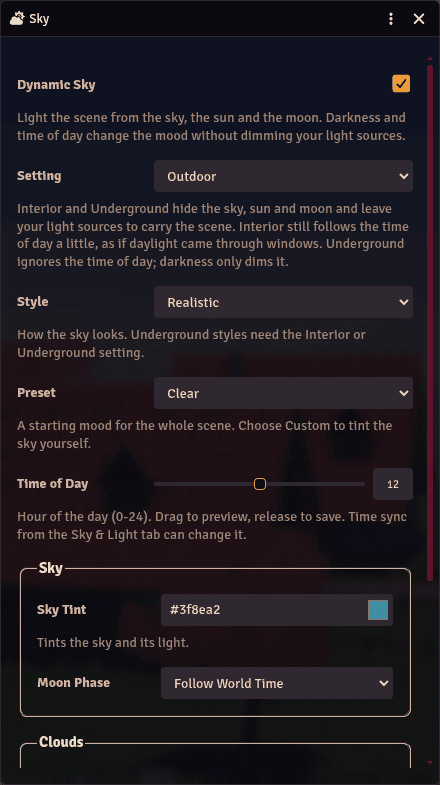
The Sky window controls the dynamic sky: a sky with sun, moon, stars and clouds that lights the scene and changes with the time of day. It saves as you change it.
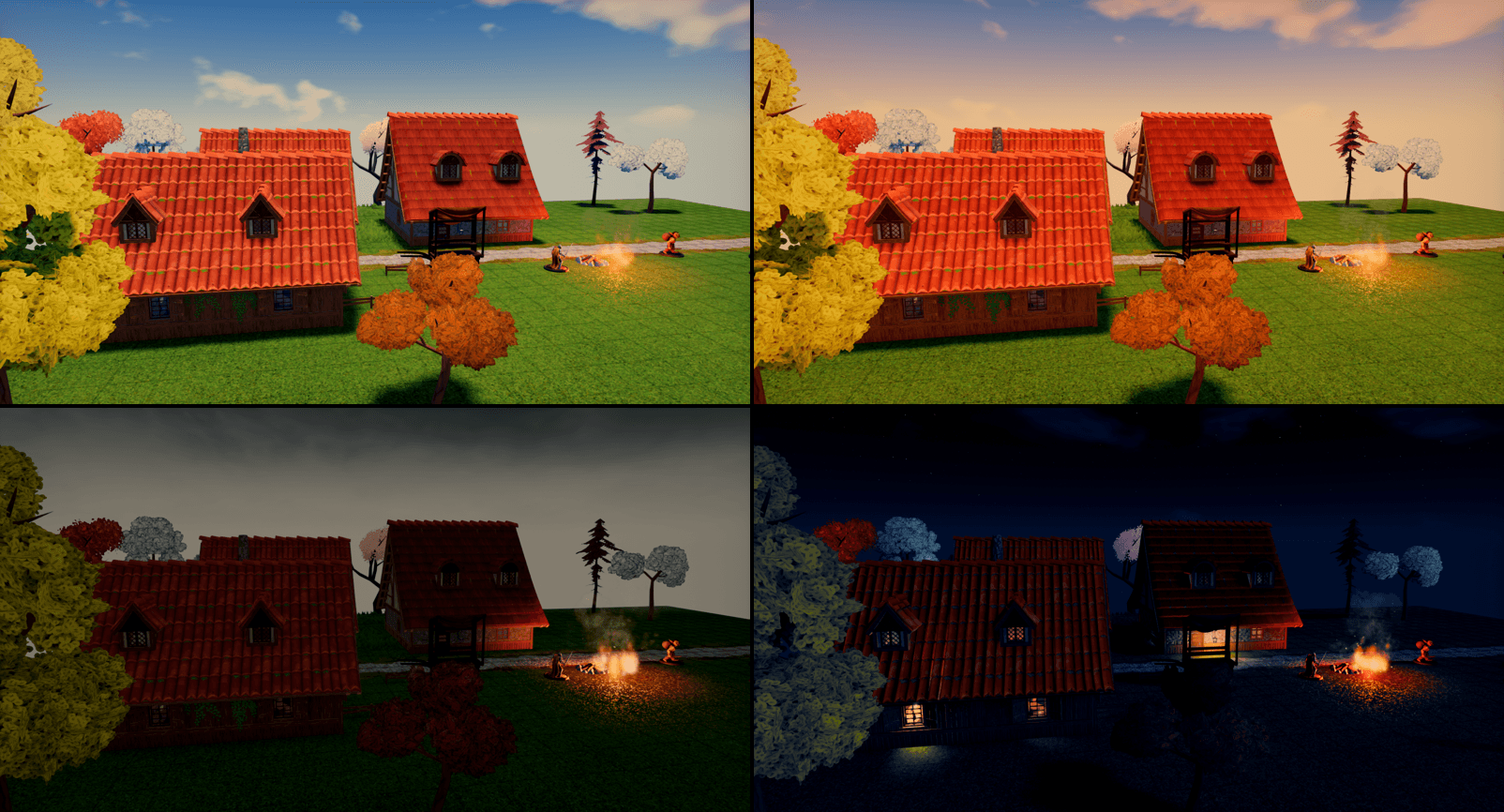
Dynamic Sky: turns it on (on by default). Darkness and time of day then change the mood without dimming your own light sources.Setting:Outdoor,InteriororUnderground. Interior and Underground hide the sky, sun and moon, so your scene's lights carry the scene. Interior still follows the time of day a little, as if daylight came in through windows; Underground ignores it.Style: how the sky looks, see Sky Styles.Realistic(the default) is the classic sky.Background Color(Interior and Underground with theStandardstyle): the color of the fog and of the empty space around the map.Preset: a starting mood:Clear,Golden Hour,Overcast,Storm,Moonlit,Eerie, orCustomto tune it yourself.Time of Day: hour of the day, 0 to 24. Drag to preview, release to save.- Sky (Outdoor):
Sky Tint,Moon Phase(a fixed phase, orFollow World Time: the moon changes with the in-game date, following Simple Timekeeping's moon when that module is active).Customalso showsHaze,Sun GlowandStar Density. - Clouds (Outdoor):
Enable Clouds,Clouds Speed,Clouds Scale,Clouds Opacity,Clouds Color;Customalso showsCloud Cover.
Sky Styles
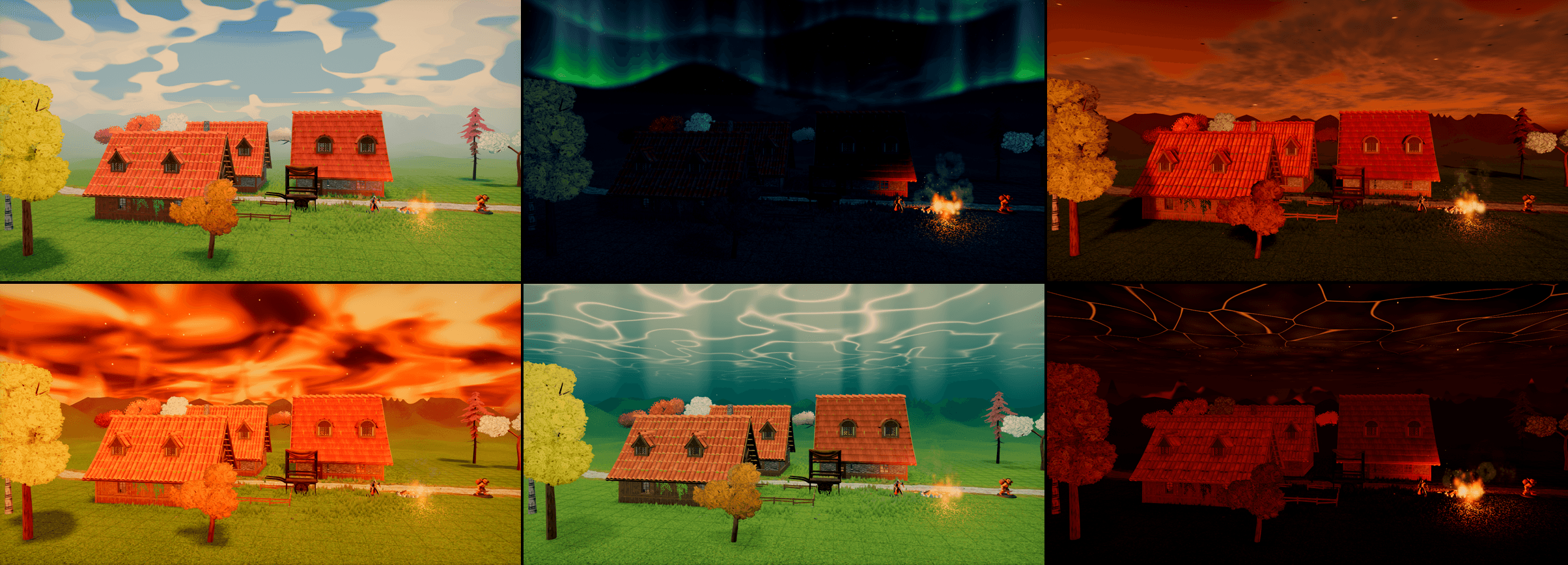
The Style select changes the whole sky. Each style adds its own group of fields at the bottom of the window, and hides the fields it doesn't use (for example Preset or Time of Day).
Changing style shows "Preparing sky..." for a moment while the new sky is built.
The list has two groups. With Outdoor only the outdoor styles can be picked; with Interior or Underground only the underground ones.
Outdoor
Realistic: the classic sky, with all the fields above.Painted: a hand-painted, cartoon sky.Color Bands,Brush Strokes.Aurora: northern lights, best at night.Lower Color,Upper Color,Intensity,Speed.Twin Moons: a second (and optional third) moon.Second Moon Color,Second Moon Size,Second Moon Phase,Third Moon,Third Moon Color,Third Moon Size,Third Moon Phase.Arcane: a magical sky with floating lights.Moon Size,Light Motes,Glow Color.Shadowfell: a grey, drained world with lightning.Sun Direction,Sun Height,Color Drain,Lightning, plus the Clouds fields. Ignores the time of day.Hellscape: a burning red sky with falling ash.Sun Direction,Sun Height,Fire Glow,Ash, plus the Clouds fields. Ignores the time of day.Plane of Fire:Flame Color,Embers,Speed. Ignores the time of day.Plane of Water: as if under the sea.Water Color,Depth,Caustics. Ignores the time of day.Plane of Air: above a sea of clouds.Wind Speed,High Clouds,Cloud Sea Color, plusPreset,Time of Day,Sky TintandMoon Phase.Plane of Earth: a sky of rock with glowing veins.Vein Color,Glow,Dust. Ignores the time of day.Alien Planet: a strange world with a second sun and a planet in the sky.Atmosphere Color,Second Sun Color,Planet Color,Planet Size,Rings.Deep Space: stars and the Milky Way.Sun Direction,Sun Height,Star Density,Milky Way,Nebula,Nebula Color,Planet(None,Moon,Ringed Planet). Ignores the time of day.Nebula: a colored space cloud.Color,Second Color,Glow,Drift,Star Density,Light Direction. Ignores the time of day.Station View: a big planet seen from orbit.Planet(Ocean World,Desert World,Ice World,Gas Giant,Lava World),Planet Size,Planet Direction,Planet Spin,Sun Direction,Sun Height. Ignores the time of day.
Underground (the ceiling and light of a cave or room)
Standard: no ceiling, only theBackground Color.Underdark: glowing crystals and fungi.Crystal Color,Fungus Color,Glow,Ambient Light.Cavern: wet rock with drips and mist.Rock Color,Drip Color,Drips,Mist,Ambient Light.Magma Chamber: rock lit by lava.Magma Color,Rock Color,Glow,Embers,Ambient Light.Dungeon Vault: a stone vault lit by torches.Stone Color,Torch Color,Torchlight,Ambient Light.
Sky & Light
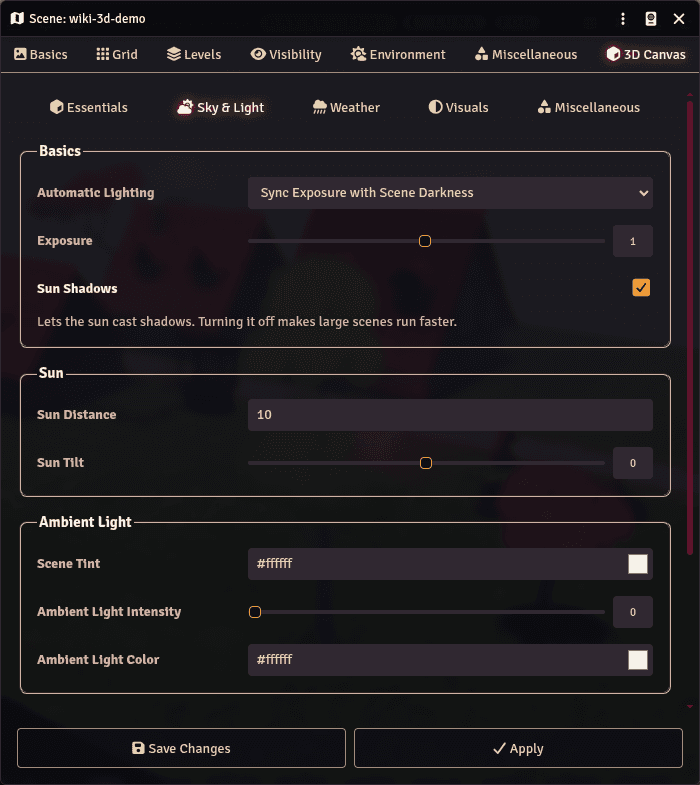
Fine control over the light. You can leave this sub-tab alone if you use the dynamic sky.
Basics
Automatic Lighting: links the light to Foundry's clock or darkness:Off: nothing is linked.Sync Position with World Time:Time of Dayfollows Foundry's clock, so the sun moves as in-game time passes.Sync Exposure with Scene Darkness(the default): without the dynamic sky,Exposurefollows the scene'sDarkness Level, so the scene dims as darkness rises.Sync Both: both of the above.
Exposure: overall brightness,1is normal, up to2. WhileExposureis synced with darkness, the darkness sets it for you.Sun Shadows: lets the sun cast shadows. Turning it off makes large scenes run faster (see Performance).
Sun
Sun Distance(10):0turns the sunlight and its shadows off. Other values don't move the sun, and large ones can make its shadows fade: leave it at10otherwise.Sun Tilt(0, from-1to1): leans the sun's path. At0the noon sun is overhead; towards-1or1it stays low, so the scene is dimmer and shadows are longer.
Ambient Light
Scene Tint: colors the sunlight, and with it the whole scene (blue for a cold night, orange for a sunset).Ambient Light IntensityandAmbient Light Color: an even light on every surface, without shadows. Useful to lift dark interiors; a strong color tints everything.
Background
Display Background: shows the scene's background image as the ground under your 3D models. Turn it off when the map is built entirely from 3D tiles.View-distance Fog: fades the scene into a color with distance and hides everything beyondFog Distance(in pixels of the scene: 3000 is 30 squares on a 100 px grid). Not the same as weather haze. Good for big outdoor maps, and it helps them run faster. The GM can lift it for themselves with Toggle Distance Fog in the tools panel.Fog Color: the color of that fog. Hidden whileDynamic Skyis on, which picks the color itself.
Weather
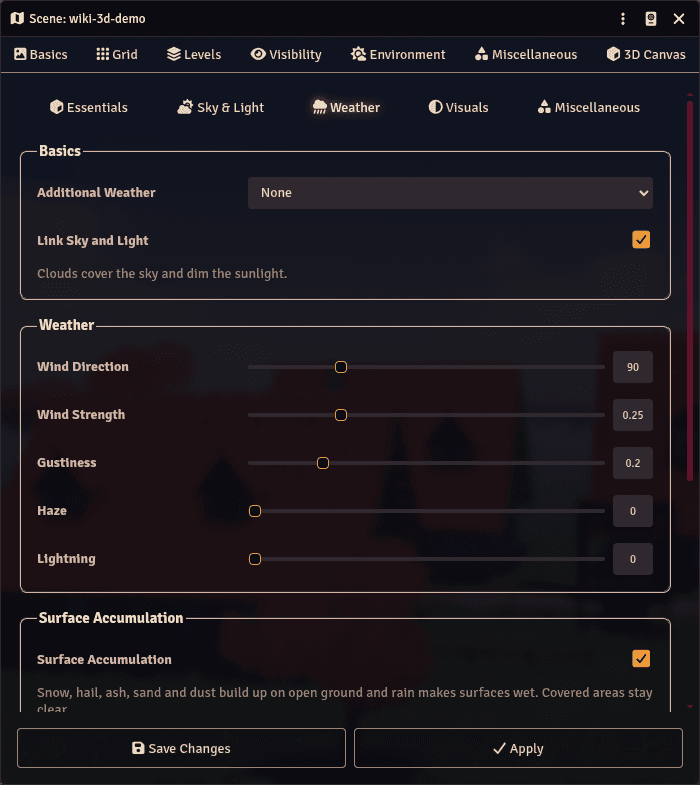
The main weather is chosen in Essentials. This sub-tab adds the details; what each weather looks like is on Weather, Shaders & Effects.
When the 3D Canvas Weather is None, the scene shows Foundry's own Weather Effect (scene configuration -> Basics tab) in 3D: Fog, Rain, Snow and so on.
Many battlemaps come with Fog set there, which covers the whole 3D scene in a grey haze. Set that Weather Effect to none to get rid of it.
- Basics:
Additional Weatheradds a second weather on top of the first (for example Rain plus Leaves).Link Sky and Light: the weather's clouds cover the sky and dim the sunlight (with rain, the sky turns grey). - Weather:
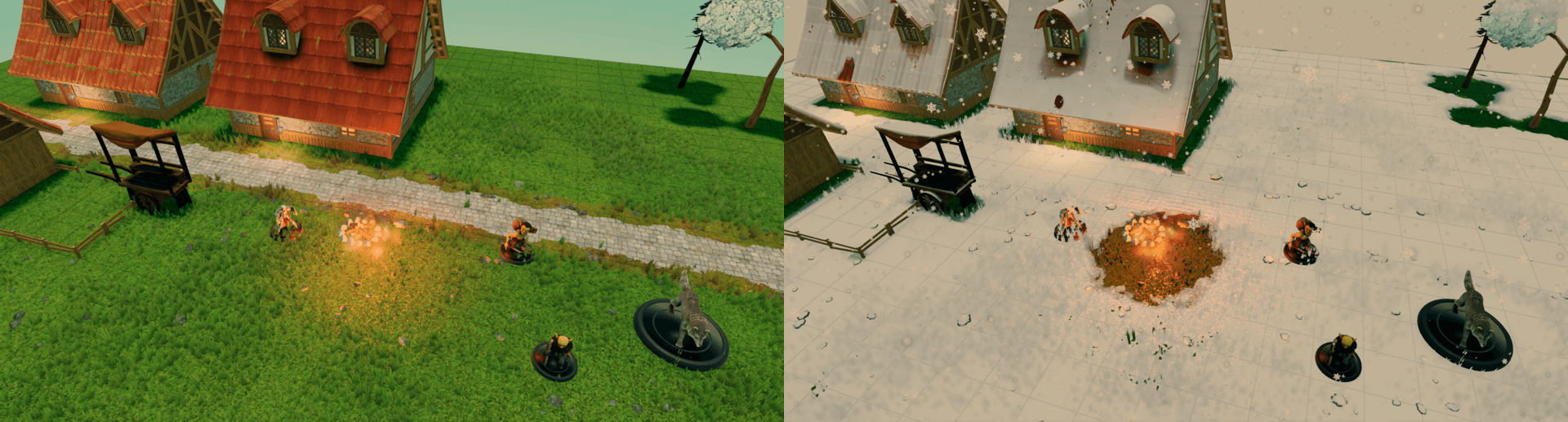
Wind Direction,Wind Strength,Gustiness,Haze(a mist that fades distant things, at1the whole view turns grey),Lightning. They reset to the weather's own values when you change the weather. - Surface Accumulation: snow, hail, ash, sand and dust build up on open ground and rain makes surfaces wet; covered areas (for example under trees) stay clear and fire lights melt the snow around them. When ticked:
Build-up Time (minutes)andMelt / Dry Time (minutes): in real minutes.Starting Cover,Starting Cover Amount,Starting Wetness: how the scene looks when it opens. Changing them restarts the build-up.
- Custom Particles: only when
WeatherisCustom. Your own falling particles:Texture(any image),Density,Direction,Size,Particle Color,Opacity,Speed,Rotation Speed,Velocity,Random Rotation,Random Size,Blend,Ground Offset. The defaultSizegives small specks: raise it (for example to 60) to see the texture.
Visuals
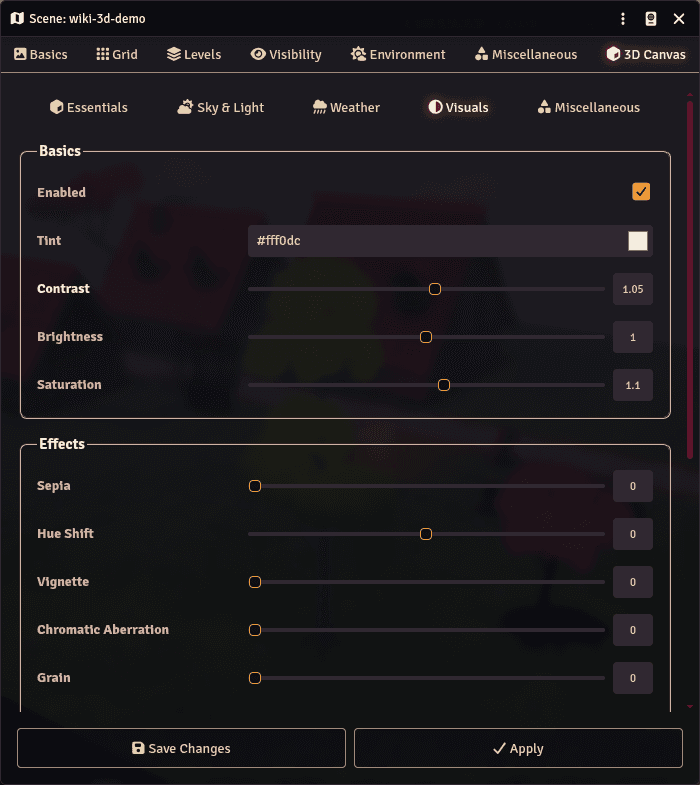
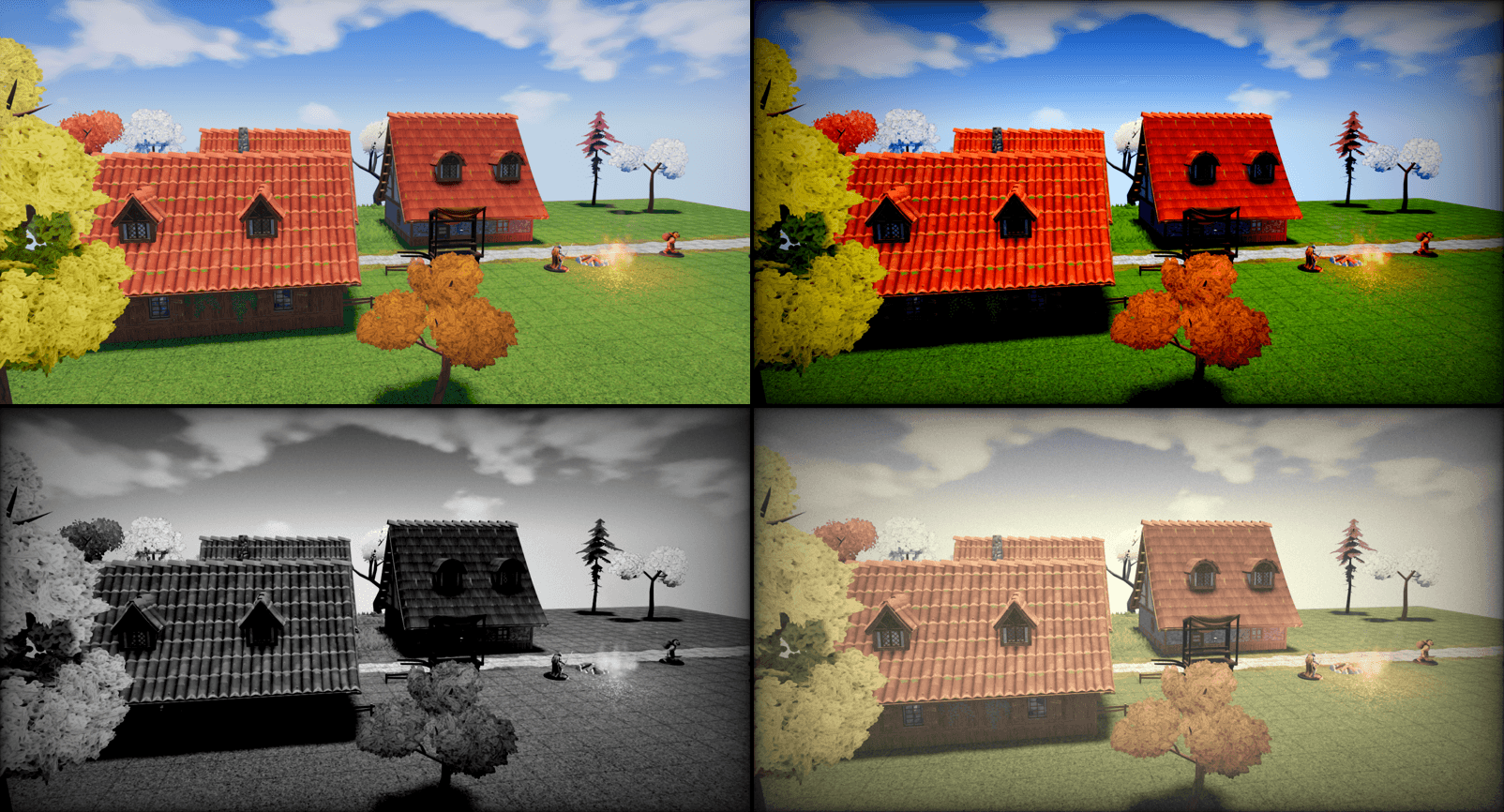
Color grading and the look of the world around the map. The Visual Style in Essentials fills in the first two groups for you.
- Basics:
Enabledturns color grading on;Tint,Contrast,Brightness,Saturation. - Effects:
Sepia,Hue Shift,Vignette(darker corners),Chromatic Aberration(colored edges),Grain(film noise),Pixelize(a retro pixel look). - Bloom: makes bright things glow. When ticked:
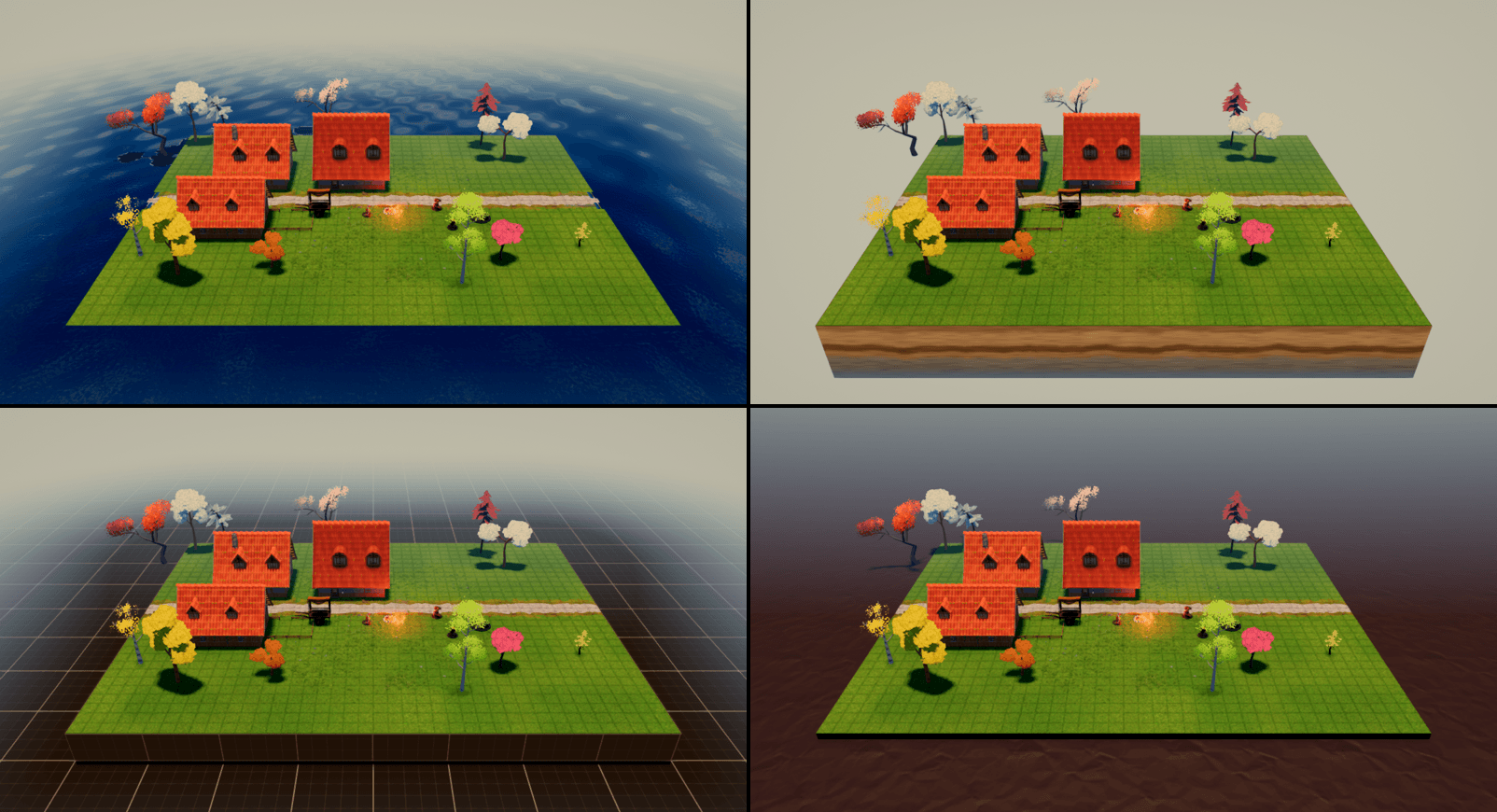
Bloom Threshold(how bright something must be to glow; at the default0the whole scene gets a soft glow),Bloom Strength(up to1),Bloom Radius. Subtle in daylight, it shows most around lights at night. - Map Edge: what lies beyond the edge of the scene.
Edge Style:None (floating),Fade into horizon(the default),Island in a sea,Diorama(a cut block of ground),Blueprint, orLegacy padding(the flat area around the map used by older scenes).Ground TextureandGround Tint: the ground ofFade into horizon.Horizon Backdrop:None,HillsorMountains: a distant ridge drawn along the horizon.- With
Legacy padding:Padding Area(Noneby default,Table (Custom), or anInfinite Matof paper, wood, cloth, blueprint or your own), and for the custom onesPadding Texture,Padding Heightmap,Heightmap Scale,Padding Tint.
Miscellaneous
Basics
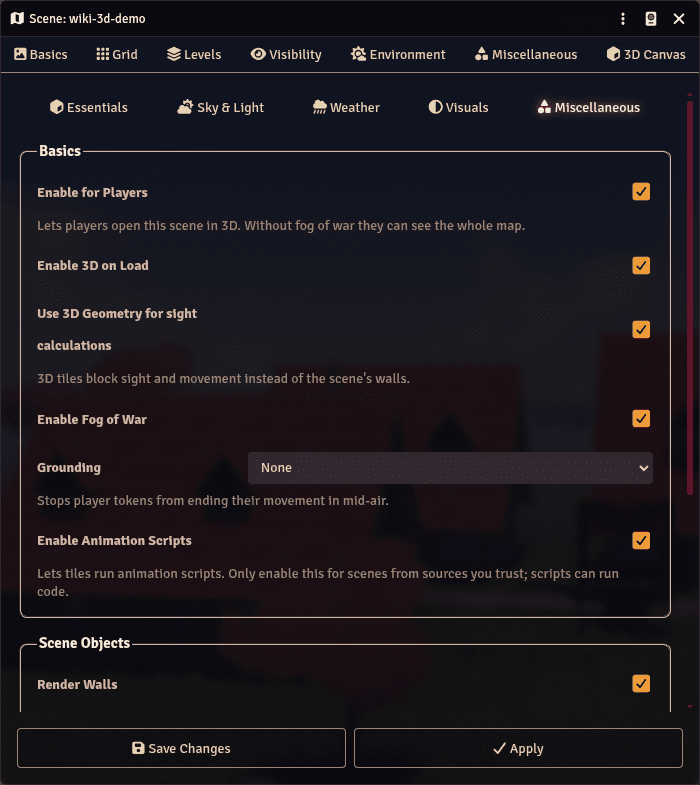
Enable for Players: lets players open this scene in 3D. Without fog of war they can see the whole map.Enable 3D on Load: the scene opens in 3D by itself, for you and for players.Use 3D Geometry for sight calculations: 3D tiles block sight and movement, not only the scene's walls. Needed for maps built from 3D models. See Fog of War & Vision.Enable Fog of War: shows Foundry's fog of war in 3D. See Fog of War & Vision.Grounding: stops player tokens from ending a move in mid-air:None,Only if not Flying, orAlways. See Tokens.Enable Animation Scripts: lets tiles run animation scripts.
Animation scripts can run any code. Keep Enable Animation Scripts off for scenes from sources you don't trust, such as downloaded maps.
Reveal Selected Tokens is no longer a scene option: it is in the world settings (Settings).
Scene Objects: which Foundry objects are drawn in 3D: Render Walls, Render Doors, Render Tiles, Render Scene Lights. Turning these off does not delete anything; walls you don't render still block sight and movement. Enable Tile Occlusion (on) mirrors Foundry's own tile occlusion (the Occlusion options of a tile) in 3D.
Advanced: Max Elevation is the highest elevation tokens can reach in this scene while it is in 3D. A move above it is refused, for the GM too, with "The attempted movement exceeds the maximum elevation of this scene."
Turning a 2D Battlemap into 3D
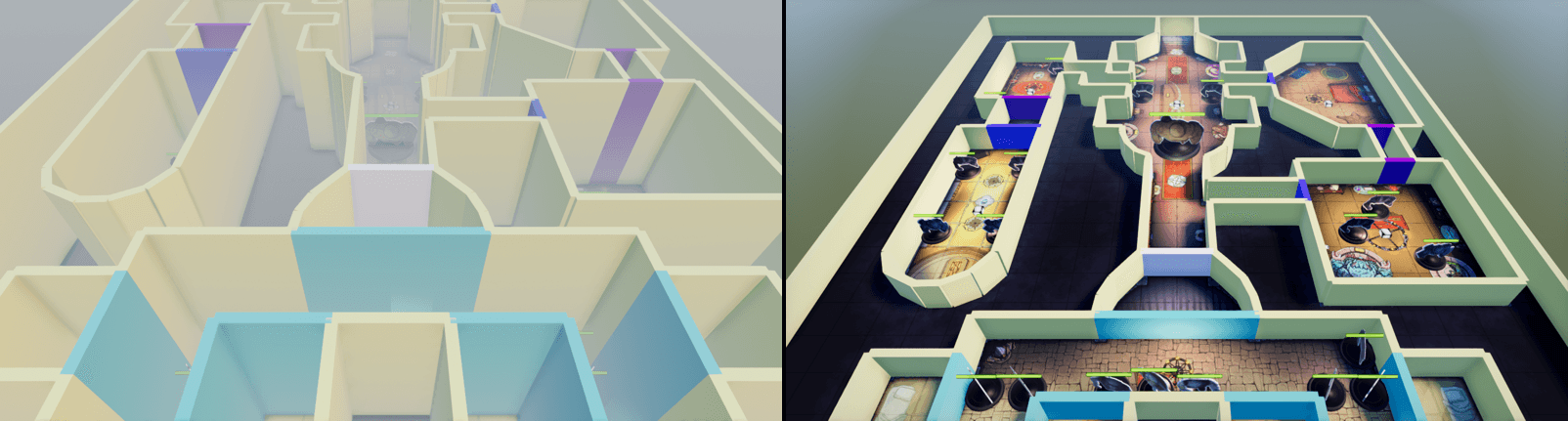
A ready-made 2D map works in 3D as it is: its image becomes the ground and its walls become 3D walls. Out of the box it often looks washed out, with walls far taller than the rooms. This recipe fixes that:
- In the
3D Canvastab, clickEnable Recommended. - In the
Basicstab, setWeather Effectto none if it is set. A Fog effect there is what makes the whole 3D scene grey. - Set how tall the walls are. In 3D, walls are as tall as the scene's level: in the
Levelstab, click the level and change the top of itsElevation Range (ft).10gives walls about two squares high, roughly real height.5gives low walls you can see over, like a tabletop model.- Many maps come with
20or even999, which builds towering walls.
- Overhead tiles (roofs, tree canopies) are drawn as flat layers at their elevation and can hide the map. Hide or delete them, or untick
Render TilesinMiscellaneous. - In
Configure Sky, check thatDynamic Skyis ticked, then pickOutdoor, styleRealistic, presetClear: bright, even light that suits most maps.Interiorlooks good only if the map has enough light sources; without them it is very dark. - In
Visuals, keepEdge StyleonFade into horizonor pickDiorama. Older scenes may still useLegacy padding, a flat mat around the map. - Click
Save Changes. If the scene was not in 3D yet, open it again.
Walls take the colors Foundry uses for them in 2D. To give them a stone or wood texture, see Walls, Notes & Regions.
For a completely flat look, untick Render Walls: the walls still block sight, and doors stay as separate 3D doors.
Advanced
Multi-Level Scenes
Foundry v14 scenes can have several levels (Levels tab). In 3D:
- Each level's walls are as tall as that level's
Elevation Range. - Only the tiles of the level you are viewing are drawn; tokens on the lower levels that this level shows are drawn too.
- Switching level keeps the 3D view, and objects you create in 3D go on the level you are viewing.
Building the floors of a multi-level map out of 3D tiles is covered in Tiles & Map Building.
Older Scenes
Scenes made with older versions of 3D Canvas keep their old particle weather: it is read as Weather / Additional Weather (for example, many Side Quest Society maps show Smoke as Additional Weather).